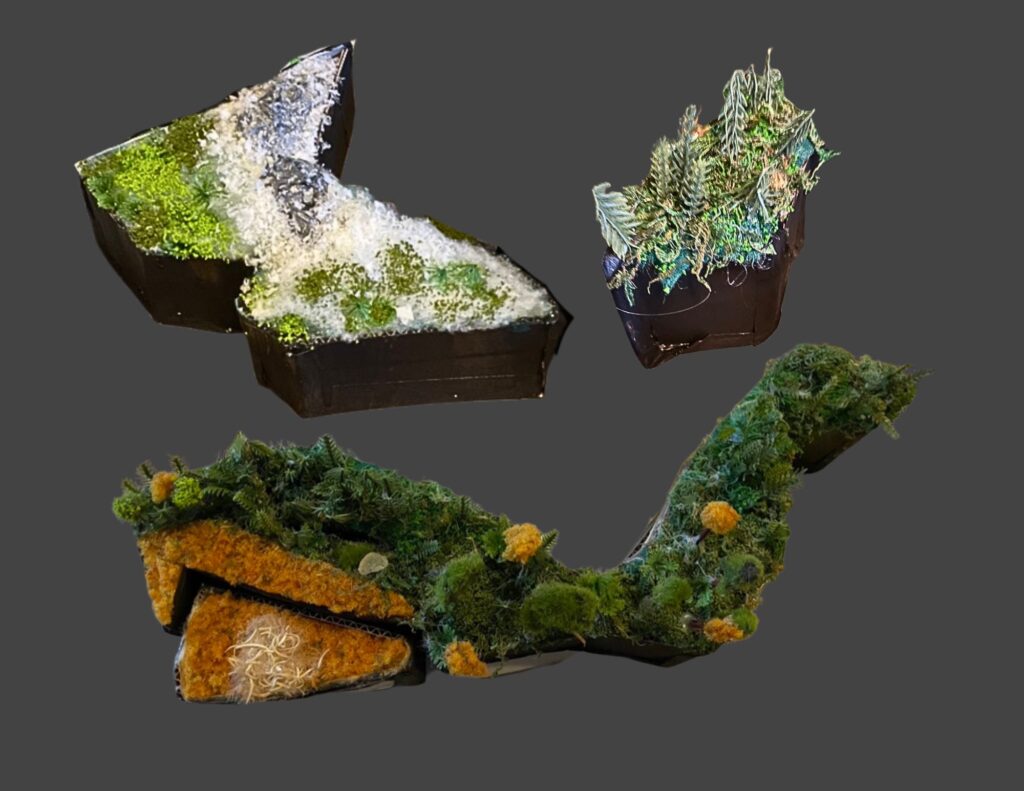
Investigating The Distribution of Crime by Type

Geo-Vis Project Assignment, TMU Geography, SA8905, Fall 2025


Hello everyone, and welcome to my blog!

Today’s topic addresses the distribution of crime in Toronto. I am seeking to provide the public, and implicated stakeholders with a greater knowledge and understanding of how, where, and why different types of crime are distributed in relation to urban features like commercial buildings, public transit, restaurants, parks, open spaces, and more. We will also be looking at some of the socio-economic indicators of crime, and from there identify ways to implement relevant and context specific crime mitigation and reduction strategies.

This project investigates how crime data analysis can better inform urban planning and the distribution of social services in Toronto, Ontario. Research across diverse global contexts highlights that crime is shaped by a mix of socioeconomic, environmental, and spatial factors, and that evidence-based planning can reduce harm while improving community well-being. The following review synthesizes findings from six key studies, alongside observed crime patterns within Toronto.


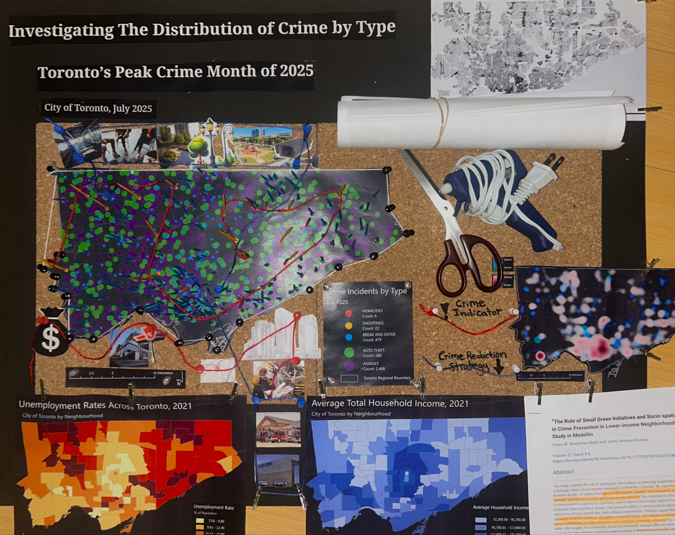
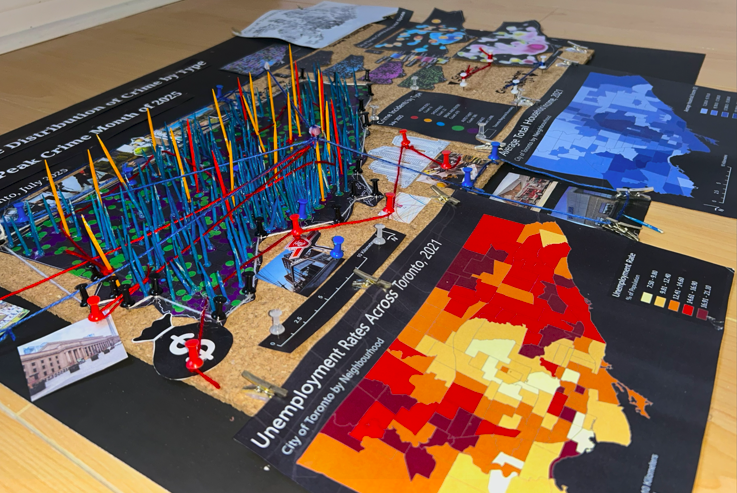
Accompanying a literature review, I created a 3D model that displays a range of information including maps made in ArcGIS Pro. The data used was sourced from the Toronto Police Service Public Safety Data Portal, and Toronto’s Neighbourhood Profiles from the 2021 Census. The objective here is to draw insightful conclusions as to what types of crime are clustering where in Toronto, what socio-economic and/or urban infrastructural indicators are contributing to this? and what solutions could be implemented in order to reduce overall crime rates across all of Toronto’s neighbourhoods – keeping equitability in mind ?

The distribution of crime across Toronto’s neighbourhoods reflects a complex interplay of socioeconomic conditions, built environment characteristics, mobility patterns, and levels of community cohesion. Understanding these geographic and social patterns is essential to informing more effective city planning, targeted service delivery, and preventive interventions. Existing research emphasizes the need for long-term, multi-approach strategies that address both immediate safety concerns and the deeper structural inequities that shape crime outcomes. Mansourihanis et al. (2024) highlight that crime is closely linked to urban deprivation, noting that inequitable access to resources and persistent neighbourhood disadvantages influence where and how crime occurs. Their work stresses the importance of integrating crime prevention with broader social and economic development initiatives to create safer, and more resilient urban environments (Mansourihanis et al., 2024).

Mansourihanis, O., Mohammad Javad, M. T., Sheikhfarshi, S., Mohseni, F., & Seyedebrahimi, E. (2024). Addressing Urban Management Challenges for Sustainable Development: Analyzing the Impact of Neighborhood Deprivation on Crime Distribution in Chicago. Societies, 14(8), 139. https://doi.org/10.3390/soc14080139

Click here to view the literature review I conducted on this topic.


Methods – Creating a 3D Interactive Crime Investigation Board

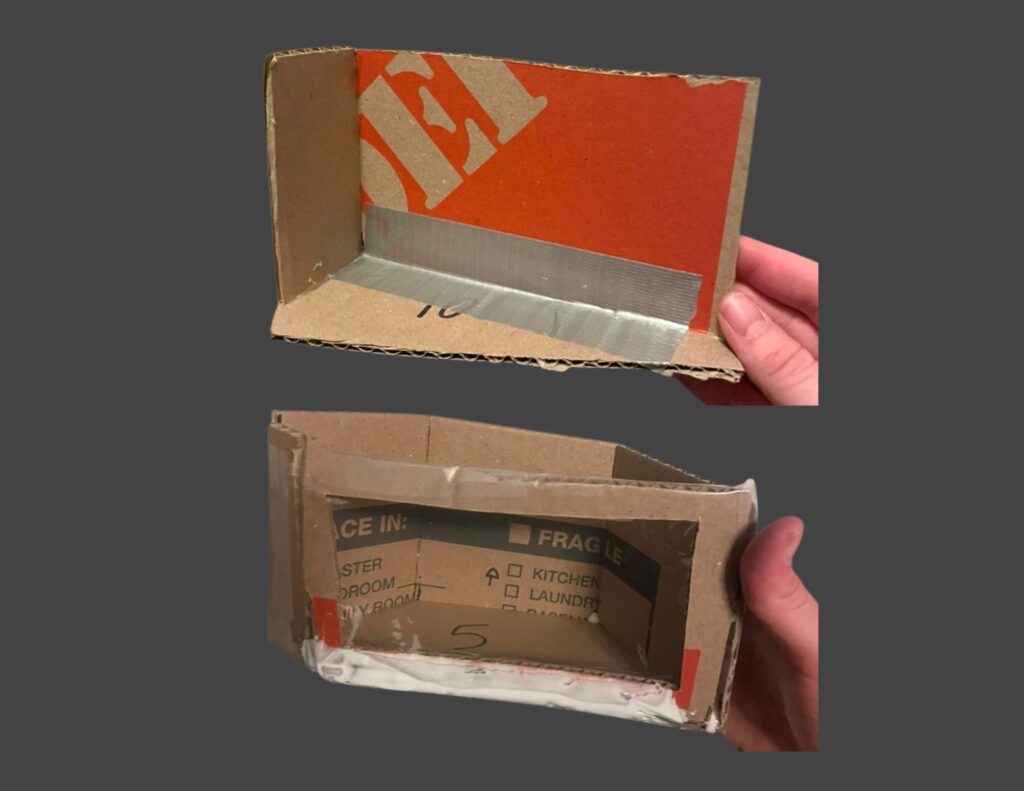
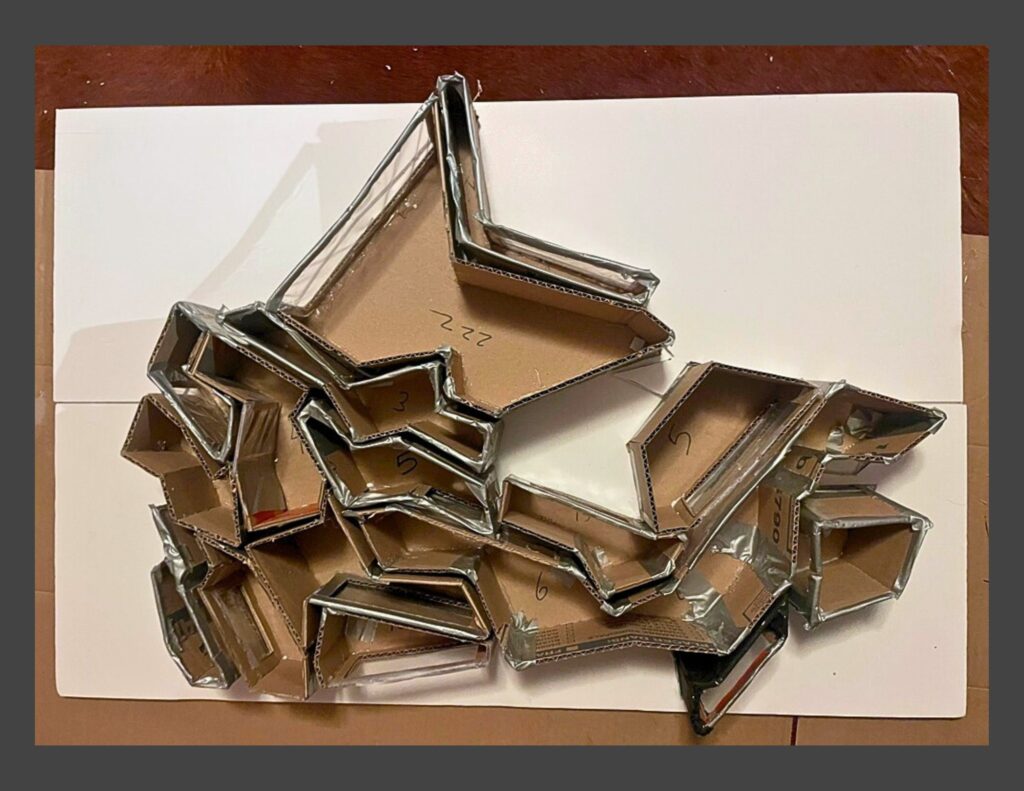
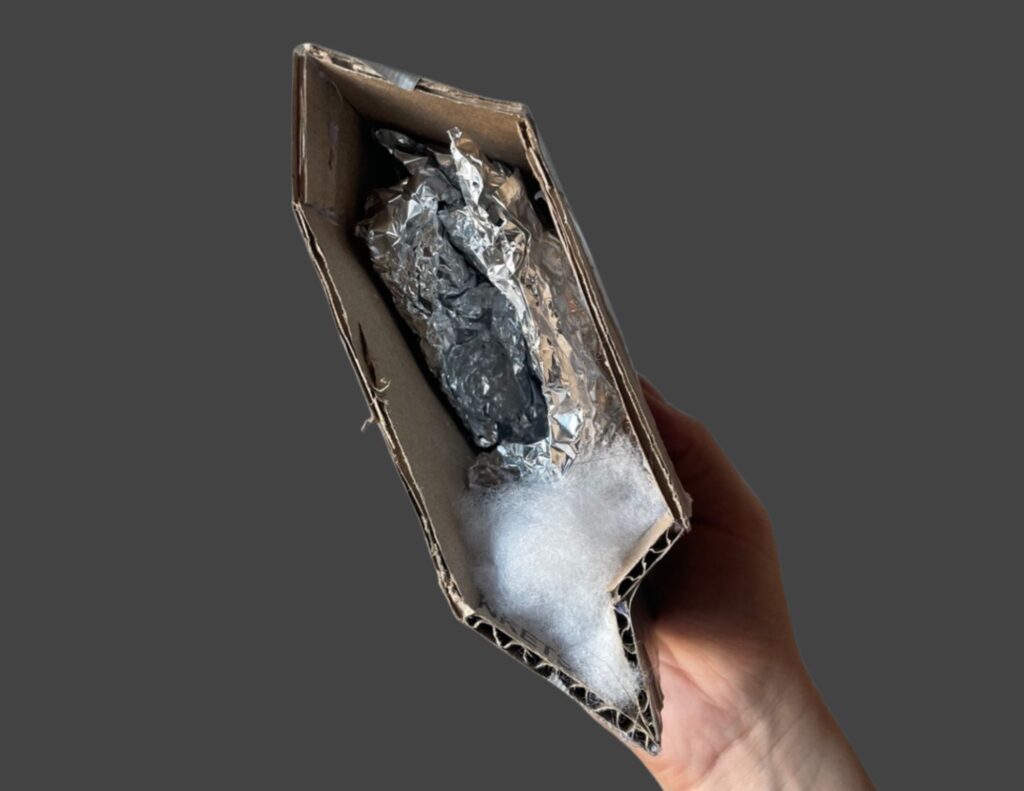
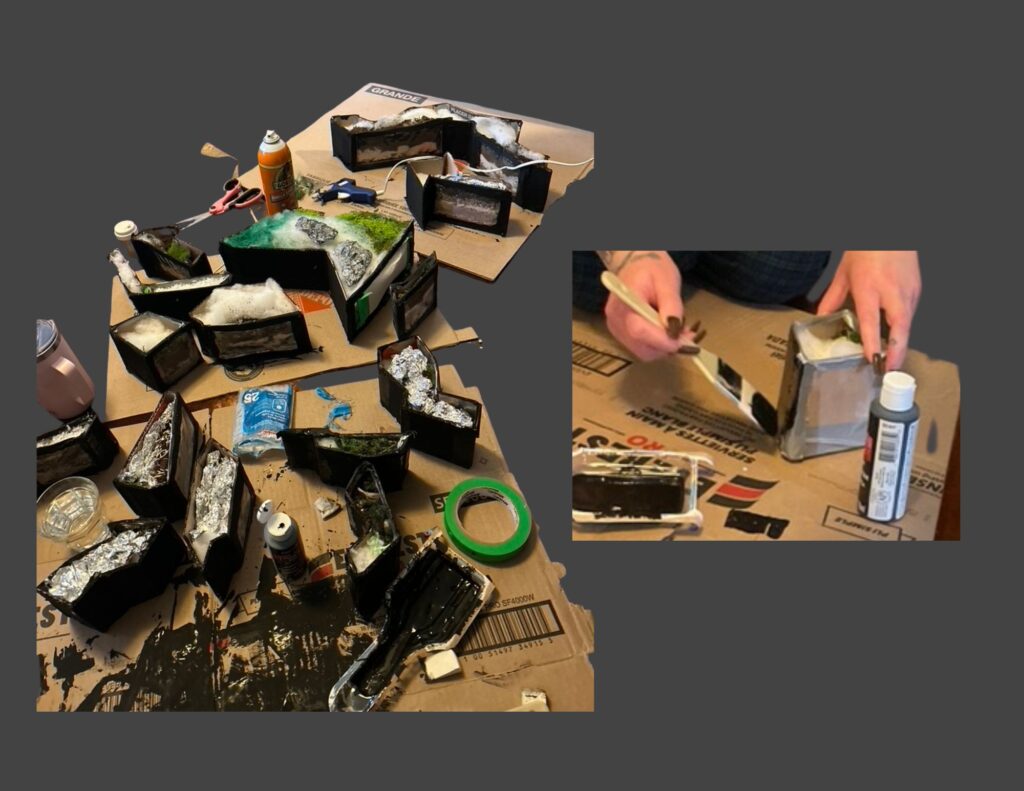
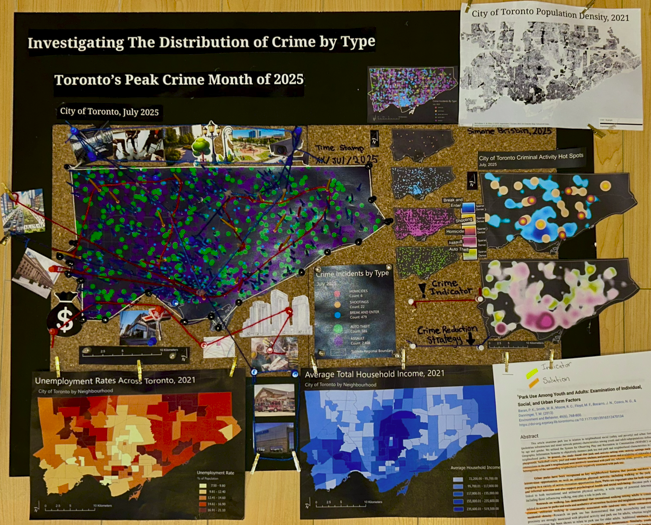
The purpose of this 3D map is to provide an interactive tool that can be regularly updated over time; allowing users to build upon research using various sources of information in varying formats (e.g. literature, images, news reports, raw data, various map types presenting comparable socio-economic data, etc; thread can be used to connect images and other information to associated areas on the map). The model has been designed for easy means of addition, removal and connection of media items by using materials like tacks, clips, and cork board. Crime incidents can be tracked and recorded in real time. This allows for quick identification of where crime is clustering based on geography, socio-economic context, and proximity to different land use types and urban features like transportation networks. We can continue to record and analyze what urban features or amenities could be deterring or attracting/ promoting criminal activity. This will allow for fast, context specific, crime management solutions that will ultimately help reduce overall crime rates in the city.

1. Conduct a detailed literature review. 
Here is the literature review I conducted to address this topic.

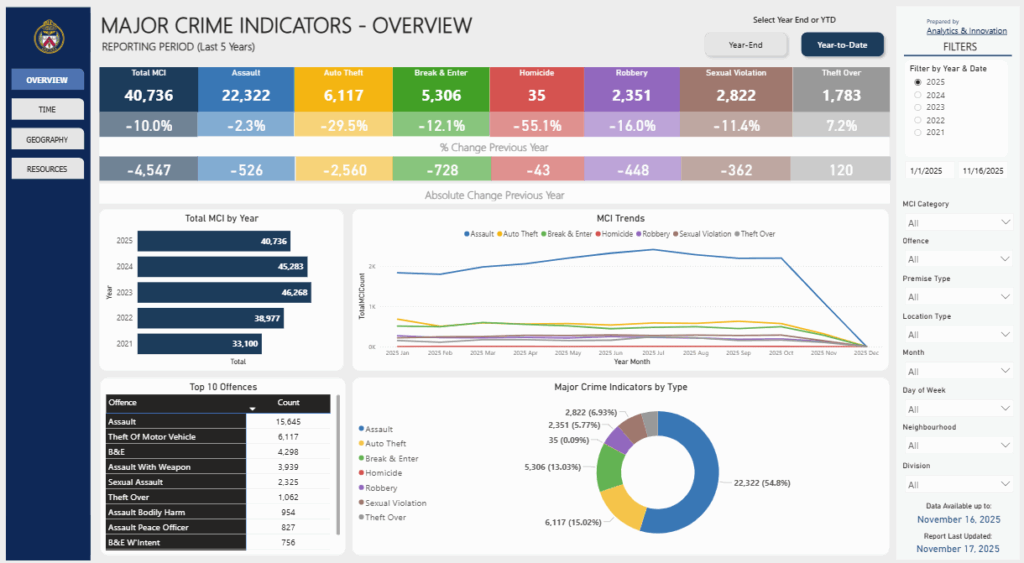
2. Downloaded the following data from: Open Data | Toronto Police Service Public Safety Data Portal. Each dataset was filtered to show points only from 2025.

- Dataset: Shooting and Firearm Discharges
- Dataset: Homicides
- Dataset: Assault
- Dataset: Auto Theft
- Dataset: Break and Enter

Toronto Neighbourhood Profiles, 2021 Census from: Neighbourhood Profiles - City of Toronto Open Data Portal
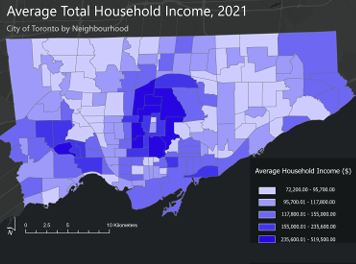
- Average Total Household Income by Neighbourhood
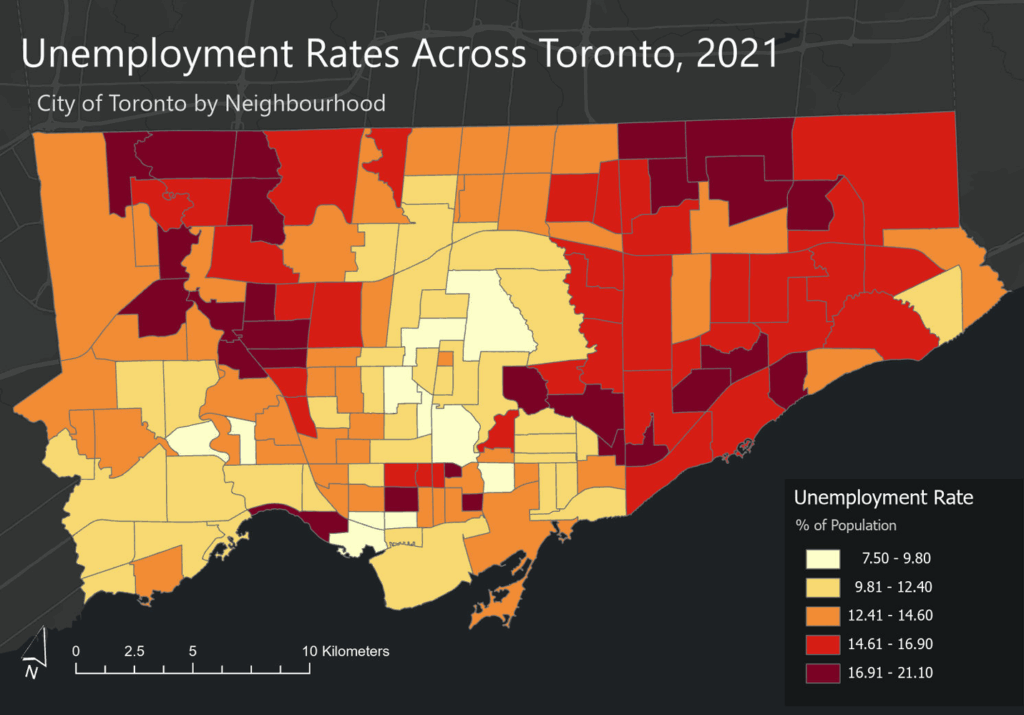
- Unemployment Rates by Neighbourhood

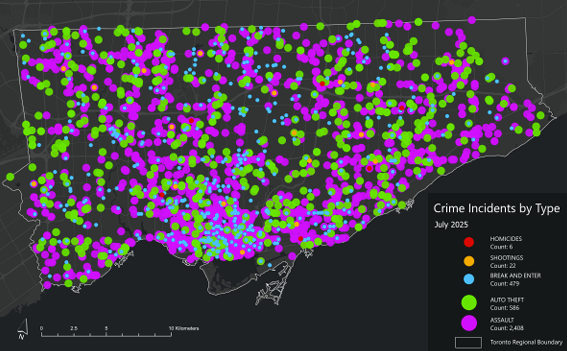
3. After examining the full data sets by year, select a time period to map. In this case, July 2025 which was the month that had the greatest number of crimes to occur this year.

4. Map Setup
- Coordinate system: NAD 1983 UTM Zone 17N
- Rotation: -17
- Geography:
- City of Toronto, ON, Canada
- Neighbourhood boundaries from Toronto Open Data Portal

5. Add the crime incident data reports and Toronto’s Neighbourhood Boundary file.

Geospatial Analysis Tools Used
Tool - Select by attribute and delete the data that we are not mapping. In this case;
From the Attribute Table,
Select by Attribute [OCC_YEAR] [is less than] [2025]

Tool - Summarize within
Count the number of crime incidents within each of the neighbourhood's boundary polygons for the 5 selected crime types for preliminary analysis and mapping.

Design Tools and Map Types Used
- Dot Density
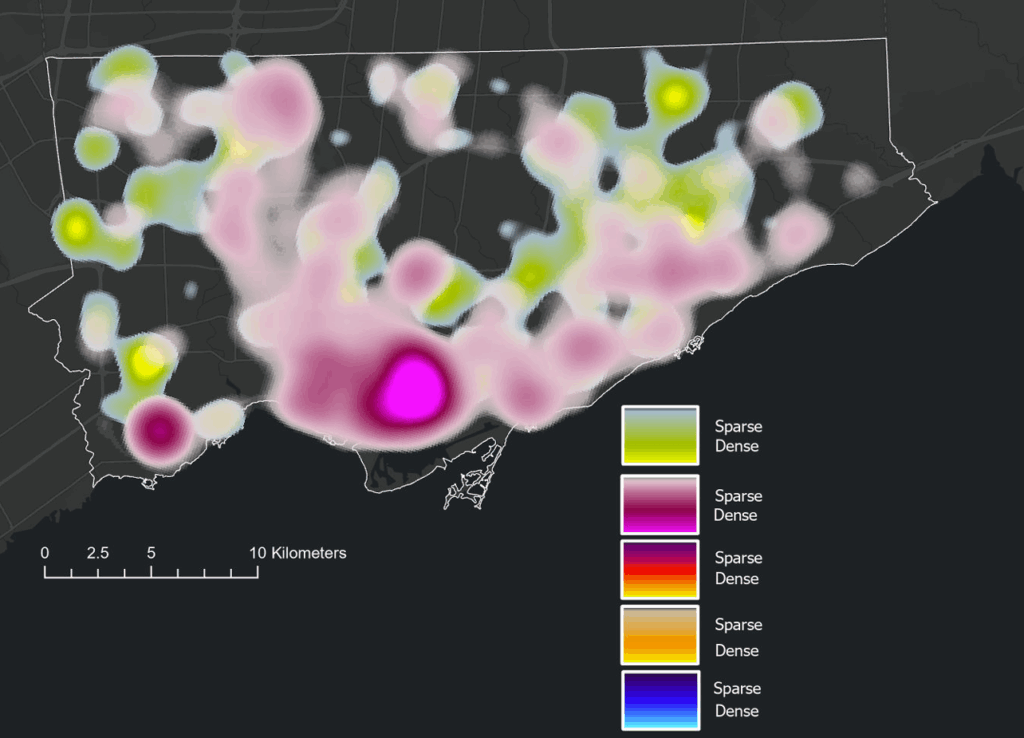
- 2025 Crime rates, by type, annual and for July of 2025
- Heat Map
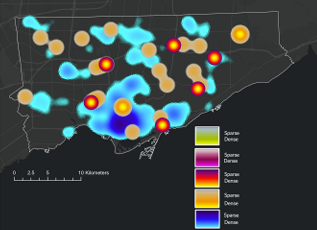
- 2025 Crime rates, by type, annual and for July of 2025
- Choropleth
- Average Total Household Income, City of Toronto by Neighbourhood
- Unemployment Rates Across Toronto, 2021
- Design Tools e.g. convert to graphics
Based on literature review and analysis of the presented maps,  this model allows for us to further analyze, visually display and record the data and findings. This model will allow for users to see where points are clustering, and examine urban features, land use and the socio-economic context of cluster areas in order to address potential solutions, with equity in mind.

Supplies
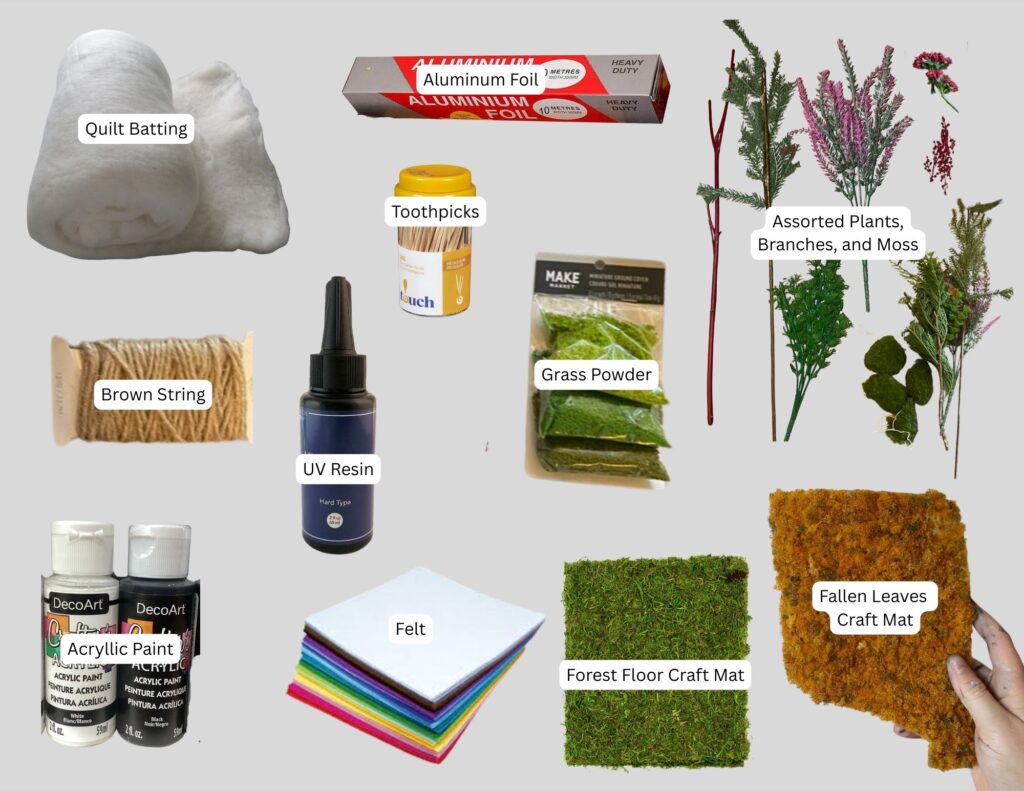
- Thread,
- Painted tooth picks,
- Mini clothes pins,
- Highlighters, markers etc.
- Scissors,
- Hot glue
- Images of indicators
- Relevant/insightful literature research
- Socio-Economic Maps: Population Income, unemployment, and density
- Crime Maps: Dot density crime by type, heat map of crime distribution by type, from the select 5 crime types, all incidents to occur during the month of July, 2025

Process
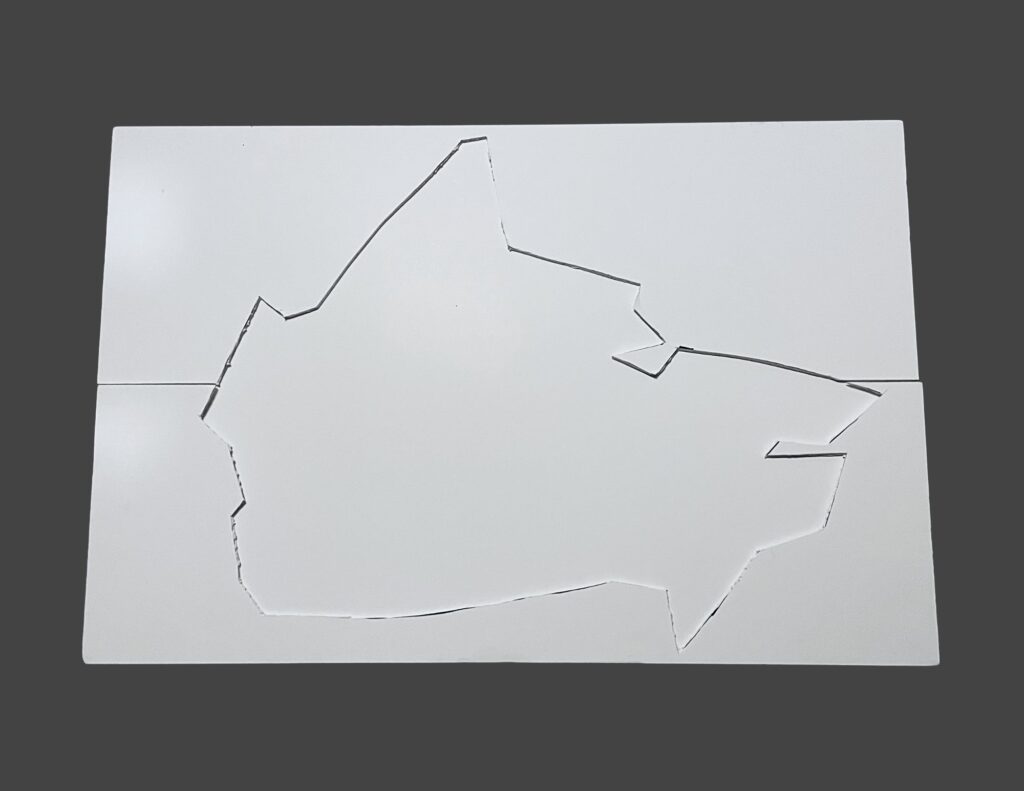
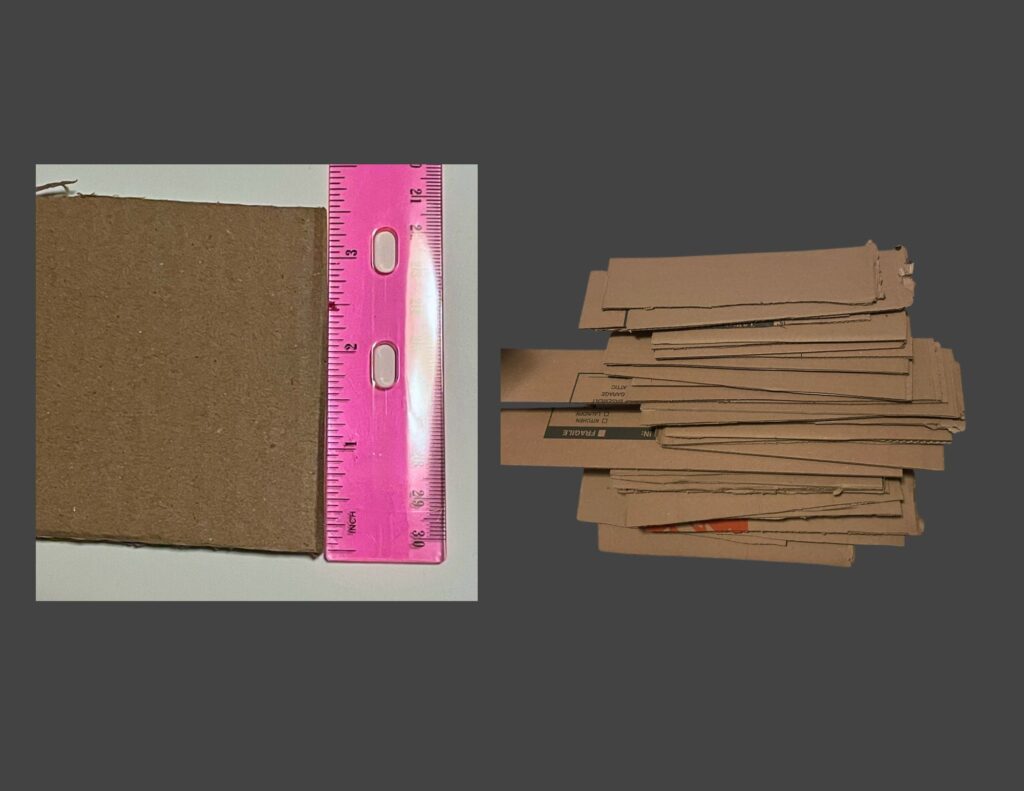
1. Attach cork board to poster board;

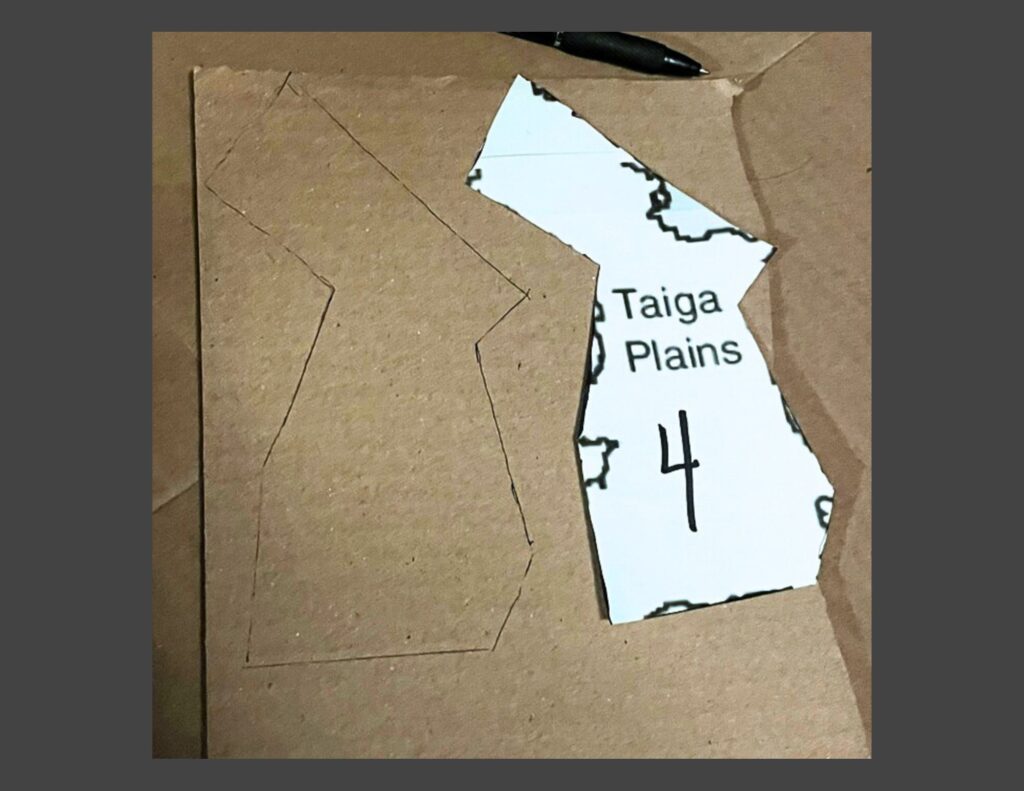
2. Cut out and place down main maps that have been printed (maps created in ArcGIS Pro, some additional design edits made in Canva);

3. Outline the large or central base map with tacks; use string to connect the tacks outlining the City of Toronto's regional boundary line.

4. Using colour painted tooth picks (alternatively, tacks may be used depending on size limitations), crime incidents can be recorded in real time, using different colours to represent different crime types.

5. Additional data can be added on and joined to other map elements over time. This data could be: images and locations of crime indicators; new literature findings; news reports’ raw data; different map types presenting comparable socio-economic data; community input via email, from consultation meetings, 911 calls, or surveys; graphs; tables; land use type and features and more.

6. Thread is used to connect images and other information to associated areas on the map. In this case, blue string and tacks were used to highlight preventative crime measures and red to represent an indicator of crime.

7. Sticky notes can be used to update the day and month (using a new poster/cork board for each year), under “Time Stamp”

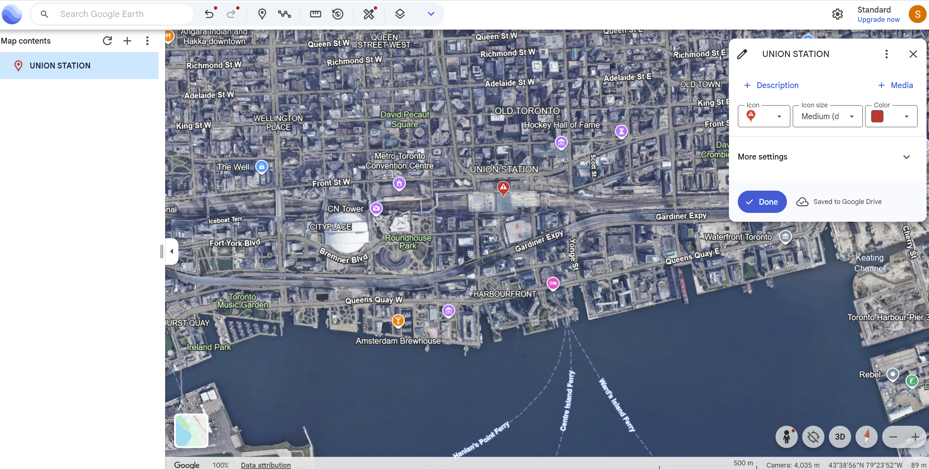
8. Use of Google Earth was applied to further analyze using satellite imagery, a terrestrial layer, and an urban features layer in order to further analyze land use, type, function, and significant features like Union Station - a major public transit connection point, and located within Toronto’s most dense and overall largest crime hot spot.

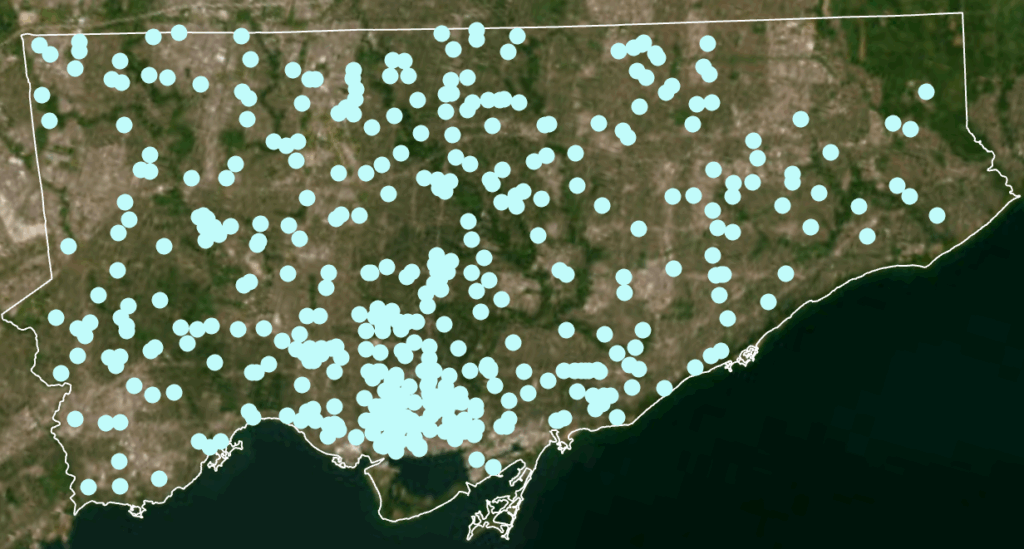
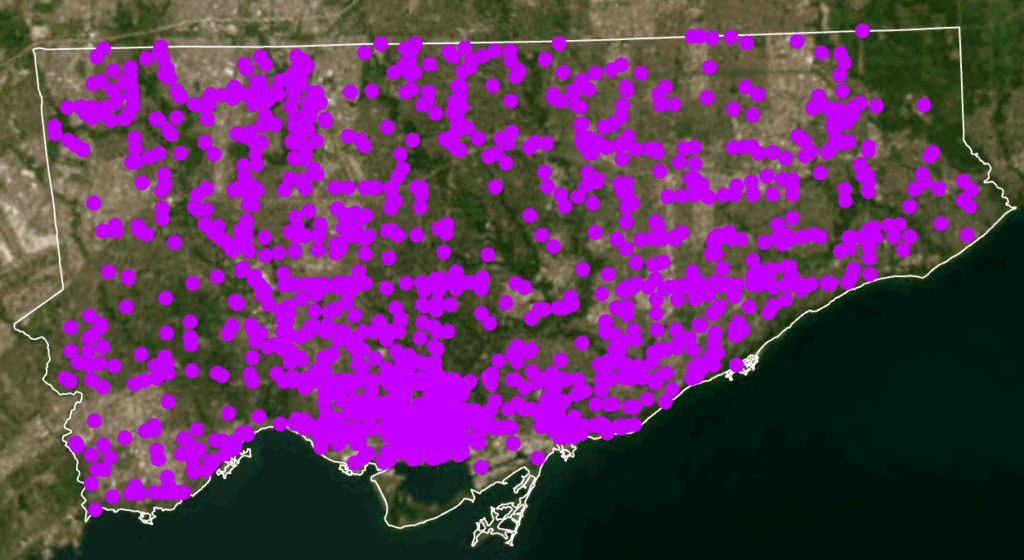
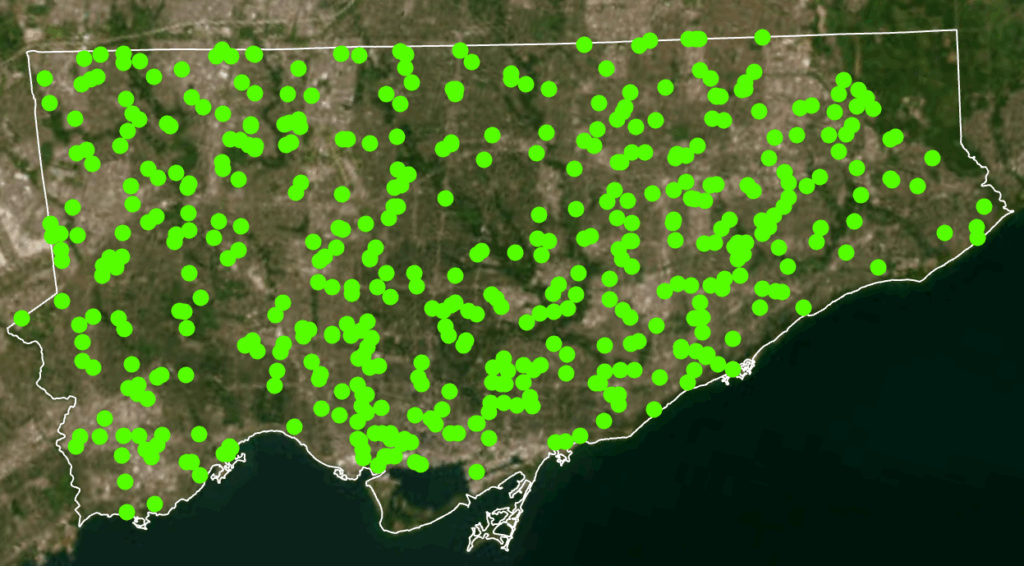
9. A satellite imagery base map in ArcGIS was used to compare large green spaces (parks, ravines, golf courses etc.) with the distribution of each incidence point on the dot map created. Select each point field individually for optimal view and map analysis.

10. Video and Photo content used to display the final results were created using an IPhone Camera and the "iMovie" video editing app.

See photos and videos for reference!

Socioeconomic and Environmental Indicators of Crime

A consistent theme across the literature and my own findings is the strong connection between neighborhood deprivation and crime. Mansourihanis et al. (2024) emphasize that understanding the “relationship between urban deprivation and crime patterns” supports targeted, long-term strategies for urban safety. Concentrated poverty, population density, and low social cohesion are significant predictors of violence (Mejia & Romero, 2025; M. C. Kondo et al., 2018). Similarly, poverty and weak rule of law correlate more strongly with homicide rates than gun laws alone (Menezes & Kavita, 2025).

Environmental characteristics also influence crime distribution. Multiple studies link greater green space to reduced crime, higher social cohesion, and stronger perceptions of safety (Mejia & Romero, 2025). Exposure to green infrastructure can foster community pride and engagement, further reinforcing crime-preventive effects (Mejia & Romero, 2025). Relatedly, Stalker et al. (2020) show that community violence contributes to poor mental and physical health, with feelings of unsafety directly associated with decreased physical activity and weaker social connectedness.

Other urban form indicators—including land-use mix, connectivity, and residential density—shape mobility patterns that, in turn, affect where crime occurs. Liu, Zhao, and Wang (2025) find that property crimes concentrate in dense commercial districts and transit hubs, while violent crimes occur more often in crowded tourist areas. These patterns reflect the role of population mobility, economic activity, and social network complexity in structuring urban crime.

Crime Prevention and Community-Based Solutions

Several authors highlight the value of integrating built-environment design, green spaces, and community-driven interventions. Baran et al. (2014) show that larger parks, active recreation features, sidewalks, and intersection density all promote park use, while crime, poverty, and disorder decrease utilization. Parks and walkable environments also support psychological health and encourage social interactions that strengthen community safety. In addition, green micro-initiatives—such as community gardens or small landscaped interventions—have been found to enhance residents’ emotional connection to their neighborhoods while reducing local crime (Mejia & Romero, 2025).

At the policy level, optimizing the distribution of public facilities and tailoring safety interventions to local conditions are essential for sustainable crime prevention (Liu, Zhao, & Wang, 2025). For gun violence specifically, trauma-informed mental health care, early childhood interventions, and focused deterrence are recommended as multidimensional responses (Menezes & Kavita, 2025).

Spatial Crime Patterns in Toronto

When mapped across Toronto’s geography, the crime data revealed distinct clustering patterns that mirror many of the relationships described in the literature. Assault, shootings, and homicides form a broad U- or O-shaped distribution that aligns with neighborhoods exhibiting lower average incomes and higher unemployment rates. These patterns echo global findings on deprivation and violence.

Downtown Toronto—particularly the area surrounding Union Station—emerges as the city’s highest-density crime hotspot. This zone features extremely high connectivity, car-centric infrastructure, dense commercial and mixed land use, and limited green space. These conditions resemble those identified by Liu, Zhao, and Wang (2025), where transit hubs and high-traffic commercial districts generate elevated rates of property and violent crime. Google Earth imagery further highlights the concentration of major built-form features that attract large daily populations and mobility flows, reinforcing the clustering of assaults and break-and-enter incidents in the downtown core.

Auto theft is relatively evenly distributed across the city and shows weaker clustering around transit or commercial nodes. However, areas with lower incomes and higher unemployment still show modestly higher auto-theft levels. Break and enter incidents, by contrast, concentrate more strongly in high-income neighborhoods with lower unemployment—suggesting that offenders selectively target areas with greater material assets.

Across all crime categories, one consistent pattern is the notable absence of incidents within large green spaces such as High Park and Rouge National Urban Park. This supports the broader literature connecting green space with lower crime and improved perceptions of safety (Mejia & Romero, 2025; Baran et al., 2014). Furthermore, as described, different kinds of crime occur in low versus high income neighbourhoods emphasizing a need for context specific resolutions that take into consideration crime type and socio-economics.

Synthesis and Relevance for Toronto

Collectively, these findings indicate that crime in Toronto is shaped by intersecting socioeconomic factors, environmental features, and mobility patterns. Downtown crime clustering reflects high density, transit connectivity, and land-use complexity; outer-neighborhood violence aligns with deprivation; and green spaces consistently correspond with lower crime. These patterns mirror global research emphasizing the role of social cohesion, urban form, and economic inequality in shaping crime distribution.

Understanding these relationships is essential for planning decisions around green infrastructure investments, targeted social services, transit-area safety strategies, and neighborhood-specific interventions. Ultimately, integrating environmental design, socioeconomic supports, and community-based programs that support safer, healthier, and more equitable outcomes for Toronto residents.

Full-Stack Geovisualization of Ontario’s Sanitation Infrastructure

Geovis Project Assignment, TMU Geography, SA8905, MSA Fall 2025

By Roseline Moseti

Critical decision-making requires access to real-time spatial data, but traditional GIS workflows often lag behind source updates, leading to delayed and sometimes inaccurate visualizations. This project explores an alternative, a Full-Stack Geovisualization Architecture that integrates the database, server and client forming a robust pipeline for low-latency spatial data handling. Unlike conventional systems, this architecture ensures every update in the SQL database is immediately visible through web services on the user’s display, preserving data integrity for time-sensitive decisions. By bridging the gap between static datasets and interactive mapping, the unified platform makes it easier and more intuitive for users to understand complex spatial relationships. Immediate synchronization and a user-friendly interface guarantee that decision-makers rely on the most accurate up to date spatial information when it matters the most.

The Full-Stack Pipeline

The term Full-Stack is key because it means that one has control over integration of every layer of the application ensuring seamless synchronization between the raw data and its interactive visualization.

Part 1: Establish the Database Connection

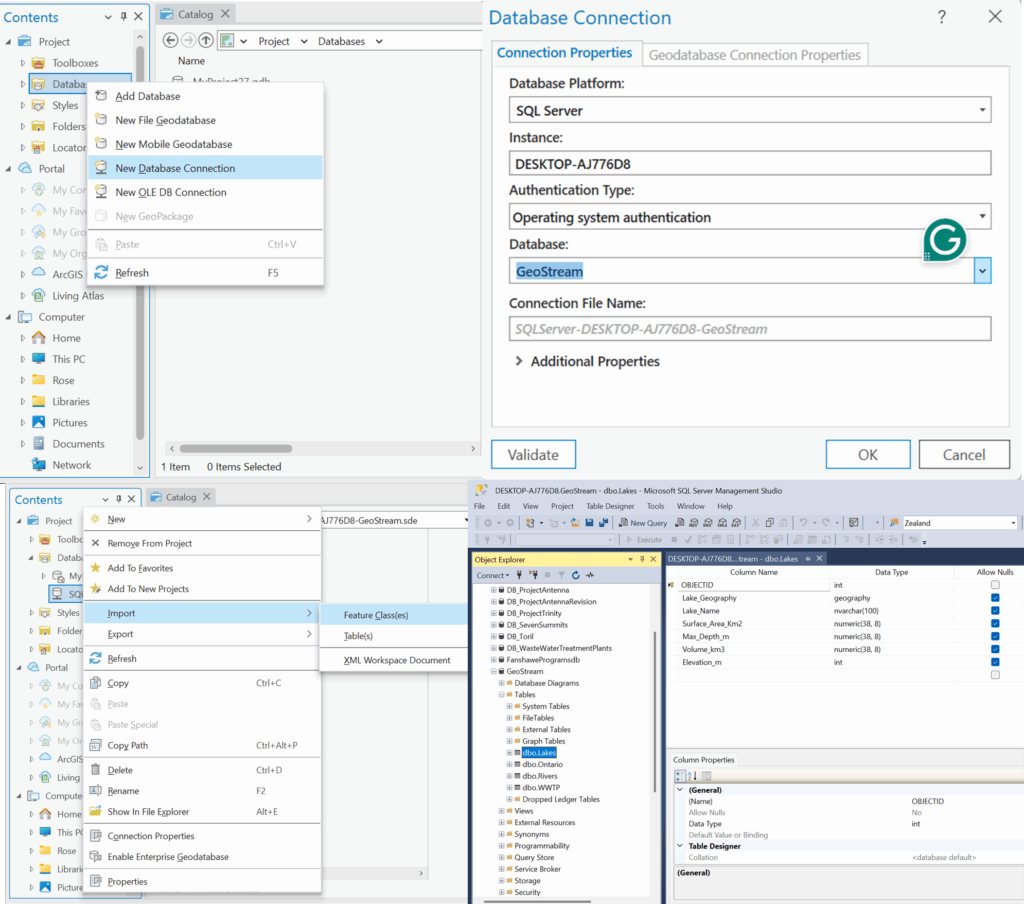
The foundation for this project is reliable data storage. For this project we use Microsoft SQL Server to host our key datasets; Wastewater plants, Lakes, Rivers as well as the Boundary on Ontario. In this initial step the database connection is established between the local desktop GIS environment (ArcGIS) and the Database through the ArcGIS Database Connection file (.sde).

The foundation for this project is reliable data storage. For this project we use Microsoft SQL Server to host our key datasets; Wastewater plants, Lakes, Rivers as well as the Boundary of Ontario. In this initial step the database connection is established between the local desktop GIS environment (ArcGIS) and the Database through the ArcGIS Database Connection file (.sde).

Once the connection is verified, ArcGIS tools are used to import the shapefile data directly into the SQL Server structure. This transforms the SQL database into an Enterprise Geodatabase, which is a spatial data model capable of storing and managing complex geometry.

The result is a highly structured repository where all attribute data and spatial features are stored, managed and indexed by the SQL engine.

Part 2: The Backend: Data Access & APIs

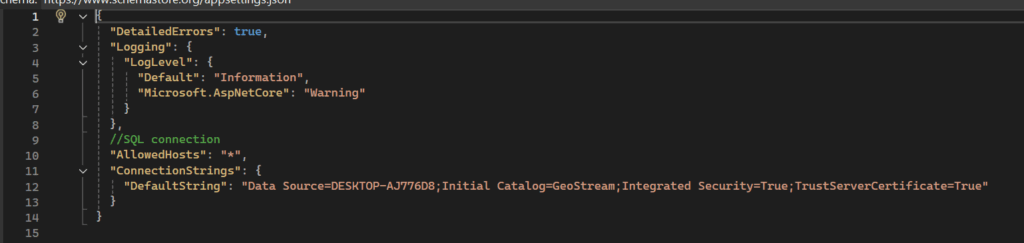
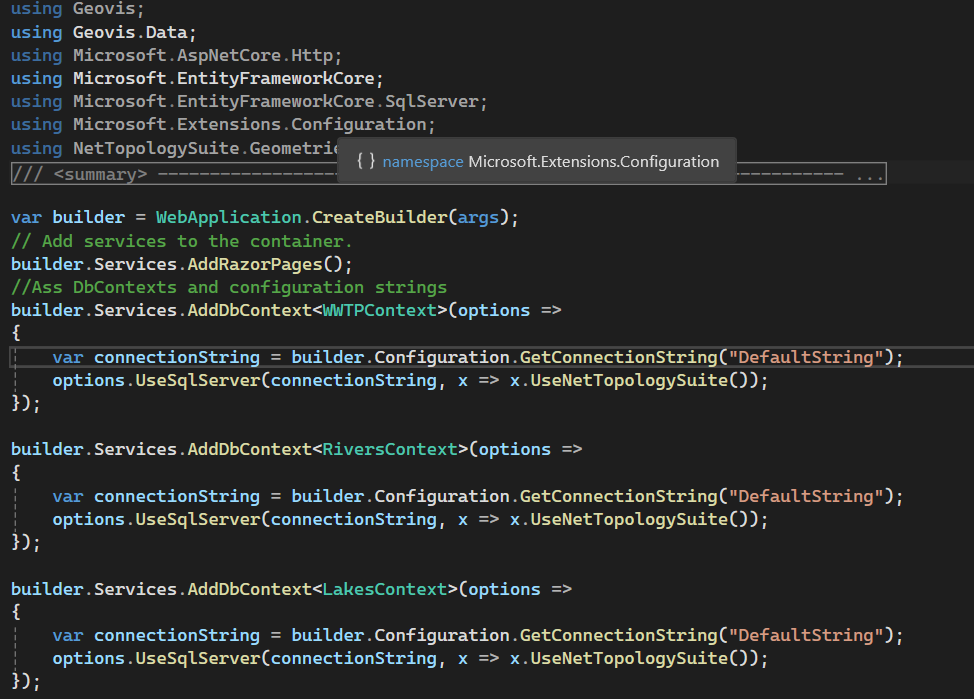
With the spatial data centralized in the SQL Database, the next part is creating the connection to serve this data to the web. The Backend is the intermediary between the database and the end-user display. The crucial first step is establishing the programmatic connection to the database using a secure Connection String. The key aspects here is the server name of the database and the name of the database itself as without the correct details here the data won’t be retrieved from the database.

To translate the raw database connection into usable web services, ASP.NET Core and Entity Framework are used for data management. Setting this up, the API endpoints that the front-end application will call are set. This structure ensures that the web application interacts only with the secure, controlled services provided by the backend, maintaining both security and data integrity.

When a user loads the site, the entire system is triggered, and the user’s web browser sends a request to the server and the server using C# accesses the database, pulls the relevant spatial data and transforms it. The server packages the processed data into a web-ready format and sends it back to the browser. The browser instantly reads that package and draws the interactive map on your screen.

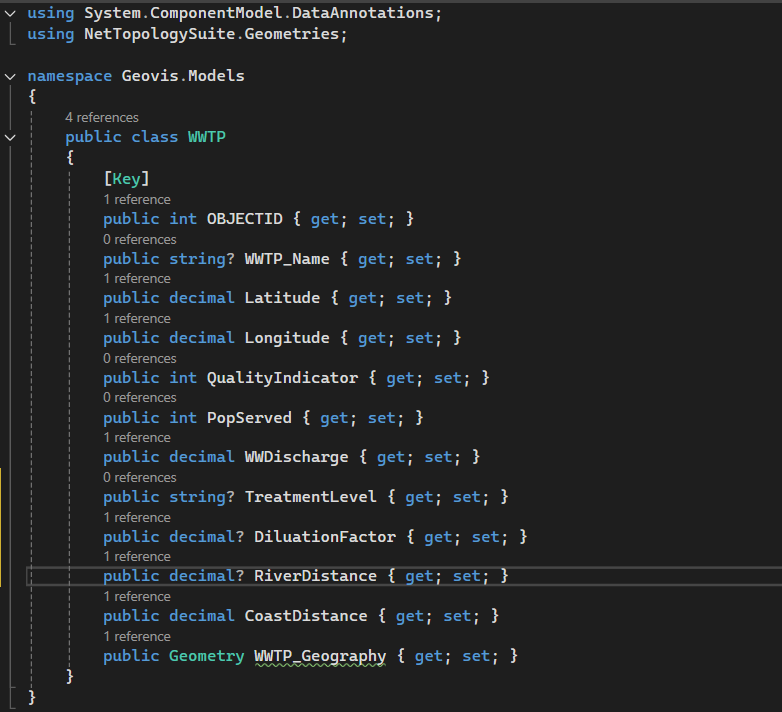
Part 3: Data Modelling: Mapping the Shapefiles to the Code

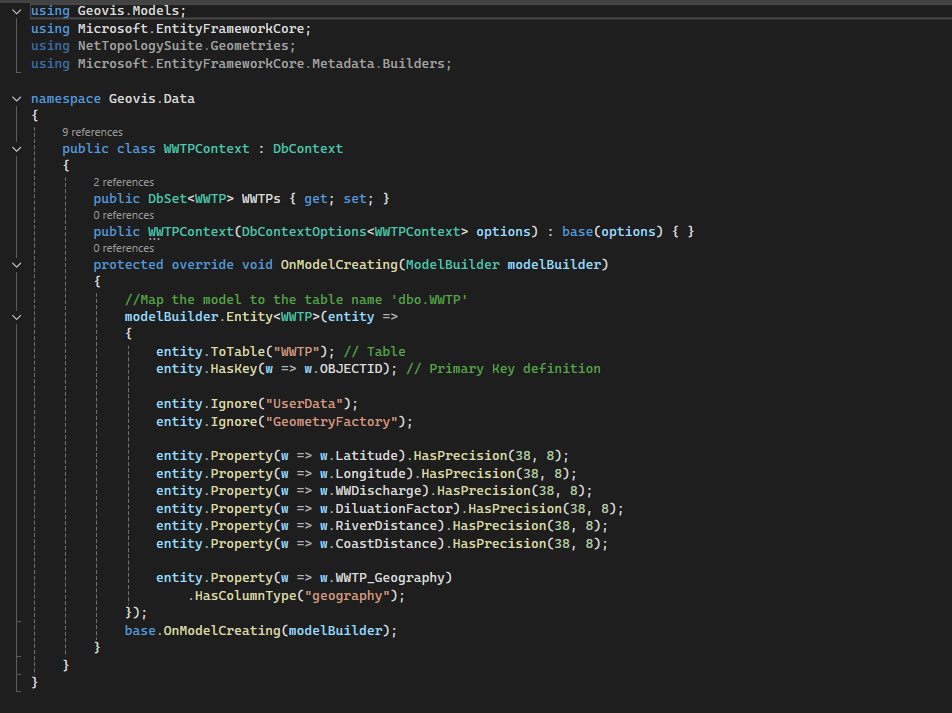
Before spatial data can be accessed by the backend services, the application must understand how the data is structured and how it corresponds to the tables created in the SQL Database. This is handled by the data model for each of the shapefiles, reflecting the individual columns in each of the shapefiles.

The data context is where the C# model is explicitly mapped to the database structure using Entity Framework Core, ensuring data synchronization and proper interpretation.

This robust modelling process ensures that the data pulled from the SQL Database is always treated as the original spatial data, ready to be processed by the backend and visualized on the frontend.

Part 4: Data Translation Engine (C# and GeoJSON)

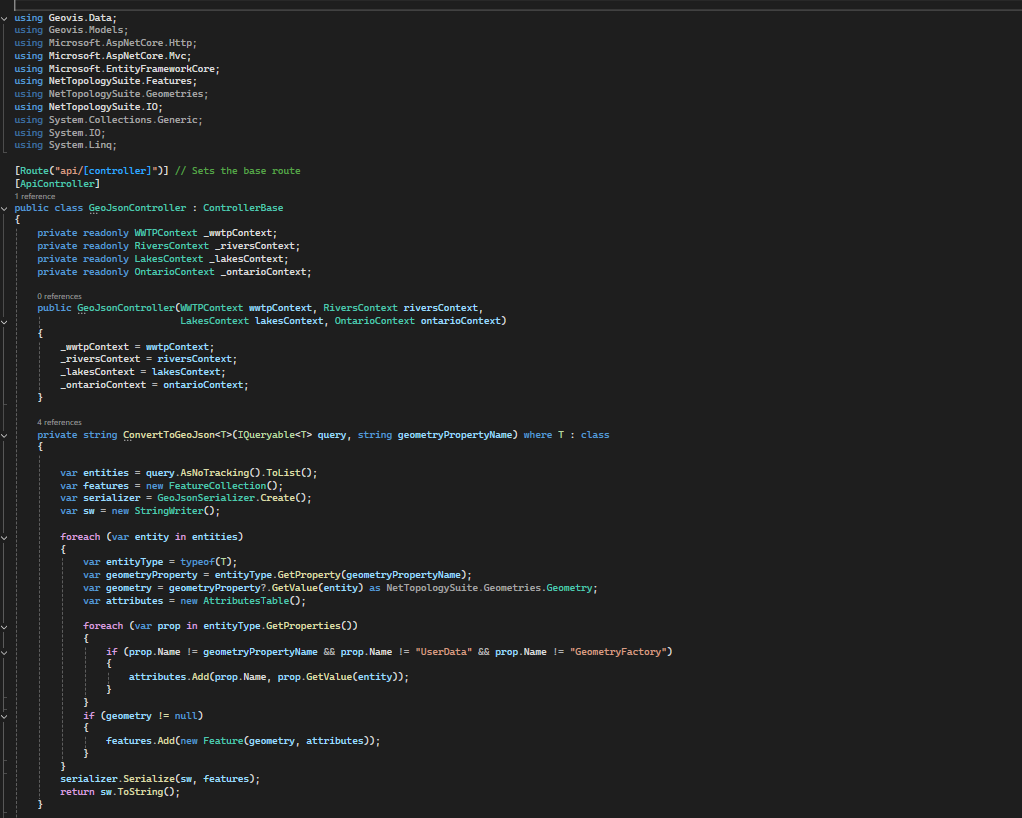
The SQL Database stores location data using accurate, specific data types that are native to the server environment (e.g., geometry or geography). A web browser doesn’t understand these data types and it needs data delivered in a simpler, lighter, and universally readable format. This is where the translation engines come into work and it’s powered by C# back-end logic.

C# acts as the translator and it pulls the coordinate data from the SQL database. The data is then converted into GeoJSON which is a simple standardized, text-based format that all modern web mapping libraries understand. By converting everything to GeoJSON, the C# back-end creates a single, clean package that ensures data consistency and allows the map to load quickly and without errors, regardless of the user’s device or operating system.

Part 5: The Front-end: Interactive Visualization

The most visible piece of the puzzle is the Interactive Presentation. This is the key deliverable which entails embedding a powerful Geographic Information System (GIS) entirely within the user’s browser. The traditional desktop GIS software is bypassed, and users don’t need to install anything, purchase licenses or even use any complex interface but just open a web page.

The real power lies in the integration between the frontend and the backend services established. When a user loads the site, the entire system is triggered and the user’s web browser sends a request to the server and the server using C# API accesses the database, pulls the relevant spatial data and transforms it. The server packages the processed data into a web-ready format and sends it back to the browser. The browser instantly reads that package and draws the interactive map on the screen.

Once the GeoJSON data arrives, a JavaScript mapping library is used to render the interactive map. The presentation is a live tool designed for exploring data. Users can click on any WWTP icon or river line to instantly pull up its database attribute. The map is displayed alongside all supporting elements that provide further details on the browser without a user needing to leave the browser window.

Looking Ahead!

The Full-Stack architecture is not just for current visualization but it’s about establishing a powerful scalable platform for the future. As the server side is already robust and designed to process large geospatial datasets, it is perfectly created for integration of more advanced features. This structure allows for seamless addition of modules for complex analysis like using Python for predictive simulations or proximity modeling. The main benefit is that when these complex server-side analyses are complete, the results can be immediately packaged into GeoJSON and visualized on the existing map interface, turning static data into dynamic, predictive insights.

This Geovis project is designed to be the foundational geospatial data hub for Ontario’s water management, built for both current display needs and future analytical challenges.

See you on the second edition!

The Intersection of Geography and Athletic Effort

SA8905 – Master of Spatial Analysis, Toronto Metropolitan University

A Geovizualization Project by Yulia Olexiuk.

Introduction

A common known fact is that all marathons are the same length, but are they created equal? Long distance running performance depends on more than just fitness and training. The physical environment plays a significant role in how runners exert effort. Whether it be terrain, slope, humidity, or temperature, marathons around the world present distinct geographic challenges. In this case, three races in three continents are compared. Boston’s rolling topography often masks the difficulty of its course such as its infamous Heartbreak Hill, and Singapore’s hot and humid climate has athletes start running before dawn to beat the sun.

Data

  • GPS data for the Boston, Berlin, and Singapore Marathons were sourced from publicly available Strava activities, limited to routes that runners had marked as public. The marathon data was ensured that it consisted of  dense point resolution, clean timestamps, and minimal GPS noise and then downloaded as .GPX files. 

Figure 1. Getting .GPX data from Strava.

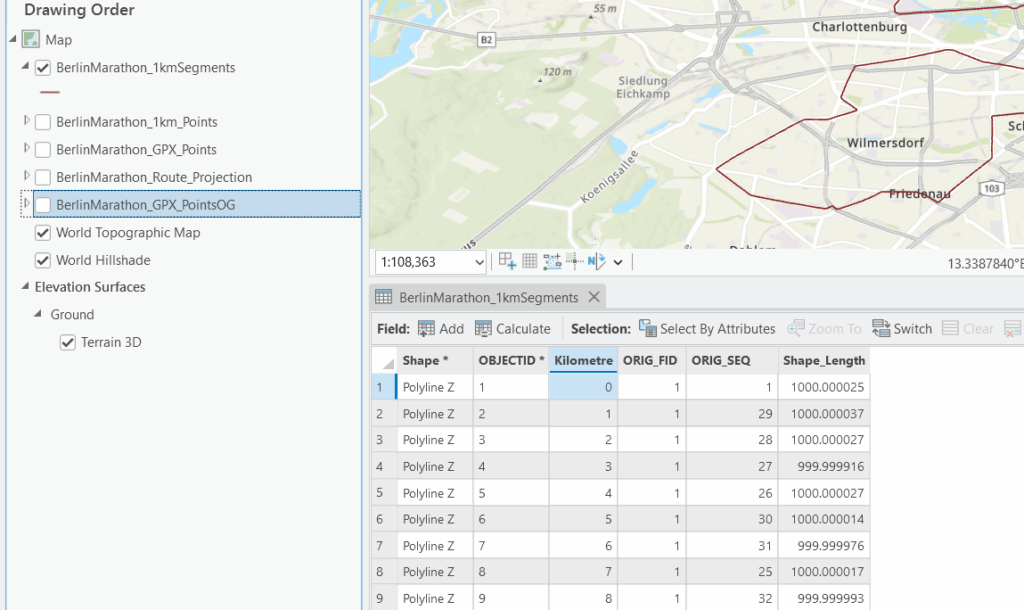
  • Using QGIS, the .GPX files were first inspected and cleaned and then converted to GeoPackage format and imported into ArcGIS Pro, where they were transformed into both point feature classes and polyline feature classes. The polyline class was then projected using appropriate city-specific coordinate systems (ETRS89 / UTM Zone 33N and NAD83 / Massachusetts Mainland, etc). The DEMs were sourced from the LivingAtlas database and are labeled as Terrain3D.
  •  I used the Open-Meteo API to make queries for each marathon’s specific race day, narrowing the geographic coordinates, local timezone, and hourly variables including temperature (degC), humidity (%), wind speed (km/h), and precipitation(mm). It was integrated into ArcGIS Pro’s Add Surface Information and Extract Multi-Values to Points tools to derive slope, elevation range, and elevation gain per kilometre. The climate data was collected through an API which returned the data in JSON format. It was converted to .CSVs with Excel Power Query.

Software/Tools

  • ArcGISPro: Used to transform the data and make web layers, map routes, and calculate the field to get valuable runner information.
  • QGIS: Used to clean and overlook the .gpx files imported from Strava.
  • Experience Builder: Used to create an interactive dashboard for the geospatial data.

Methodology

  • The workflow for this project began with extensive preprocessing of GPS track data sourced from public Strava activities. Each GPX file was inspected, cleaned, and converted into usable spatial geometry and re-projecting all layers into city-appropriate projected coordinate reference systems. The fields were then calculated for pace per kilometre, elevation gain per kilometre, maximum slope, and mean slope, using a combination of the Generate Points Along Lines, Split Line at Measure, and Add Surface Information tools.

Figure 2. GPX point layer undergoing a spatial join. 

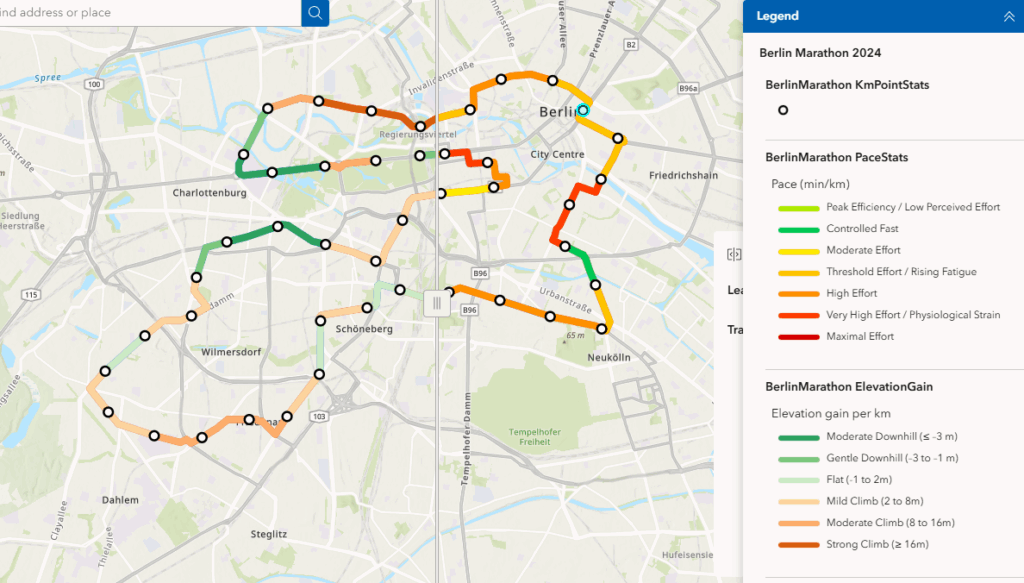
  • The visualization design was the main cornerstone of the project’s approach. Thus, race maps employed accessible, easy-to-comprehend gradients to represent sequential variables such as pace, slope, and elevation gain, while the dashboard created through Experience Builder enabled dynamic comparison across the three cities.

Figure 3. Slider showing the patterns and relationships between average pace and elevation of the Berlin marathon.

Results and Discussion

Relationship between Pace and Terrain

  • Berlin displays the most consistent and fastest pacing profile, with minimal variation in both slope and elevation gain of only 27 metres of elevation difference.
  • On the other hand Boston showed more variability by each consecutive marker due to its hilly terrain. The geovisualizations clearly highlight slowdowns associated with climb leading to Heartbreak Hill, followed by pace recoveries on downhill segments.
  • Surprisingly, the Singapore marathon route had a different performance dynamic but not in the way that was initially assumed. In addition to its exact elevation difference as Boston of 135 metres. Participants would also face more environmentally-centred constraints, not only terrain-based difficulty.
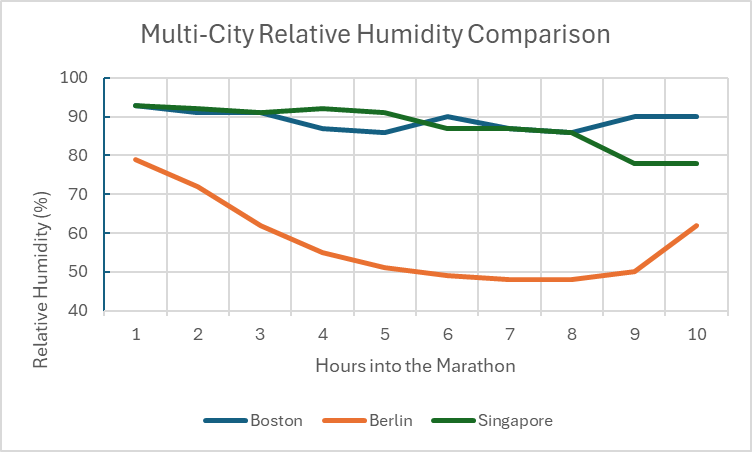
  • Pacing inconsistency can coincide with high humidity and hot overnight temperatures really showing viewers how tropical climate conditions can inflict a different form of endurance.

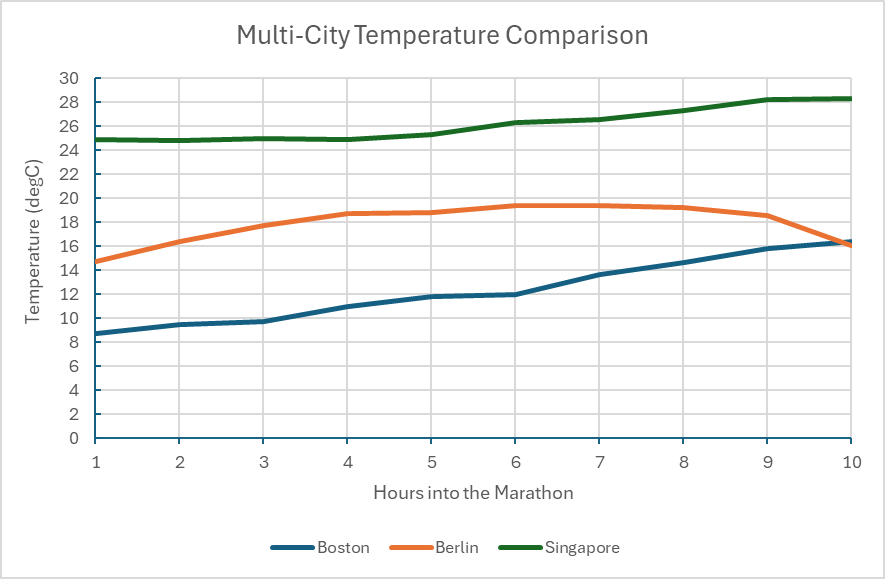
Figure 4. Chart demonstrating the recorded temperature in degrees Celsius at the time of each race day. Note that the date was omitted due to the differing years, days, and months of each marathon so the duration of the race is the primary focus.

Figure 5. Chart comparing the relative humidity (%) between the marathon cities during race day.

Environmental Conditions and Weather During Race Day

  • It’s interesting to note that each city hosts their marathon at very different times throughout the year. For example, the Boston marathon used in the case study was held on April 17th, 2023. Berlin hosted their race on September 24th, 2023, and Singapore hosted their annual marathon on December 2nd, 2012. Boston usually started their race around 8:00 AM, Berlin usually starts an hour later at 9:00am local time. Lastly, Singapore begins the marathon at 4:30AM, assumingly to avoid the midday heat, which reaches high 30 degrees Celsius by noon.
  • This integration of hourly weather data highlights how climate interacts with geography to shape athletic effort. Berlin demonstrates ideal running conditions having cool and stable temperature along with stable wind speeds, which makes sense of the fast, consistent pacing. Boston shows slightly more variable weather, perhaps being on the New England Coast, Singapore saw the most influential weather impact with the humidity exceeding 80% for majority of the race (Figure 5) and persistent hot temperatures even throughout the night before.

Limitations

  • I experienced many limitations making this geovisualization including the fact that the project relies on public Strava .GPX data, which could vary in precision due to the accuracy of runner’s device whether it be phone or watch, or even satellite reception.
  • Also, though it was a good idea to use the data of some top performers of the marathon to get a good idea of where a well conditioned athlete naturally takes more time and slows their pace, I wished more average participant data was available to have a more averaged experience mapped.
  • Furthermore, I was unable to match the weather data directly to specific kilometres and instead had it serve as contextual aids rather than precise environmental measurements. 

Conclusion

I think this geovisualization project does an effective job demonstrating how terrain, and climate distinctly shape marathon performance across Boston, Berlin, and Singapore and I believe that visuals like these can be super fascinating just to satisfy curiosity or plan strategically for a race in the future. Happy Mapping!

Mapping and Printing Toronto’s Socioeconomic Status Index in 3D

Menusan Anantharajah, Geovis Project Assignment, TMU Geography, SA8905, Fall 2025

Hello, this is my blog post!

My Geovis project will explore the realms of 3D mapping and printing through a multi-stage process that utilizes various tools. I have always had a small interest in 3D modelling and printing, so I selected this medium for the project. Although this is my first attempt, I was quite pleased with the process and the results.

I decided to map out a simplified Socioeconomic Status (SES) Index of Toronto’s neighbourhoods in 2021 using the following three variables:

  • Median household income
  • Percentage of population with a university degree
  • Employment rate

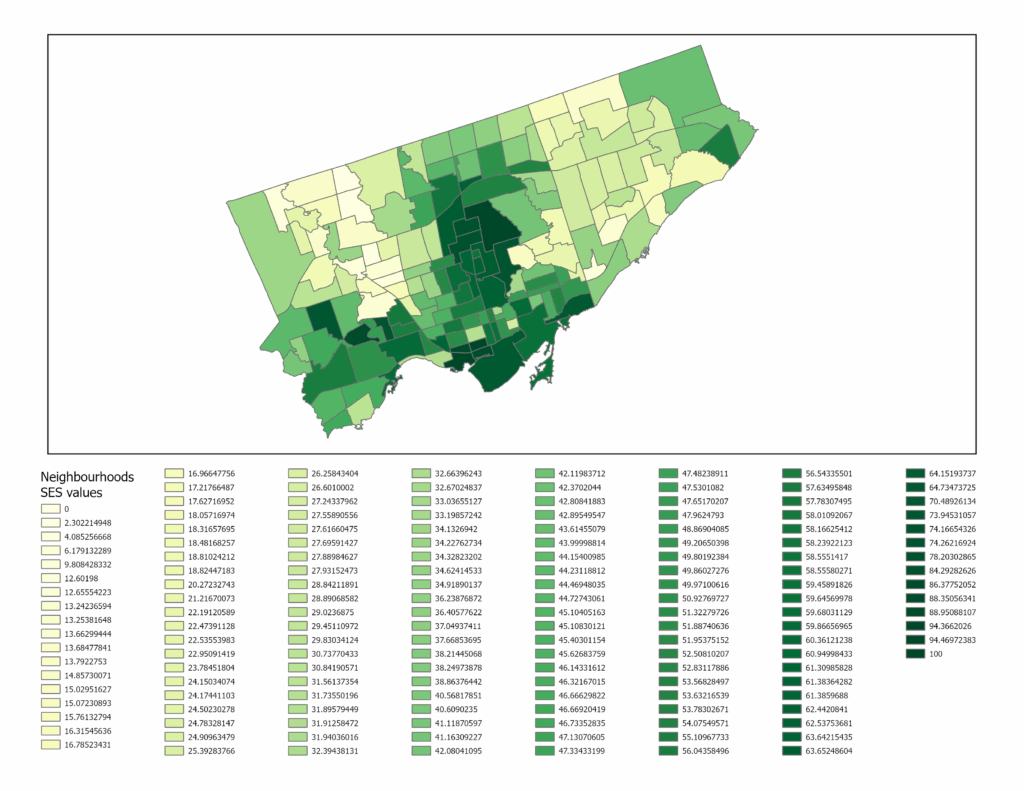
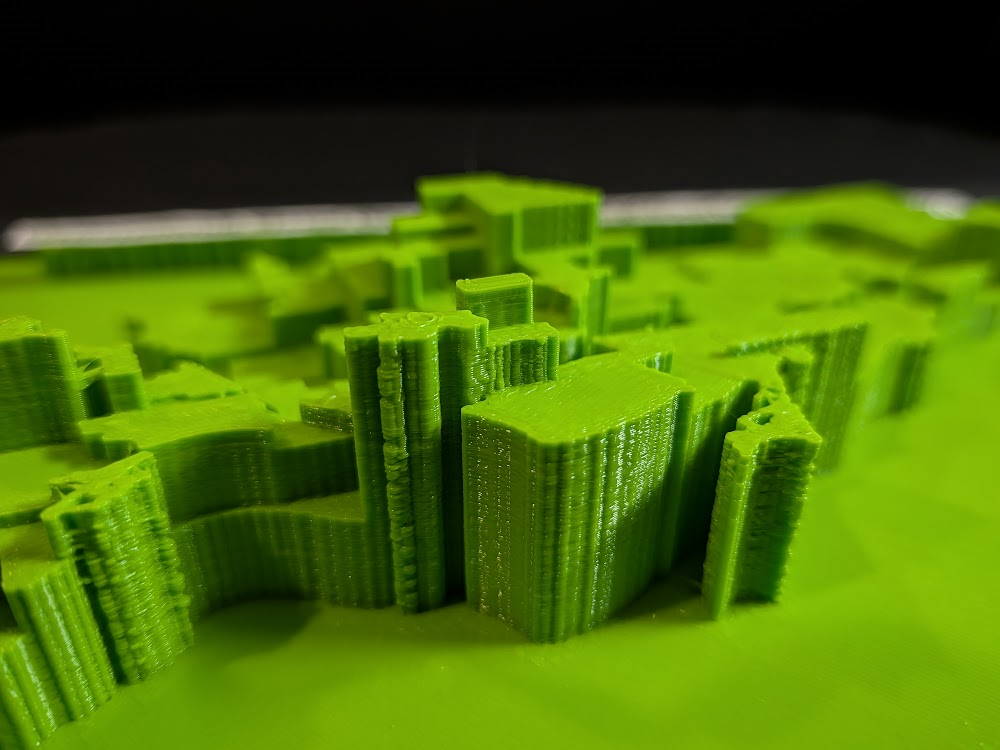
It should be noted that since these variables exist on different scales, they were standardized using z-scores and then scaled to a 0-100 range. The neighbourhoods will be extruded by the SES index value, meaning that neighbourhoods scoring high will be taller in height. I chose SES as my variable of choice since it would be interesting to physically visualize the disparities and differences between the neighbourhoods by height.

Data Sources

Software

A variety of tools were used for this project, including:

  • Excel (calculating the SES index and formatting the table for spatial analysis)
  • ArcGIS Pro (spatially joining the neighbourhood shapefile with the SES table)
  • shp2stl* (takes the spatially joined shapefile and converts it to a 3D model)
  • Blender (used to add other elements such as title, north arrow, legend, etc.)
  • Microsoft 3D Builder** (cleaning and fixing the 3D model)
  • Ultimaker Cura (preparing the model for printing)

* shp2stl would require an older node.js installation
** Microsoft 3D Builder is discontinued, though you can sideload it

Process

Step 1: Calculate the SES index values from the Neighbourhood Profiles

The three SES variables (median household income, percentage of population with a university degree, employment rate) were extracted from the Neighbourhood Profiles table. Using Microsoft Excel, these variables were standardized using z-scores, then combined into a single average score, and finally rescaled to a 0-100 range. I then prepared the final table for use in ArcGIS Pro, which included the identifiers (neighbourhood names) with their corresponding SES values. After this was done, the table was exported as a .csv file and brought over to ArcGIS Pro.

Step 2: Create the Spatially Joined Shapefile using ArcGIS Pro

The neighbourhood boundary file and the newly created SES table were imported into ArcGIS Pro. Using the Add Join feature, the two data sets were combined into one unified shapefile, which was then exported as a .shp file.

The figure above shows what the SES map looks like in a two-dimensional view. The areas with lighter hues represent neighbourhoods with low SES values, while the ones in dark green represent neighbourhoods with high SES values.

Step 3: Convert the shapefile into a 3D model file using shp2stl

Before using shp2stl, make sure that you have an older version of node.js (v11.15.0) and npm (6.7.0) installed. I would also recommend placing your shapefile in a new directory, as it can later be utilized as a Node project folder. Once the shapefile is placed in a new folder, you can open the folder in Windows Terminal (or Command Prompt) and run the following:

npm install shp2stl

This will bring in all the necessary modules into the project folder. After that, the script can be written. I created the following script:

const fs = require('fs');
const shp2stl = require('shp2stl');

shp2stl.shp2stl('TO_SES.shp', {
  width: 150,
  height: 25,
  extraBaseHeight: 3,
  extrudeBy: "SES_z",
  binary: true,
  verbose: true
}, function(err, stl) {
  if (err) throw err;
  fs.writeFileSync('TO_NH_SES.stl', stl);
});

This script was ‘compiled’ using Visual Studio Code; however, you can use any compiler or processor (even Notepad works). This script was then saved to a .js file in the project folder. The script was then executed in Terminal using this:

node shapefile_convert.js

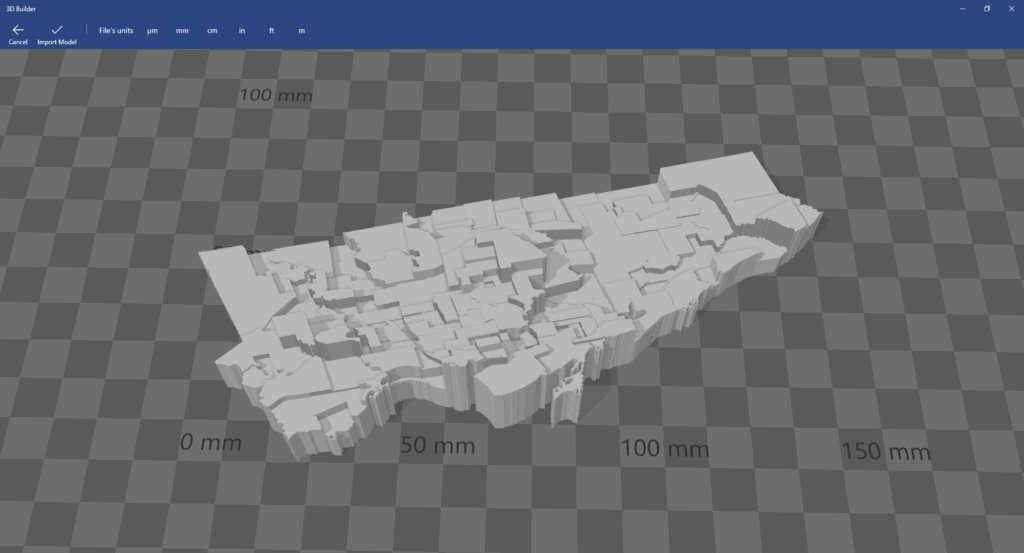
The result is a 3D model that looks like this:

Since we only have Toronto’s neighbourhoods, we have to import this into Blender and create the other elements.

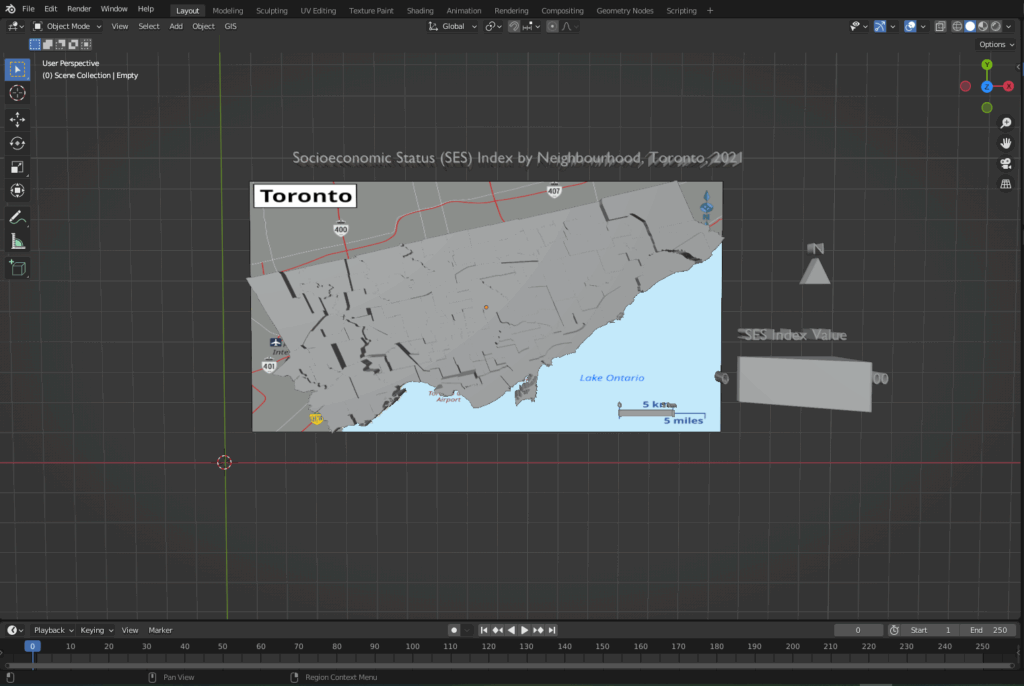
Step 4: Add the Title, Legend, North Arrow and Scale Bar in Blender

The 3D model was brought into Blender, where the other map elements were created and added alongside the core model. To create the scale bar for the map, the 3D model was overlaid onto a 2D map that already contained a scale bar, as shown in the following image.

After creating the necessary elements, the model needs to be cleaned for printing.

Step 5: Cleaning the model using Microsoft 3D Builder

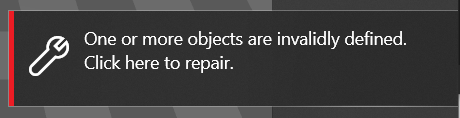
When importing the model into 3D Builder, you may encounter this:

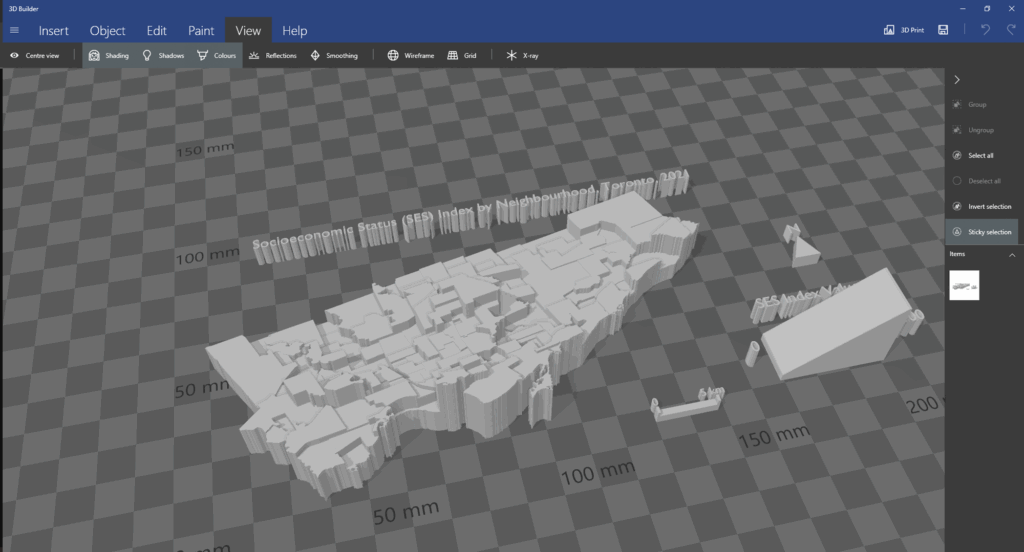
Once you click to repair, the program should be able to fix various mesh errors like non-manifold edges, inverted faces or holes.

After running the repair tool, the model can be brought into Ultimaker Cura.

Step 6: Preparing the model for printing

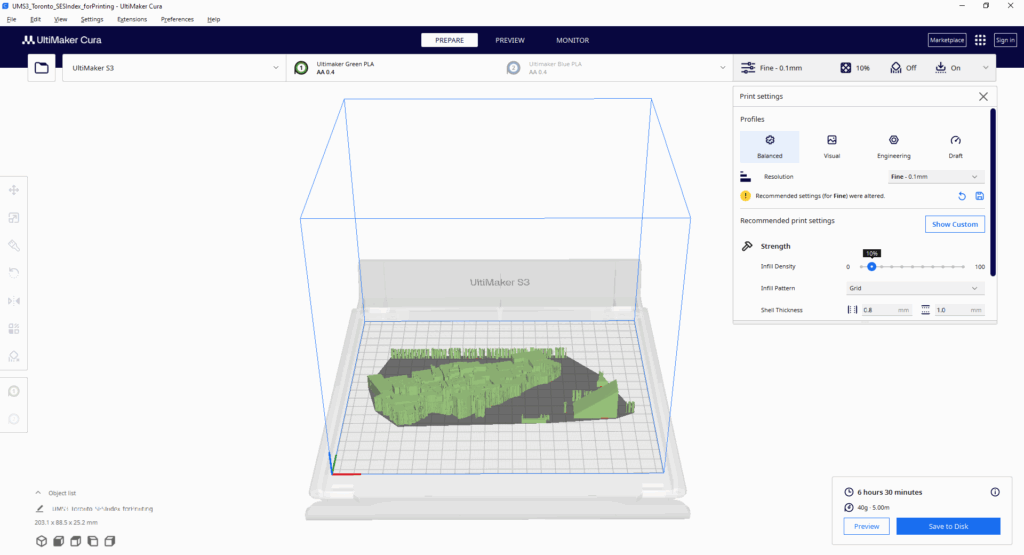
The model was imported into Ultimaker Cura to determine the optimal printing settings. As I had to send this model to my local library to print, this step was crucial to see how the changes in the print settings (layer height, infill density, support structures) could impact the print time and quality. As the library had an 8-hour print limit, I had to ensure that the model was able to be printed out within that time limit.

With this tool, I was able to determine the best print settings (0.1 mm fine resolution, 10% infill density).

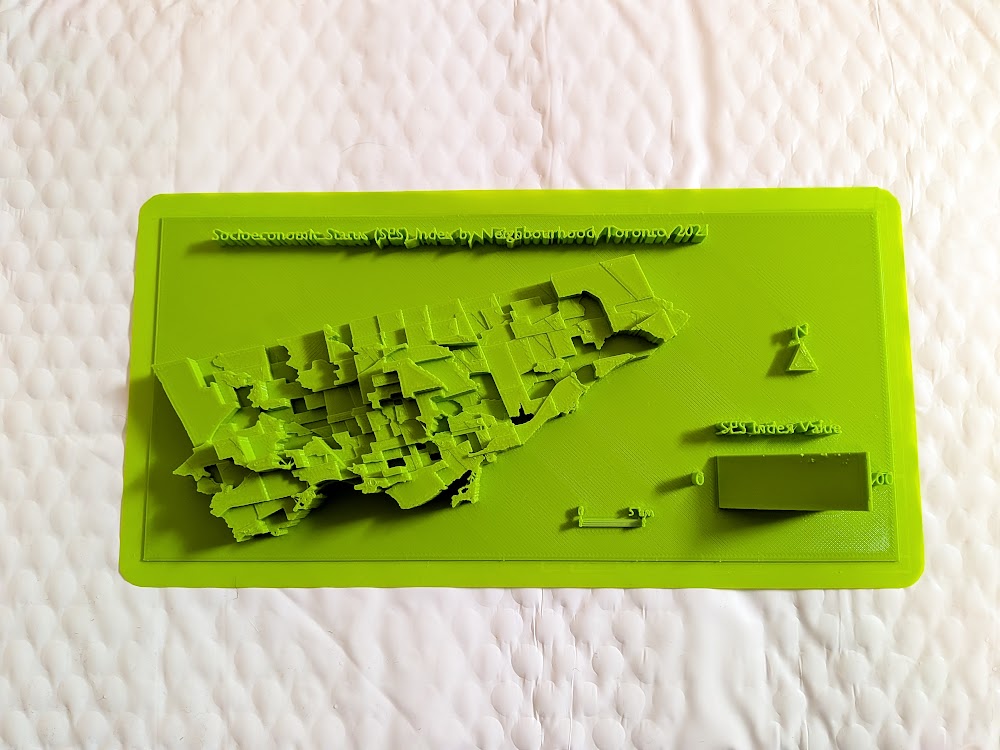
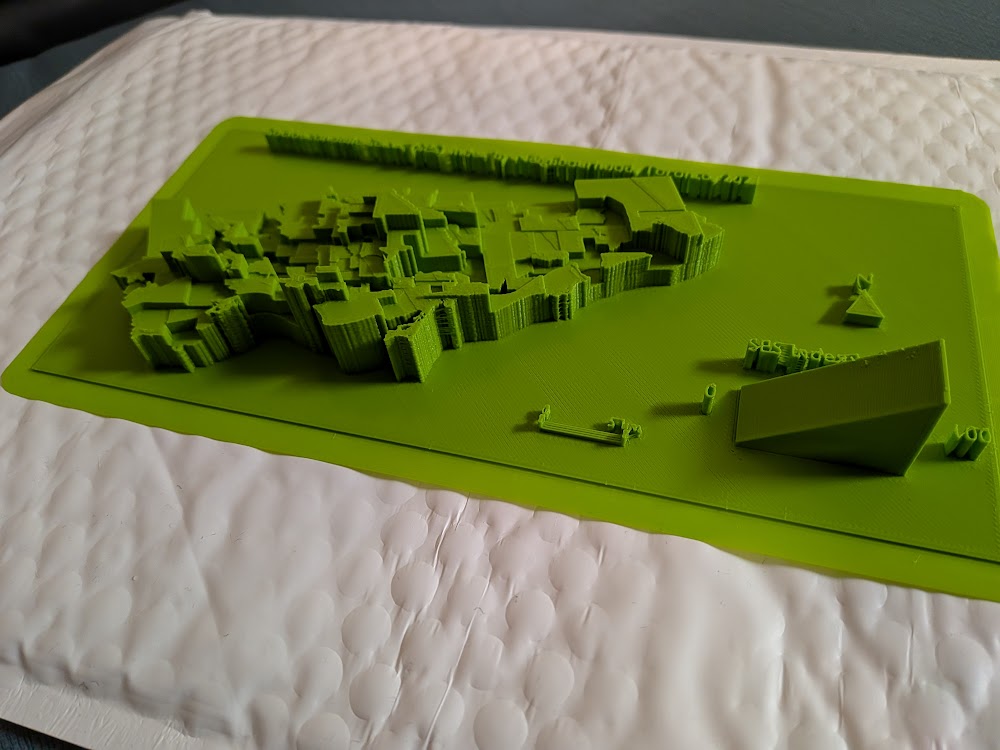
With everything finalized from my side, I sent the model over to be printed at the library; this was the result:

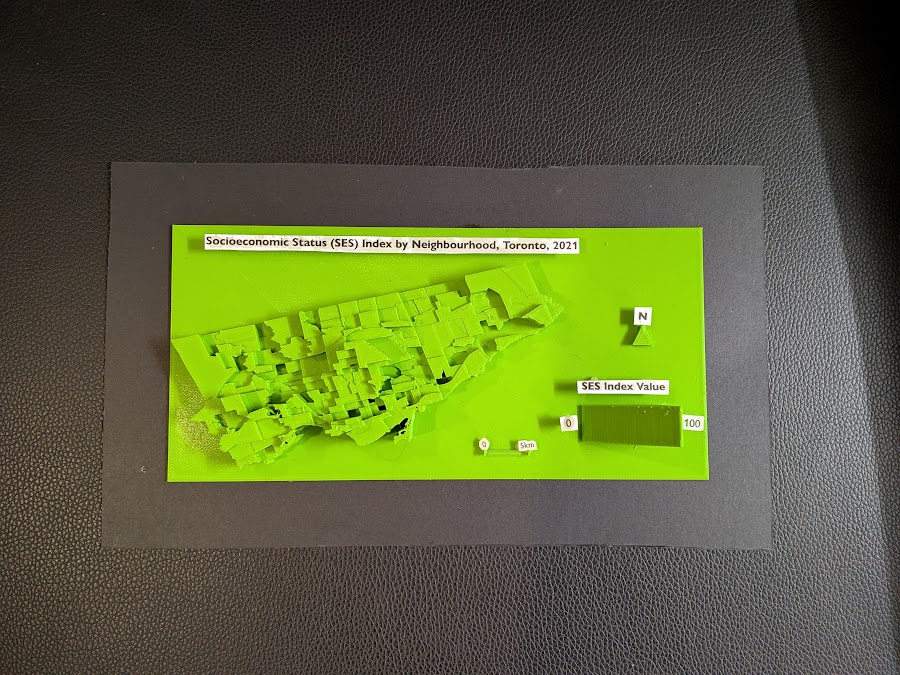
Overall, the print of the model was mostly successful. Most of the elements were printed out cleanly and as intended. However, the 3D text could not be printed with the same clarity, so I decided to print out the textual elements on paper and layer them on top of the 3D forms.

The following is the final resulting product:

Limitations

While I am still satisfied with the end result, there were some limitations to the model. The model still required further modifications and cleaning before printing; this was handled by the library staff at Burnhamthorpe and Central Library in Mississauga (huge shoutout to them). The text elements were also messy, which was expected given the size and width of the typeface used. One improvement to the model would be to print the elements separately and at a larger scale; this would ensure that each part is printed more clearly.

Closing Thoughts

This project was a great learning experience, especially for someone who had never tried 3D modelling and printing before. It was also interesting to see the 3D map highlighting the disparities between neighbourhoods; some neighbourhoods with high SES index values were literally towering over the disadvantaged bordering neighbourhoods. Although this project began as an experimental and exploratory endeavour, the process of 3D mapping revealed another dimension of data visualization.

References

City of Toronto. (2025). Neighbourhoods [Data set]. City of Toronto Open Data Portal. https://open.toronto.ca/dataset/neighbourhoods/ 

City of Toronto. (2023). Neighbourhood profiles [Data set]. City of Toronto Open Data Portal. https://open.toronto.ca/dataset/neighbourhood-profiles/

Visualizing an Individual Tree (Quantitative Structural Model)

LiDAR point clouds are a challenging form of data to navigate. With perplexing noise, volume and distribution, point clouds require rigorous manipulation of both parameters and computational power. This blog post introduces a series of tools for the future biomass estimator, with a focus on detecting errors, and finding solutions through the process of visualization.

Programs you will need: RStudio, MATLAB, CloudCompare

Packages you will need: LidR, TreeQSM

Tree Delineation – R (lidR Package)

Beginning with an unclassified point cloud. Point clouds are generated from LiDAR sensors, strapped to aerial or terrestrial sources. Point clouds provide a precise measurement of areas, mapping three dimensional information about target objects. This blog post focuses on individual trees, however, entire forest stands, construction zones, and even cities may be mapped using LiDAR technology. This project aims to tackle a smaller object for simplicity, replicability, and potential for future scaling.

Visualized point cloud in DJI Terra. Target tree outlined in red.

The canopy of these trees overlap. The tree is almost indistinguishable without colour values (RGB), hidden between all the other trees. No problem. Before we quantify this tree, we will delineate it (separate it from the others).

library(lidR) # Load packages

library(rgl)

las <- readLAS("Path to las file")

Before we can separate the trees, we must classify and normalize them to determine what part of the point cloud consists of tree, and what part does not. Normalizing the points helps adjust Z values to represent above ground height rather than absolute elevation.

las <- classify_ground(las, csf())

las <- normalize_height(las, tin()) 

plot(las, color = "Z")

Now that the point cloud has been appropriately classified and normalized, we can begin to separate the trees. Firstly, we will detect the tree heights. The tree tops will define the perimeter of each individual tree.

hist(ttops$Z, breaks = 20, main = "Detected Tree Heights", xlab = "Height (m)")

plot(las, color = "Z") 

plot(sf::st_geometry(ttops), add = TRUE, pch = 3, col = "red", cex = 2)

The first iteration will not be the last. 158 trees were detected this first round. An urban park does not have more than 15 in a small, open region such as this. Adjusting window size and height will help isolate trees more accurately. These parameters will depend on factors such as the density of your trees, density of your point cloud, tree shape, tree size, tree height and tree canopy cover. Even factors such as terrestrial versus aerial lasers will effect which parts of the tree will be better detected. In this way, no two models will be perfect with the same parameters. Make sure to play around to accommodate for this.

ttops <- locate_trees(las, lmf(ws = 8, hmin = 10))

A new issue arises. Instead of too many trees, there are now no individual, fully delineated trees visible within the output. All trees consist of chopped up pieces, impossible for accurate quantification. We must continue to adjust our parameters.

This occurred due to the overlapping canopies between our trees. The algorithm was unable to grow each detected tree model into its full form. Luckily, the lidR package offers multiple methods for tree segmenting. We may move on to the dalponte2016 algorithm for segmenting trees.

chm <- rasterize_canopy(las, res = 0.5, p2r())

las <- segment_trees(las, dalponte2016(chm, ttops, th_tree = 1, th_seed = 0.3, th_cr = 0.5, max_cr = 20))

table(las$treeID, useNA = "always") # Check assignment

plot(las, color = "treeID")

A Canopy Height Model is produced to delineate the next set of trees. This canopy model…

…is turned into…

While this is much improved, the tree of choice (mustard yellow) has a significant portion of its limbs cut off. This is due to its irregular shape. This requires a much more aggressive application of the dalponte2016 parameters. We adjust parameters so that the minimum height (th_tree) is closer to the ground, the minimum height of the treetop seeds (th_seed) are inclusive of the smallest irregularities, the crown ratio (th_cr) is extremely relaxed so that the tree crowns can spread further, and the crown radius (max_cr) is allowed to expand further. Here is the code:

las <- segment_trees(las, dalponte2016(chm, ttops, th_tree = 0.2,  th_seed = 0.1, th_cr = 0.2, max_cr = 30))    

Finally, the trees are whole. Our tree (purple) is now distinct from all other trees. It is time to remove our favorite tree. You can decide which tree is your favourite by using the rgl package. It will allow you to visualize in 3D, even while in RStudio.

GIF created using Snipping Tool (Video Option) and Microsoft Clip Champ.

tree <- filter_poi(las, treeID == 13)
plot(tree, color = "Z")
coords <- data.frame(X = tree$X, Y = tree$Y, Z = tree$Z)
coords$X <- coords$X - min(coords$X)
coords$Y <- coords$Y - min(coords$Y)
coords$Z <- coords$Z - min(coords$Z)
write.table(coords, file = "tree_13_for_treeqsm.txt", row.names = FALSE, col.names = FALSE, sep = " ")

While the interactive file itself is too large to insert into this blog post. You can click on the exported visualization here. This will give you a good idea of the output. Unfortunately, Sketchfab is unable to accommodate the point data’s attribute table, but it does have the option for annotation if you wish to share a 3D model with simplified information. It even has the option to create virtual reality options.

Now if you have taken the chance to click on the link, try and think of the new challenge we now encounter after having delineated the single tree. There is one more task to be done before we will be able to derive accurate tree metrics.

Segmentation – CloudCompare

If you didn’t notice from the final output, the fence was included in our most aggressive segmentation. If this occurs, fear not, we can trim the point cloud further, with cloud compare.

Download cloud compare, drag and drop your freshly exported file, and utilize the segmentation tool.

Click on your file name under DB Tree so a cube appears, framing your tree.

Then click Tools –> Segmentation –> Cross Section.

Utilize the box to frame out the excess, and use the “Export Section as New Entity” function under the Slices section to obtain a fresh, fence (and ground) free layer.

Our tree can now be processed in Matlab!

Quantitative Structural Modeling – MATLAB (TreeQSM)

Allows visualization of your individual tree. A new window named “Figures” will pop up to show your progress.

The following parameters can be played around with. These are the initial parameters that worked for me. Further information about these parameters can be found here, in the official documentation of TreeQSM. Please ensure you have the Statistics and Machine Learning Toolbox installed if any errors occur.

inputs.PatchDiam1 = 0.10;
inputs.PatchDiam2Min = 0.02;
inputs.PatchDiam2Max = 0.05;
inputs.BallRad1 = 0.12;
inputs.BallRad2 = 0.10;
inputs.nmin1 = 3;
inputs.nmin2 = 1;
inputs.lcyl = 3;
inputs.FilRad = 3.5;
inputs.OnlyTree = 1;
inputs.Taper = 1;
inputs.ParentCor = 1;
inputs.TaperCor = 1;
inputs.GrowthVolCor = 1;
inputs.TreeHeight = 1;
inputs.Robust = 1;
inputs.name = 'tree_13';
inputs.disp = 1;
inputs.save = 0;
inputs.plot = 1;
inputs.tree = 1;
inputs.model = 1;
inputs.MinCylRad = 0;
inputs.Dist = 1;

QSM_clean = treeqsm(P, inputs);

fprintf('\n=== TREE 13 - NO FENCE ===\n');
fprintf('Total Volume: %.4f m³ (%.1f liters)\n', 

QSM_clean.treedata.TotalVolume/1000, QSM_clean.treedata.TotalVolume);

fprintf('Tree Height: %.2f m\n', QSM_clean.treedata.TreeHeight);
fprintf('DBH: %.1f cm\n', QSM_clean.treedata.DBHqsm * 100);
fprintf('Number of Branches: %d\n', QSM_clean.treedata.NumberBranches);

If this is your output, you have successfully created a Quantitative Structural Model of your tree of choice. This consists of a series of cylinders enveloping every branch, twig and trunk part of your tree. This cylindrical tree model can quantify every part of the tree and produce a spatial understanding of tree biomass distribution.

For now, we have structural indicators, such as total volume, number of branches, and height, which may be used as proxy for physical measurements. The summary of this process has been posted below in the form of a visualized workflow.

Summary of QSM Workflow

This project provides a foundational learning curve that encourages the reader to explore the tools available for visualizing and manipulating point clouds, by classification, segmentation and volumetric modeling. This has potential for studies in carbon sequestration, where canopy height and volume can be linked to broaden the understanding of above-ground biomass, and the spatial-temporal factors that affect our national resources. There is potential for vegetation growth monitoring, where smaller plantations can be consistently, and accurately monitored for structural changes (growth, rot, death etc.). While a single tree is not the most exhilarating project, it lays the groundwork for defining ecological accounting systems for expansive 3D spatial analysts.

Limitations

This project was unable to obtain ground truth for accurate comparison of the point cloud. With ground truth, the parameters could have been more accurately defined. This workflow relied heavily on visual indicators to segment and quantify this tree. This project requires further expansion, with a focus on verifying the extent of accuracy. The next step in this process consists of comparison to allometric modelling, as well as more expansive forest stands.

For now, we end with one tree, in hopes of one day tackling a forest.

Resources

Moral Support

Professor Cheryl Rogers – For the brilliant ideas and positivity.

Data

Roussel, J., & Auty, D. (2022). lidRbook: R for airborne LiDAR data analysis. Retrieved from https://r-lidar.github.io/lidRbook/

Åkerblom, M., Raumonen, P., Kaasalainen, M., & Casella, E. (2017). TreeQSM documentation (Version 2.3) [PDF manual]. Inverse Tampere. https://github.com/InverseTampere/TreeQSM/blob/master/Manual/TreeQSM_documentation.pdf

Toronto Metropolitan University Library Collaboratory. (2023). Oblique LiDAR flight conducted in High Park, Toronto, Ontario [Dataset]. Flown by A. Millward, D. Djakubek, & J. Tran.

Spatial Intelligence Dashboard for Community Safety Using ArcGIS for Power BI

Geovis Project Assignment, TMU Geography, SA8905, Fall 2025

By Debbie Verduga

Welcome to my Geo Viz Tutorial! 

I love ArcGIS and I love Power BI. Each shines in their own way, which is why I was excited to discover the new ArcGIS integration within Microsoft Power BI. Let’s dive in and explore what it can do! 

First off, traditional business intelligence (BI) technologies offer powerful analytical insights but often fall short in providing geospatial context. Conversely, geospatial technologies offer map centric capabilities and advanced geoprocessing, but often lack insights integration.  

ArcGIS for Power BI directly integrates spatial analytics with business intelligence without the need of geoprocessing tools or advanced level expertise. This integration has the potential to empower everyday analysts to explore and leverage spatial data without needing to be highly experts in GIS. 

This tutorial will demonstrate how to use ArcGIS for Power BI to: 

  • Integrate multiple data sources – using City of Toronto neighbourhood socio-demographics, crime statistics, and gun violence data.
  • Perform data joins within Power BI – by linking datasets effortlessly without needing complex GIS tools.
  • Create interactive spatial dashboards – by blending BI insights with mapping capabilities, including thematic maps and hotspot analysis. 

You will need TMU Credentials for: 

  • Power BI Online 
  • ArcGIS Online
  • Data
DatasetFile TypeSource
Neighbourhood Socio-demographic DataExcel Simply Analytics (Pre-Aggregated Census Data) 
Neighbourhood Crime RatesSHP File (Boundary)ArcGIS Online Published by Toronto Police Service
Shooting & Firearm DischargeSHP File (Point/Location)ArcGIS Online Published by Toronto Police Service

Power BI Online

Log into https://app.powerbi.com/ using your TMU credentials. To help you out, watch this tutorial to get started with Power BI Online.

ArcGIS Online 

Log Into https://www.arcgis.com/ using your TMU credentials. Make sure you explore data available for your analysis. For this tutorial we will be using Toronto Police Service Open data including neighbourhood crime rates and shootings and firearms discharges

Loading Data 

To create a new report in Power BI, you need a set of data to start. For this analysis, we will use neighbourhood level socio-demographic data in an excel format. This data includes total population and variables that are often associated with marginalized communities including low income, unemployment rates, no education and visible minorities rates. This data does not have spatial reference, however, the neighbourhood name and unique identifier is available in the data. 

Add Data > Click on New Report > Get Data > Choose Data Source > Upload File > Browse to your file location > Click Next > Select Excel Tab you wish to Import > Select Transform Data 

Semantic Model

This will take you to the report’s Semantic Model. Think of a semantic model as the way you transform raw data into a business-ready format for analysis and reporting. The opportunities for manipulating data here are endless!

Using the semantic model you can define relationships with other data, incorporate business logic, perform calculations, summarize, pivot and manipulate data in many ways.

 What I love about semantic models is that it remembers every transformation you have made to the data. If you made a mistake, don’t sweat it, come back to the semantic model and undo. It’s that simple. 

Once you load data you have two options. You can create a report or create a semantic model. Let’s create a report for now. 

Create Report > Name Semantic Model 

Report Layout 

The report layout functions as a canvas. This is where you add all your visualizations. On the right panel you have Filters, Visualizations and Data. 

Visuals are added by clicking on the icons. If you hover over the icon, you can see what they are called. There are default visuals, but you can add more visuals from the microsoft store. 

The section below the visual icons helps guide how to populate the visual with your data. 

Each visual is configured differently. For example, a chart/graph requires a y-axis and y-axis. To populate these visuals, drag and drop the column from your data table into these fields/values. 

Add a Visual 

Lets add an interactive visualization that displays the low income rate based on the neighbourhood selected from a list. 

From the visualization panel > Add the Card Visual 

From the data panel > Drag the variable column into the Fields 

By default, Power BI summarizes the statistics in your entire data. Lets create an interactive filter to interact with this statistic based on a selected neighborhood. 

From the Visualizations Panel > Add the Slicer Visual > Drag and drop the column that has the neighbourhood name > Filter from the slicer any given neighbourhood. 

The slicer now interacts with the Card visual to filter out its respective statistic. 

Congrats! We have created our very first interactive visualization! Well done :) 

Pro Tip: To validate that calculations and visualizations are correct in Power BI, use excel to manipulate data in the same format and validate that visualizations are correct. 

Load Data from ArcGIS Online

To demonstrate the full integration of Power BI and geospatial data, let’s bring data from ESRI’s ArcGIS Online. Authoritative open data is available in this portal and can be directly accessed through Power BI. 

Linking Data 

When you think about integrating non-spatial data with spatial/location data, you will need to keep in mind that at the very least, you will need common identifiers to be able to link data together. For example, the neighbourhood data has a neighbourhood name and identifier which are also available in the data published by the Toronto Police Service including neighbourhood crime rates and shootings and firearms discharges

Add ArcGIS for Power BI Visual 

Add the ArcGIS for Power BI visual > Log in using your TMU Credentials. 

Add Layers

Click on Layers Icon > Switch to ArcGIS Online > Search for Layers by Name > Select Layer > Done 

This will add the layer to your map. You can go back and add more layers. You can also add layers from your own ArcGIS Online account. 

ArcGIS Navigation Menu 

The navigation menu on the left panel of this window allows you to perform the following geospatial functions 

  • Change and style symbology
  • Change the Base Map
  • Change Layer Properties 
  • Analysis tab allows you to
    • Conduct Drive Time and Buffer
    • Add demographic data 
    • Link/Join Data
    • Find Similar Data

For the purposes of this analysis, we will: 

  • Establish a join between our neighbourhood socio-demographic data and the spatial data including crime rates and shootings and firearms discharges 
  • Develop a thematic map of one crime type
  • Develop a shootings hot spot analysis 

Data Cleansing

When linking data, the common neighbourhood IDs from all these different data sources are not in the same format. For example, in my data, the ID is an integer format. However, in the Shooting and Firearms Data, this field is in a text format padded with zeros. 

In Power BI, we can create a clean table with neighbourhood information that acts as a neighbourhood dimension table to link data together and manipulate the columns to facilitate data linkages. Let’s create a neighbourhood dimension table.

Create a clean Neighbourhood Table 

Open the Semantic Model > Change to Editing Mode > Transform Data > Right Click on Table > Duplicate Neighbourhood Table > Right Click on new table to Rename  >  Choose Column > Remove all Unwanted Columns > Click on Hood ID Column > Click Transform > Change to Whole Number > Right Click on Column to Rename > Add Custom Column (Formula Below) > Save

Formula = Text.PadStart(Text.From([HOOD_158]), 3, “0”)

The custom column and formula takes the HOOD ID, changes it into a text field and adds padding of zeros. This will match the neighbourhood ID format in the shootings and firearm discharge data. Keep in mind, the only data you can manipulate is the data within your semantic model. You cannot change or manipulate the data sourced from ArcGIS Online. 

Relationships 

The newly created table in the semantic model needs to be related to the neighbourhood socio-demographic data to make sure that all tables are related to each other. 

Establish a Relationship

In the semantic model view > Click Manage Relationships > Add New Relationship > Select From Table and Identifier > Select To Table and Identifier > Establish Cardinality and Cross-Filter Direction to Both > Save > Close 

Congrats! We created a clean table that will function as a neighbourhood dimension table to facilitate data joins. We also learned how to establish a relationship with other tables in your semantic model. This comes handy as you can integrate multiple sources of data. 

Let’s return to the report and continue building visualizations. 

Joining Non-Spatial Data with Spatial Data 

Neighbourhood Crime 

Now we will join our non-spatial data from our semantic model with our spatial data in ArcGIS Online.

Join Non-Spatial Data with ArcGIS Online Data

Click on the ArcGIS Visual > Analysis Tab > Join Layer > Target Layer > Power BI Data (Drag & Drop Hood ID into the Join Layer Field in the Visualization Pane > Additional Options will now Appear on the Map> Select Join Field > Join Operation Aggregate > Interaction Filter > Create Join > Close

Congrats! We have created a join between the non-spatial data in Power BI and the spatial data in ArcGIS Online. 

Change the neighbourhood filter to see this map filter and zoom into the selected neighbourhood. 

Thematic Map 

Now, let’s create a thematic map with one of the crime rates variables in this dataset. 

On the left hand panel of the map: 

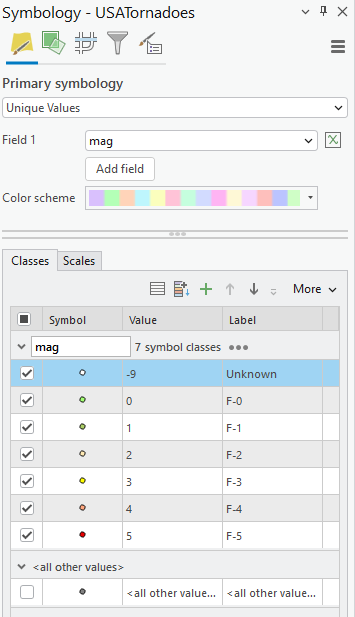
Click on Layers > Click on Symbology > Active Layer > Select Field Assault Rate 2024 > Change to Colour > Click on Style Options Tab > Change Colour Ramp to another Colour > Change Classification > Close Window. 

Congrats! We created a thematic map in Power BI using ArcGIS Online boundary file. 

Change the neighbourhood filter to see how the map interacts with the data. Since this is a thematic map, we may not want to filter all the data, instead, we just want to highlight the area of interest. 

Click on Analysis > Join Layer > Change the Interaction Behaviour to Highlight instead of Filter> Update Join

Check this again by changing the neighbourhood filter. Now, the map just highlights the neighbourhood instead of filtering it. 

Customizing Map Controls 

When you have the ArcGIS visual selected, you have the ability to customize your settings using the visualization panel. This controls the map tools available in the report. This can come in handy when setting up a default extent in your map for this report or allowing users to have control over the map. 

Shootings and Firearm Discharges 

Let’s visualize location data and create a hot spot analysis. To save time, copy and paste the map you created in the step before. 

In the new map, add the Shootings and Firearms Data. 

Challenge: Practice what you have learned thus far! 

  • Change the base layer to a dark theme. 
  • Add the Shootings and Firearm Discharge Data from ArcGIS Online. 
  • Create a join with this layer and the data in Power BI. 
  • Play around with changing the colour and shape of the symbology. 

Hotspot Analysis 

Now create a heat map from the Shooting and Firearm Discharges location data.

Click on Layers > Symbology > Change Symbol Type from Location to Heat Map > Style Options > Change Colour Ramp > Change Blur Radius > Close 

Congrats! We have created a heat map in Power BI! 

This map is dynamic, when you filter the neighbourhood from the list, the hot spot map filters as well. 

Customizing your report

It’s time to customize the rest of the report by adding visualizations, incorporating additional maps, adjusting titles and text, changing the canvas background, and bringing in more data to enrich the overall analysis.

I hope you’re just as excited as I am to start using Power BI alongside ArcGIS. By blending these two powerful tools, you can easily bring different data sources together and unlock a blend of BI insights and spatial intelligence—all in one place. 

References

Neighbourhood Crime Rates – Toronto Police Service Open Data

Shooting and Firearm Discharges – Toronto Police Service Open Data

Environics Analytics – Simply Analytics

Geospatial Visualization of Runner Health Data: Toronto Waterfront Marathon

Geovis Project Assignment, TMU Geography, SA8905, Fall 2025

Hello everyone! I am excited to share my running geovisualization blog with you all. This blog will allow you to transform the way you use GPS data from your phone or smart watch!

This idea came to me as I recorded my half marathon run on my apple watch in 2023 in the app “Strava”. Since then, I developed an interest in health tracking data and when assigned this project, I thought, hmm maybe I can make this data my own.

As a result, I explored the options and was able to create a 3D representation of my run and how I was doing physically throughout.

Here is a Youtube link to the final product!

The steps are as followed if you want to give this type of geospatial analysis a try yourself!

Step 1.

You will need to have installed the app Strava. This health and fitness app will track your GPS data from either your phone or watch and track your speed, elevation and heartrate (watch only). Apart from this, you will also need the app RunGap. This app will allow you to transfer your activity data and export it to a “.fit” file. A .fit file is a special data source that can track heartrate, speed and elevation that is geolocated by x and y coordinates every second (each row).

Step 2.

Once you have the apps downloaded, start a health activity on the Strava app. From there you can transfer your Strava data to RunGap.

After you sign in and import the Strava data, go to the activity you want to export as a .fit file. Save the .fit file and transfer it to your computer.

Step 3.

Now that you have the .fit file, you will need to download a tool to convert it to a CSV. This can be found at https://developer.garmin.com/fit/overview/. In Step 1 of this page you will need to download the https://developer.garmin.com/fit/download/ Fit SDK. The file will be in your downloaded folder under FitSDKRelease_21.171.00.zip. You will need to unzip this file and navigate to >java>FitToCSV.bat. This is the tool that you will use on the .fit file. To do this, go to your .fit file properties and change the “Open with:” application to your >java>FitToCSV.bat path.

Now simply run the .fit file and the tool will open and covert it to a CSV in the same folder after pressing any key to continue…

Step 4.

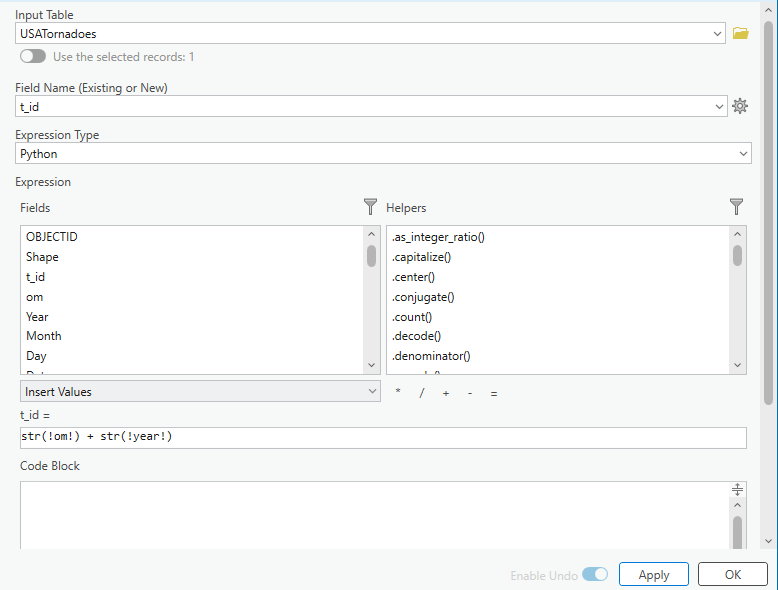
Now, open your CSV. The data is initially messy, and the fields are mixed. To clean it I added a new sheet, and then deleted from the original, continuing to narrow it down using the filter function. In the end, you only want the “data” rows in the Type column and rows with lat and long coordinates to create a point feature class. I also renamed the fields. For example, value 1 became Timestamp(s), which is used as the primary key to differentiate the rows. To get the coordinates in degrees, I used this calculation:

  • Lat_Degrees: Lat_semicircles / 11930464.71
  • Long_Degrees: Long_semicircles / 11930464.71

Furthermore, to display the points as lines in the final map, 4 more fields are needed to be added to the excel sheet. This is the start lat, start long, end lat and end long fields. These can simply be calculated by taking the coordinates of the next row for the end lat and end long. You will also need to do this with altitude to make a 3D representation of the elevation.

Step 5.

Now that your CSV is cleaned, it is ready to be exported as spatial data. Open ArcGIS Pro and create a new project. From here, load your CSV into a new map. This table will be used in the XY to line geoprocessing tool using the start and end coordinates for the WGS_1984_UTM_Zone_17N projection in Toronto.

Once you run the tool, your data should look something like this, displaying lines connecting each initial point/row.

Step 6.

Now it is time to bring your route to life! Start by running the Feature To 3D By Attribute geoprocessing tool on your feature class using the height field as your elevation/altitude.

Your line should now be 3D when opening a 3D Map Scene and importing the 3D layer

Step 7.

To add more dimensions to the symbology colours, I used “Bivariate Colours”. This provides a unique combination of speed and heart rate at each leg of the race.

To make the elevation more visually appealing, I used the extrusion function on the line feature class. Then, I used the “Min Height” category with the expression “$feature.Altitude__m_ / 3”. To further add realism, I added the ground elevation surfaces layer called WorldElevation3D/Terrain3D, so that the surrounding topography pops out more.

Step 8.

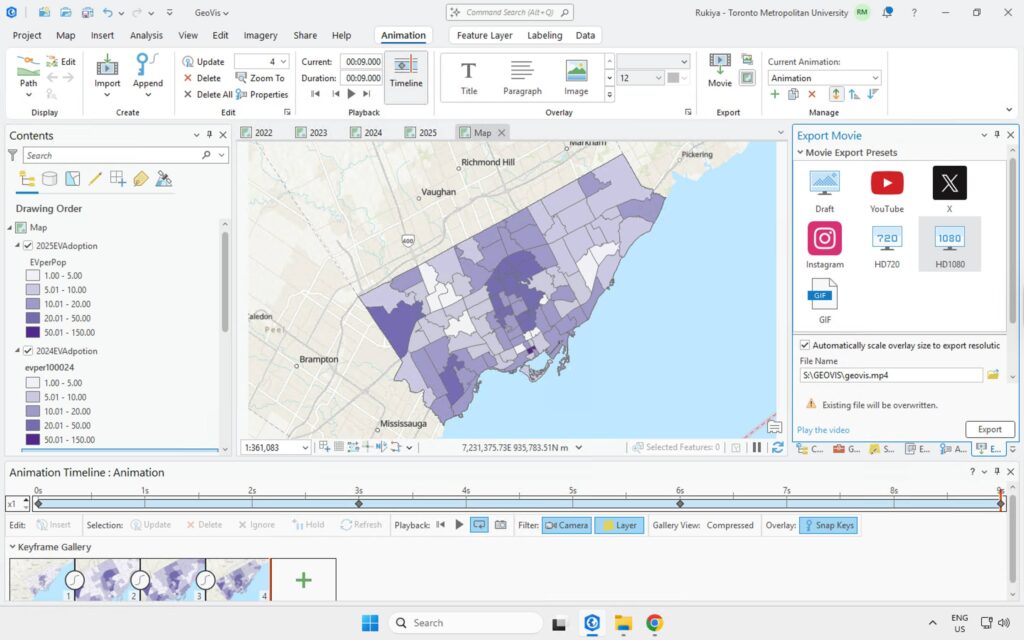
Now that the layer and symbology are refined, the final part of the visualization is creating a Birdseye view of the race trail from start to finish. To do this, I once again used ArcGIS Pro and added an animation in the view tab. From here I continuously added key frames throughout the path until the end. Finally, I directly exported the video to my computer.

Step 9. Canva

To conclude, I used Canva to add the legend to the map, add music, and a nice-looking title.

And now, you have a 3D running animation…! I hope you have learned something from this blog and give it a try yourself. It was very satisfying taking a real-life achievement and converting it to a in-depth geospatial representation. :)

Interactive Earthquake Visualization Map

Hamid Zarringhalam

Geovis Project Assignment, TMU Geography, SA8905, Fall 2025

Welcome to Hamid Zarringhalam’s blog!
In this blog, I present a tutorial for the app that I developed to visualize near real time global earthquake data.


Introduction

In an increasingly data driven world, the ability to visualize complex spatial information in real time is essential for decision making, analysis, and public engagement. This application leverages the power of D3.js, a dynamic JavaScript library for data-driven documents, and Leaflet.js, a lightweight open-source mapping library, to create an interactive real-time visualization map.

By combining D3’s flexible data binding and animation capabilities with Leaflet’s intuitive map rendering and geospatial tools, the application enables users to explore live data streams activity and directly on a geographic interface.

The goal is to provide a responsive and visually compelling platform that not only displays data but also reveals patterns, trends, and anomalies as they unfold.

Data Sources

The USGS.gov provides scientific data about natural hazards, the health of our ecosystems and environment, and collects a massive amount of data from all over the world all the time. It provides earthquake data in several formats and updated every 5 minutes.

Here is the link to USGS GeoJSON Feeds: “http://earthquake.usgs.gov/earthquakes/feed/v1.0/geojson.php”

When you click on a data set, for example ‘All Earthquakes from the Past 7 Days’, you will be given a JSON representation of that data. You will be using the URL of this JSON to pull in the data for the visualization. Included popups that provide additional information about the earthquake when a marker is clicked.

For example: “https://earthquake.usgs.gov/earthquakes/feed/v1.0/summary/all_hour.geojson” contains different objects that show different earthquakes.

The Approach  

Real-time GeoJSon online earthquake data will be fetched from USGS. These Data will be processed through D3.js functions and will be displays as circle markers on different map using MapBox API, styled by magnitude and grouped by time intervals and create a map using Leaflet that plots all of the earthquakes from your data set based on their longitude and latitude.

There are three files that are created and used in this application

  1. HTML file that creates a web-based earthquake visualization tool. It loads a Leaflet map and uses JavaScript (via D3 and Leaflet) to fetch and display real-time earthquake data with interactive markers.
  2. Styles for style the map with CSS
  3. Java script which creates an interactive web map that visualizes real-time earthquake data from the USGS (United States Geological Survey) using Leaflet.js and D3.js.

Leaflet in the script is used to create an interactive, web-based map that visualizes earthquake data in a dynamic and user-friendly way. Leaflet provides the core functionality to render a map.

Leaflet is JavaScript library and great for displaying data, but it doesn’t include built-in tools for fetching or manipulating external data.

D3.js in this script is used to fetch and process external data specifically, the GeoJSON earthquake feeds from the USGS, and Popups, color and Circlemarker will be called in D3.js

Steps of creating interactive maps

Step 1. Creating the frame for the visualization using HTML

HTML File:

<html lang=”en”>

<head>

  <meta charset=”UTF-8″>

  <meta name=”viewport” content=”width=device-width, initial-scale=1.0″>

  <meta http-equiv=”X-UA-Compatible” content=”ie=edge”>

  <title>Leaflet Step-2</title>

  <!– Leaflet CSS –>

  <link rel=”stylesheet” href=”https://unpkg.com/leaflet@1.6.0/dist/leaflet.css”

    integrity=”sha512-xwE/ Az9zrjBIphAcBb3F6JVqxf46+CDLwfLMHloNu6KEQCAWi6HcDUbeOfBIptF7tcCzus KFjFw2yuvEpDL9wQ==”

    crossorigin=”” />

  <!– Our CSS –>

  <link rel=”stylesheet” type=”text/css” href=”static/css/style.css”>

</head>

<body>

  <!– The div that holds our map –>

  <div id=”map”></div>

  <!– Leaflet JS –>

  <script src=”https://unpkg.com/leaflet@1.6.0/dist/leaflet.js”

    integrity=”sha512-rVkLF/ 0Vi9U8D2Ntg4Ga5I5BZpVkVxlJWbSQtXPSiUTtC0TjtGOmxa1AJPuV0CPthew==”

    crossorigin=””></script>

  <!– D3 JavaScript –>

  <script type=”text/javascript” src=”https://cdnjs.cloudflare.com/ajax/libs/d3/4.2.3/d3.min.js”></script>

  <!– API key –>

  <script type=”text/javascript” src=”static/js/config.js”></script>

  <!– The JavaScript –>

  <script type=”text/javascript” src=”static/js/logic2.js”></script>

</body>

</html>

Step 2. Fetching Earthquake Data

This section of the App defines four URLs from USGS and assigns them to four variables:


Js codes for fetching the data from USGS:

var earthquake1_url = “https://earthquake.usgs.gov/earthquakes/feed/v1.0/summary/all_hour.geojson”

var earthquake2_url = “https://earthquake.usgs.gov/earthquakes/feed/v1.0/summary/all_day.geojson”

var earthquake3_url = “https://earthquake.usgs.gov/earthquakes/feed/v1.0/summary/all_week.geojson”

var earthquake4_url = “https://earthquake.usgs.gov/earthquakes/feed/v1.0/summary/all_month.geojson”

Step 3. Processing the data

D3.js is used for processing the data. Leaflet CircleMarker library and Color function will be called in this D3.js

Js codes for processing the data:

var earthquake3 = new L.LayerGroup();

//Here is the code for gathering the data when user chooses the 3rd option which is //all week earthquake information

d3.json(earthquake3_url, function (geoJson) {

    //Create Marker

    L.geoJSON(geoJson.features, {

        pointToLayer: function (geoJsonPoint, latlng) {

            return L.circleMarker(latlng, { radius: markerSize(geoJsonPoint.properties.mag) });

        },

        style: function (geoJsonFeature) {

            return {

                fillColor: Color(geoJsonFeature.properties.mag),

                fillOpacity: 0.7,

                weight: 0.1,

                color: ‘black’

            }

        },

        // Add pop-up with related information

        onEachFeature: function (feature, layer) {

            layer.bindPopup(

                “<h4 style=’text-align:center;’>” + new Date(feature.properties.time) +

                “</h4> <hr> <h5 style=’text-align:center;’>” + feature.properties.title + “</h5>”);

        }

    }).addTo(earthquake3);

    createMap(earthquake3);

});

Step 4. Creating proportional Circle Markers

The circle markers reflect the magnitude of the earthquake. Earthquakes with higher magnitudes appear larger and darker in color.

The circle marker Leaflet library is called in above D3.js code. Uses Color(magnitude) to assign color based on the magnitude:

Function Color(magnitude) { different color for different size of Magnitude}

Function Color odes:

This function creates different colors for different magnitudes. This function will be called by D3.js and is highlighted in above code.

function Color(magnitude) {

        if (magnitude > 5) {

          return  “#6E0C21”;

        } else if (magnitude > 4) {

            return “#e76818”;

        } else if (magnitude > 3) {

            return “#F6F967”;

        } else if (magnitude > 2) {

            return “#8B0BF5”;

        } else if (magnitude > 1) {

            return “#B15AF8”;

        } else {

            return ‘#DCB6FC’

        }

      };

Step 5. Mapping the information using MapBox API

By choosing a different tile a different base map will be visualized, and it is through API to MapBox.

 var baseLayers = {

        “Tiles”: tiles,

        “Satellite”: satellite,

        “Terrain-RGB”: terrain_rgb,

        “Terrian”: Terrian

    };

Code for choosing the selected title through API to MapBox:

function createMap() {

   // Tile layer (initial map) whhich comes from map Box

    var tiles = L.tileLayer(“https://api.mapbox.com/styles/v1/{id}/tiles/{z}/{x}/{y}?access_token={accessToken}”, {

        attribution: “© <a href=’https://www.mapbox.com/about/maps/’>Mapbox</a> © <a href=’http://www.openstreetmap.org/copyright’>OpenStreetMap</a> <strong><a href=’https://www.mapbox.com/map-feedback/’ target=’_blank’>Improve this map</a></strong>”,

        tileSize: 512,

        maxZoom: 18,

        zoomOffset: -1,

        id: “mapbox/streets-v11”,

        accessToken: API_KEY

    });

    var satellite = L.tileLayer(‘https://api.tiles.mapbox.com/v4/{id}/{z}/{x}/{y}.png?access_token={accessToken}’, {

        attribution: ‘Map data &copy; <a href=\”https://www.openstreetmap.org/\”>OpenStreetMap</a> contributors, <a href=\”https://creativecommons.org/licenses/by-sa/2.0/\”>CC-BY-SA</a>, Imagery © <a href=\”https://www.mapbox.com/\”>Mapbox</a>’,

        maxZoom: 13,

        // Type of map box

        id: ‘mapbox.satellite’,

        accessToken: API_KEY

    });

    var terrain_rgb = L.tileLayer(‘https://api.mapbox.com/v4/mapbox.terrain-rgb/{z}/{x}/{y}.png?access_token={accessToken}’, {

        attribution: ‘Map data &copy; <a href=\”https://www.openstreetmap.org/\”>OpenStreetMap</a> contributors, <a href=\”https://creativecommons.org/licenses/by-sa/2.0/\”>CC-BY-SA</a>, Imagery © <a href=\”https://www.mapbox.com/\”>Mapbox</a>’,

        maxZoom: 13,

        // Type of map box

        id: ‘mapbox.outdoors’,

        accessToken: API_KEY

    });

     var Terrian = L.tileLayer(‘https://api.mapbox.com/v4/mapbox.mapbox-terrain-v2/{z}/{x}/{y}.png?access_token={accessToken}’, {

        attribution: ‘Map data &copy; <a href=\”https://www.openstreetmap.org/\”>OpenStreetMap</a> contributors, <a href=\”https://creativecommons.org/licenses/by-sa/2.0/\”>CC-BY-SA</a>, Imagery © <a href=\”https://www.mapbox.com/\”>Mapbox</a>’,

        maxZoom: 13,

        // Type of map box

        id: ‘mapbox.Terrian’,

        accessToken: API_KEY

    });

How to install and run the application

  • Request an API Key from MapBox at API Docs | Mapbox
  • Unzip the app.zip file
  • Add your API Key to the config.js file under “static/js” folder
  • Double-click on HTML file
  • Click on layer icon and choose the Tile and the period that earthquake happened
  • Click on any of the proportional circle to see more information about each earthquake

Overcoming Challenge(s)

Creating a D3.json() for real time interaction with USGS needed more work. I could make it work after reading more about D3 and finding about other examples.

Key Insights

  • Monitoring seismic activity in near real-time
  • Compare earthquake patterns across different timeframes
  • Understand magnitude distribution visually

Conclusion

The real time interactive map provides end users with timely, accurate information, making it both highly beneficial and informative. It also serves as a powerful tool for visualizing big data and supporting effective decision making.

Demographics of Chicago Neighbourhoods and Gang Boundaries in 2024

By: Ganesha Loree

Geovis Project Assignment, TMU Geography, SA8905, Fall 2025

INTRODUCTION

`Chicago is considered the most gang-occupied city in the United States, with 150,000 gang-affiliated residents, representing more than 100 gangs. In 2024, 46 gangs and their boundaries across Chicago were mapped by the City of Chicago. Factors about the formation of gangs have been of interest and a topic of research for many years all over the world (Assari et al., 2020), but for the purpose of this project, these factors are going to stem from demographics of Chicago. For instance, Chicago has deep roots within gang history and culture. Not only gangs but violent crimes are also dense. Demographics such as income, education, housing, race, etc., play factors within the neighbourhoods of Chicago and could be part of the cause of gang history.

METHODOLOGY

Step 1: Data Preparation

Chicago Neighbourhood Census Data (2025): Over 200 socioeconomic and demographic data for each neighbourhood was obtained from the Chicago Metropolitan Agency for Planning (CMAP) (Figure 1). In July 2025 their Community Data Snapshot portal released granular insights into population characteristics, income levels, housing, education, and employment metrics across Chicago’s neighbourhoods.

Figure 1: Census data for Chicago, 2024

Chicago Neighbourhood Boundary Files: official geographic boundaries for Chicago neighbourhoods were downloaded from the City of Chicago’s open data portal (Figure 2). These shapefiles were used to spatially join census data and support geospatial visualization.

Figure 2: Chicago Data Portal – Neighborhood Boundaries

Chicago Gang Territory Boundaries (2024): Gang territory data from 2024 was sourced from the Chicago Police Department’s GIS portal (Figure 3). These boundaries depict areas of known gang influence and were integrated into the spatial database to support comparative analysis with neighbourhood-level census indicators.

Step 2: Technology

Once the data was downloaded, they were applied to software to visualize the data. A combination of technologies was used, ArcGIS Pro and Sketchup (Web). ArcGIS Pro was used to import all boundary files, where neighbourhood census data was joined to Chicago boundary shapefile using unique identifier such as Neighbourhood Name (Figure 4).

Figure 4: ArcGIS Pro Data Join Table

Gang territory boundary polygons overlaid with neighborhood boundaries to enable spatial intersection and proximity analysis (Figure 5).

Figure 5: Shapefiles of Chicago’s Neighbourhoods and Gangs

Within ArcGIS Pro, the combined map of both boundaries allowed for analysis of the neighbourhoods with the most gang boundaries. Rough sketch of these neighbourhoods was made by circling the neighbourhoods of a clean map of Chicago, where the bigger circles show the areas with more gang areas and the stars indicate the neighborhoods with no gang boundaries (Figure 6). The CMAP was used to look at the demographics of the neighborhoods with the most area of gangs and compared to the areas with no gang areas (e.g. O’Hare).

Figure 6: Chicago neighborhood outlines with markers

SketchUp

SketchUp is 3D modeling tool that is used to generate and manipulate 3D models and is often used in architecture and interior design. Using this software for this project was a different purpose of the software; by importing Chicago neighborhoods outline as an image I was able to trace the neighborhoods.
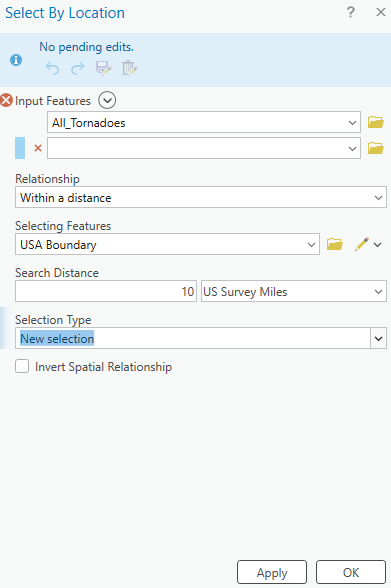
Step 3: Visualization with 3D Extrusions (Sketch Up)

Determined the highest height of the 3D maps models, was based on the total number of neighborhoods (98) and total number of gangs records/areas (46). Determining which neighbourhoods had the most gang boundaries was based on the gang area number which was provided in the Gang Boundary file. The gang with the most area totaled to shape area of 587,893,900m2, where the smallest shape area is 217,949m2. Similar process was done with neighbourhood area measurements. Neighbourhoods were raised based on the number of gang areas that were present within that neighbourhood (as previously shown in Figure 5). 5’ (feet) is the highest neighbourhood, and 4” (inches) is the lowest neighbourhood where gangs are present, neighbourhoods that do not have gangs are not elevated.

A different approach was applied to the top 3 gangs map model, where the highest remains same in each gang, but are placed in the neighbourhoods that have that gang present. For instance, Gangster Disciples were set at approximately 5 feet (5′ 3/16″ or 1528.8 mm), Black P Stones at almost 4 feet (3′ 7/8″ or 936.6 mm), and Latin Kings at a little over 1 foot (1′ 8 1/4″ or 514.4 mm).

Map Design

Determined what demographic factors were going to be used to compare with gang areas, for example, income, race, and top 3 gangs (Gangster Disciples, Black P Stones, and Latin Kings). Two elements present with the two demographic maps (height and colour), where colour indicates the demographic factor and the height represents the gang presence (Figure 7).

Figure 7: 3D map models of Chicago gangs based on Race and Income

There was limited information available about the gang areas, which only consisted of gang name, shape area, and length measurements. In terms of SketchUp’s limitations, the free web version as some restrictions, had to manually draw the outline of Chicago neighbourhoods which was time consuming. In addition, SketchUp scale system was complex and was not consistent between maps. To address tis, each corner of the map was measured with the Tape Measure Tool to ensure uniformity. Lastly, when the final product was viewed in augmented reality (AR), the map quality was limited such as the neighbourhood outlines were gone, and the only parts that were visible were the colour parts of the models.

The most visual pattern shown from the race map is the areas with more gang activity have a large population of African Americans (Figure 7). For the income map, indicated in green, more gang areas have lower income whereas the areas with higher income do not have gangs in those neighborhoods. Based on the top three gangs, Gangster Disciples have the most gang boundaries across Chicago neighborhoods (Figure 8). Gangster Disciples takes up 33.6% of the area in km2, founded in 1964 in Englewood.

Figure 8: 3D map of the top 3 gangs in Chicago, 2024

FINAL PRODUCT

The final product, is user interactive through a QR code that allows viewers to look at the map models using augmented reality (AR) just by pointing your mobile device camera at the QR code below.

Being aware that the quality of the AR has its limits, the SketchUp map models can be viewed using the Geovis Map Models button below.

Reference

Assari, S., Boyce, S., Caldwell, C. H., Bazargan, M., & Mincy, R. (2020). Family income and gang presence in the neighborhood: Diminished returns of black families. Urban Science4(2), 29.

Parks and its association to Average Total Alcohol Expenditure (Alcohol in Parks Program in Toronto, ON)

Welcome to my Geovisualization Assignment!

Author: Gabyrel Calayan

Geovisualization Project Assignment

TMU Geography

SA8905 – FALL 2025

Today, we are going to be looking at Parks and Recreation Facilities and its possible association to average alcohol expenditure in census tracts (due to the Alcohol in Parks Program in the City of Toronto) using data acquired from the City of Toronto and Environics Analytics (City of Toronto, n.d.).

Context

Using R Studio’s expansive tool set for map creation and Quarto documentation, we are going to be creating a thematic and an interactive map for parks and its association with Average Total Alcohol Expenditure in Toronto. The idea behind topic was really out of the blue. I was just thinking of a fun, simple topic that I wanted to do that I haven’t done yet for my other assignments! And so I landed on this because of data availability while learning some new skills at R Studio and try out the Quarto documentation process.

Data

  • Environics Analytics – Average Alcohol Expenditure (Shapefile for census tracts and in CAD $) (Environics Analytics, 2025
  • City of Toronto – Parks and Recreation Facilities (Point data and filtered down to 40 parks that participate in the program) (City of Toronto, 2011).

Methodology

  • Using R Studio to map out my Average Alcohol Expenditure and the 55 Parks that are a part of the Alcohol in Parks Program by the City of Toronto
  • Utilize tmap functions to create both a static thematic and interactive maps
  • Utilize Quarto documentation to create a readme file of my assignment
  • Showcasing the mapping capabilities and potential of R Studio as a mapping tool

Example tmap code for viewing maps

This tmap code for initializing what kind of view you want (there are only two kinds of views)

  • Static thematic map

## This is for viewing as a static map

## tmap_mode("plot") + tm_shape(Alcohol_Expenditure)

  • Interactive map

## This for viewing as a interactive map

## tmap_mode("view") + tm_shape(Alcohol_Expenditure)

Visualization process

Step 1: Installing and loading the necessary packages so that R Studio can recognize our inputs

  • These inputs are kind of like puzzle pieces! Where you need the right puzzle piece (package) so that you can put the entire puzzle together.
  • So we would need a bunch of packages to visualize our project:
    • sf
    • tmap
    • dplyr
  • These two packages are important because “sf” lets us read the shapefiles into R Studio. While “tmap” lets us actually create the maps. And “dplyr” lets us filter our shapefiles and the data inside it.
  • Also, its very likely that the latest R Studio version has the necessary packages already. In that case, you can just do the library() function to call the packages that you would need. But, I like installing them again in case I forgot.

## Code for installing the packages

## install.packages("sf")

## install.packages("tmap")

## Loading the packages

## library(tmap)

## library(sf)

We can see in our console that it says “package ‘sf’ successfully unpacked and MD5 sums checked. That basically means its done installing.

  • In addition, these warning messages in this console output indicates that we have these packages already in the latest R Studio software.

After installing and loading these packages, then we can begin with loading and filtering the dataset so that we can move on to visualizing the data itself. The results of installing these packages can be seen in our “Console” section at the bottom left hand side of R Studio (it may depend on the user but I have seen people move the “Console” section to the top right hand side of R Studio interface.

Step 2: Loading and filtering our data

  • We must first set the working directory of where our data is and where our outputs are going to go

## Setting work directory

## setwd()

  • This code basically points to where your files are going to be outputted to in your computer
  • Now that we set our working directory, we can load in the data and filter it

## Code for naming our variables in R Studio and loading it in the software

## Alcohol_Parks <- read_sf("Parks and Recreation Facilities - 4326.shp")

## Alcohol_Expenditure <- read_sf("SimplyAnalytics_Shapefiles_5efb411128da3727b8755e5533129cb52f4a027fc441d8b031fbfc517c24b975.shp")

  • As we can see in the code snippets above, we are using one of the functions that belong to the sf package. The read_sf basically loads in the data that we have to be recognized as a shapefile.
  • It will appear on the right as part of the “Environment” section. This means it has read all the columns that are part of the dataset
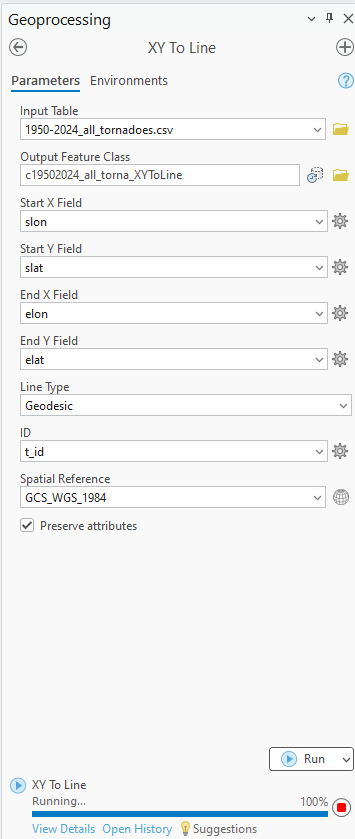
Now we can see our data in the Environments Section. And there’s quite a lot. But no worries we only need to filter the Parks data!
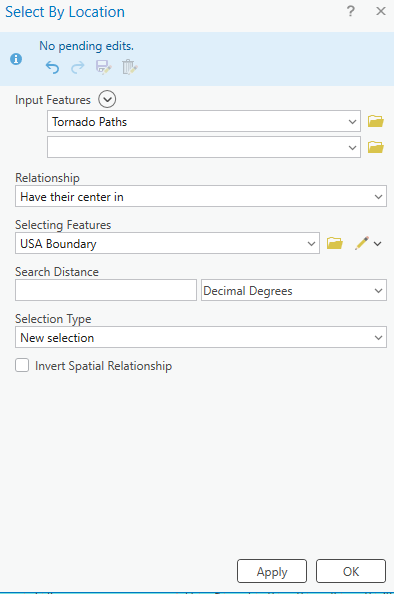
Step 3: Filtering the data

  • Since we only need to filter the data for the parks in Toronto, we only need to grab the data that are a part of the 55 parks in the Alcohol in Parks Program
  • This follows a two – step approach:
    • Name your variable to match its filtered state
    • Then the actual filtering comes into play

## Code for running the filtering process

## Alcohol_Parks_Filtered <- filter(Alcohol_Parks, ASSET_NAME == "ASHTONBEE RESERVOIR PARK" | ASSET_NAME == "BERT ROBINSON PARK"| ASSET_NAME == "BOND PARK" | ASSET_NAME == "BOTANY HILL PARK" | ASSET_NAME == "BYNG PARK"

  • As we can see in the code above, before the filtering process we name the new variable to match its filtered state as “Alcohol_Parks_Filtered”
    • In addition, we are matching the column name that we type out in the code to the park names that are found in the Park data set!
    • For example: The filtering wouldn’t work if it was “Bond Park”. It must be all caps “BOND PARK”
  • Then we used the filter() function to filter the shapefile by ASSET_NAME to pick out the 40 parks
  • We can see in our filtered dataset that we have filtered it down to 53 parks with all the original columns attached. Most important being the geometry column so we can conduct visualizations!
  • Once we completed that, we can test out the tmap function to see how the data looks before we map it out.

Step 4: Do some testing visualizations to see if there is any issues

  • Now, we can actually use some tmap functions to see if our data work
  • tm_shape is the function for recognizing what shapefile we are using to visualize the variable
  • tm_polygons and tm_dots is for visualizing the variables as either a polygon or dot shapefile
  • For tm_polygons, fill and style is basically what columns are you visualizing the variable on and what data classification method you would like to use

## Code for testing our visualizations

## tm_shape(Alcohol_Expenditure) + tm_polygons(fill = "VALUE0", style = "jenks")

## tm_shape(Alcohol_Parks_Filtered) + tm_dots()

Now, we can see that it actually works! We can see that the map above is our shapefile and the one on the bottom is our parks!

Step 5: Using tmap and its extensive functions to build our map

  • We can now fully visualize our map and add all the cartographic elements necessary to flesh it out and make it as professional as possible

## Building our thematic map

##``tmap_mode("plot") + tm_shape(Alcohol_Expenditure) +

tm_polygons(fill = "VALUE0", fill.legend = tm_legend ("Average Alcohol Expenditure ($ CAD)"), fill.scale = tm_scale_intervals(style = "jenks", values = "Greens")) +

tm_shape(Alcohol_Parks_Filtered) + tm_bubbles(fill = "TYPE", fill.legend = tm_legend("The 40 Parks in Alcohol in Parks Program"), size = 0.5, fill.scale = tm_scale_categorical(values = "black")) +

tm_borders(lwd = 1.25, lty = "solid") +

tm_layout(frame = TRUE, frame.lwd = 2, text.fontfamily = "serif", text.fontface = "bold", color_saturation = 0.5, component.autoscale = FALSE) +

tm_title(text = "Greenspaces and its association with Alcohol Expenditure in Toronto, CA", fontfamily = "serif", fontface = "bold", size = 1.5) +

tm_legend(text.size = 1.5, title.size = 1.2, frame = TRUE, frame.lwd = 1) +

tm_compass(position = c ("top", "left"), size = 4) +

tm_scalebar(text.size = 1, frame = TRUE, frame.lwd = 1) +

tm_credits("Source: Environics Analytics\nProjection: NAD83", frame = TRUE, frame.lwd = 1, size = 0.75)

  • Quite a lot of code!
  • Now this is where the puzzle piece analogy comes into play as well
    • First, we add our tmap_plot function to specify that we want it as a static map first
    • We add both our variables together because we want to see our point data and how it lies on top of our alcohol expenditure shapefile
    • Utilizing tm_polygons, tm_shape, and tm_bubbles to draw both our variables as polygons and as point data
      • tm_bubbles is dots and tm_polygons draws the polygons of our alcohol expenditure shapefile
    • The code that is in our brackets for those functions are additional details that we would like to have in our map
    • For example: fill.legend = tm_legend ("Average Alcohol Expenditure ($ CAD)")
      • This code snippet makes it so that our legend title is “Average Alcohol Expenditure ($ CAD) for our polygon shapefile
      • The same applies for our point data for our parks
    • Basically, we can divide our code into two sections:
      • The tm_polygons all the way to tm_bubbles is essentially drawing our shapefiles
      • The tm_borders all the way to the tm_credits are what goes on outside our shapefiles
        • For example:
    • tm_title() and the code inside it is basically all the details that can be modified for our map. component.autoscale = FALSE is turning off the automatic rescaling of our map so that I can have more control over modifying the title part of the map to my liking

Now we have made our static thematic map! On to the next part which is the interactive visualization!

Since we built our puzzle parts for the thematic map, we just need to switch it over to the interactive map using tmap_mode(“view”)

This code chunk describes the process to create the interactive map

library(tmap)
library(sf)
library(dplyr)


##Loading in the data to check if it works
Alcohol_Parks <- read_sf("Parks and Recreation Facilities - 4326.shp")
Alcohol_Expenditure <- read_sf("SimplyAnalytics_Shapefiles_5efb411128da3727b8755e5533129cb52f4a027fc441d8b031fbfc517c24b975.shp")

#Filtering test_sf_point to show only parks where you can drink alcohol
Alcohol_Parks_Filtered <- 
  filter(Alcohol_Parks, ASSET_NAME == "ASHTONBEE RESERVOIR PARK" | ASSET_NAME == "BERT ROBINSON PARK"
                                 | ASSET_NAME == "BOND PARK" | ASSET_NAME == "BOTANY HILL PARK" | ASSET_NAME == "BYNG PARK"
                                 | ASSET_NAME == "CAMPBELL AVENUE PLAYGROUND AND PARK" | ASSET_NAME == "CEDARVALE PARK" 
                                 | ASSET_NAME == "CHRISTIE PITS PARK" | ASSET_NAME == "CLOVERDALE PARK" | ASSET_NAME == "CONFEDERATION PARK"
                                 | ASSET_NAME == "CORKTOWN COMMON" | ASSET_NAME == "DIEPPE PARK" | ASSET_NAME == "DOVERCOURT PARK"
                                 | ASSET_NAME == "DUFFERIN GROVE PARK" | ASSET_NAME == "EARLSCOURT PARK" | ASSET_NAME == "EAST LYNN PARK"
                                 | ASSET_NAME == "EAST TORONTO ATHLETIC FIELD" | ASSET_NAME == "EDWARDS GARDENS" | ASSET_NAME == "EGLINTON PARK"
                                 | ASSET_NAME == "ETOBICOKE VALLEY PARK" | ASSET_NAME == "FAIRFIELD PARK" | ASSET_NAME == "GRAND AVENUE PARK"
                                 | ASSET_NAME == "GORD AND IRENE RISK PARK" | ASSET_NAME == "GREENWOOD PARK" | ASSET_NAME == "G. ROSS LORD PARK"
                                 | ASSET_NAME == "HILLCREST PARK" | ASSET_NAME == "HOME SMITH PARK" | ASSET_NAME == "HUMBERLINE PARK" | ASSET_NAME == "JUNE ROWLANDS PARK"
                                 | ASSET_NAME == "LA ROSE PARK" | ASSET_NAME == "LEE LIFESON ART PARK" | ASSET_NAME == "MCCLEARY PARK" | ASSET_NAME == "MCCORMICK PARK" 
                                 | ASSET_NAME == "MILLIKEN PARK" | ASSET_NAME == "MONARCH PARK" | ASSET_NAME == "MORNINGSIDE PARK" | ASSET_NAME == "NEILSON PARK - SCARBOROUGH"
                                 | ASSET_NAME == "NORTH BENDALE PARK" | ASSET_NAME == "NORTH KEELESDALE PARK" | ASSET_NAME == "ORIOLE PARK - TORONTO" | ASSET_NAME == "QUEEN'S PARK"
                                 | ASSET_NAME == "RIVERDALE PARK EAST" | ASSET_NAME == "RIVERDALE PARK WEST" | ASSET_NAME == "ROUNDHOUSE PARK" | ASSET_NAME == "SCARBOROUGH VILLAGE PARK"
                                 | ASSET_NAME == "SCARDEN PARK" | ASSET_NAME == "SIR WINSTON CHURCHILL PARK" | ASSET_NAME == "SKYMARK PARK" | ASSET_NAME == "SORAREN AVENUE PARK"
                                 | ASSET_NAME == "STAN WADLOW PARK" | ASSET_NAME == "THOMSON MEMORIAL PARK" | ASSET_NAME == "TRINITY BELLWOODS PARK" | ASSET_NAME == "UNDERPASS PARK"
                                 | ASSET_NAME == "WALLACE EMERSON PARK" |  ASSET_NAME == "WITHROW PARK")  


##Now as a interactive map
tmap_mode("view") + tm_shape(Alcohol_Expenditure) + 
  
  tm_polygons(fill = "VALUE0", fill.legend = tm_legend ("Average Alcohol Expenditure ($ CAD)"), fill.scale = tm_scale_intervals(style = "jenks", values = "Greens")) +
  
  tm_shape(Alcohol_Parks_Filtered) + tm_bubbles(fill = "TYPE", fill.legend = tm_legend("The 55 Parks in Alcohol in Parks Program"), size = 0.5, fill.scale = tm_scale_categorical(values = "black")) + 
  
  tm_borders(lwd = 1.25, lty = "solid",) + 
  
  tm_layout(frame = TRUE, frame.lwd = 2, text.fontfamily = "serif", text.fontface = "bold", color_saturation = 0.5, component.autoscale = FALSE) +
 
   tm_title(text = "Greenspaces and its association with Alcohol Expenditure in Toronto, CA", fontfamily = "serif", fontface = "bold", size = 1.5) +
  tm_legend(text.size = 1.5, title.size = 1.2, frame = TRUE, frame.lwd = 1) +
  
  tm_compass(position = c("top", "right"), size = 2.5) + 
  
  tm_scalebar(text.size = 1, frame = TRUE, frame.lwd = 1, position = c("bottom", "left")) +
  
  tm_credits("Source: Environics Analytics\nProjection: NAD83", frame = TRUE, frame.lwd = 1, size = 0.75)

Link to viewing the interactive map: https://rpubs.com/Gab_Cal/Geovis_Project

  • The only differences that can be gleaned from this code chunk is that the tmap_mode() is not “plot” but instead set as “view”
    • For example: tmap_mode(“view”)

The map is now complete!

Results (Based on our interactive map)

  • Just based on the default settings for the interactive map, tmap includes a wide range of elements that make the map dynamic!
    • We have the zoom in and layer selection/basemap selection function on the top left
    • The compass that we created is shown in the top right
    • And the legend that we made is locked in at the bottom right
    • Our scalebar is also dynamic which changes scales when we zoom in and out
    • And our credits and projection section is also seen in the bottom right of our interactive map
    • We can also click on our layers to see the columns attached to the shapefiles
  • For example, we can click on the point data to see the id, LocationID, AssetID, Asset_Name, Type, Amenities, Address, Phone, and URL. While for our polygon shapefile we can see the spatial_id, name of the CT, and the alcohol spending value in that CT
  • As we can see in our interactive map, the areas that have the highest “Average Alcohol Expediture” lie near the upper part of the downtown core of Toronto
    • For example: The neighbourhoods that are dark green are Bridle Path-Sunnybrook-York Mills, Forest Hill North and South and Rosedale to name a few
  • However, only a few parks that are a park of the program reside in these high spending regions on alcohol
  • Most parks reside in census tracts where the alcohol expenditure is either the $500 to $3000 range
  • While there doesn’t seems to be much of an association, there is definitely more factors into play as to where people buy their alcohol or where they decide to consume it
  • Based on just visual findings:
    • For example: It’s possible that people simply do not drink in these parks even though its allowed. They probably find the comfort of their home a better place to consume alcohol
    • Or people don’t want to drink at a park when they could be doing more active group – like activities

References