Geovis Project Assignment, TMU Geography, SA8905, Fall 2025
By Debbie Verduga
Welcome to my Geo Viz Tutorial!
I love ArcGIS and I love Power BI. Each shines in their own way, which is why I was excited to discover the new ArcGIS integration within Microsoft Power BI. Let’s dive in and explore what it can do!
First off, traditional business intelligence (BI) technologies offer powerful analytical insights but often fall short in providing geospatial context. Conversely, geospatial technologies offer map centric capabilities and advanced geoprocessing, but often lack insights integration.
ArcGIS for Power BI directly integrates spatial analytics with business intelligence without the need of geoprocessing tools or advanced level expertise. This integration has the potential to empower everyday analysts to explore and leverage spatial data without needing to be highly experts in GIS.
This tutorial will demonstrate how to use ArcGIS for Power BI to:
- Integrate multiple data sources – using City of Toronto neighbourhood socio-demographics, crime statistics, and gun violence data.
- Perform data joins within Power BI – by linking datasets effortlessly without needing complex GIS tools.
- Create interactive spatial dashboards – by blending BI insights with mapping capabilities, including thematic maps and hotspot analysis.
You will need TMU Credentials for:
- Power BI Online
- ArcGIS Online
- Data
| Dataset | File Type | Source |
| Neighbourhood Socio-demographic Data | Excel | Simply Analytics (Pre-Aggregated Census Data) |
| Neighbourhood Crime Rates | SHP File (Boundary) | ArcGIS Online Published by Toronto Police Service |
| Shooting & Firearm Discharge | SHP File (Point/Location) | ArcGIS Online Published by Toronto Police Service |
Power BI Online
Log into https://app.powerbi.com/ using your TMU credentials. To help you out, watch this tutorial to get started with Power BI Online.
ArcGIS Online
Log Into https://www.arcgis.com/ using your TMU credentials. Make sure you explore data available for your analysis. For this tutorial we will be using Toronto Police Service Open data including neighbourhood crime rates and shootings and firearms discharges.
Loading Data
To create a new report in Power BI, you need a set of data to start. For this analysis, we will use neighbourhood level socio-demographic data in an excel format. This data includes total population and variables that are often associated with marginalized communities including low income, unemployment rates, no education and visible minorities rates. This data does not have spatial reference, however, the neighbourhood name and unique identifier is available in the data.
Add Data > Click on New Report > Get Data > Choose Data Source > Upload File > Browse to your file location > Click Next > Select Excel Tab you wish to Import > Select Transform Data

Semantic Model
This will take you to the report’s Semantic Model. Think of a semantic model as the way you transform raw data into a business-ready format for analysis and reporting. The opportunities for manipulating data here are endless!
Using the semantic model you can define relationships with other data, incorporate business logic, perform calculations, summarize, pivot and manipulate data in many ways.
What I love about semantic models is that it remembers every transformation you have made to the data. If you made a mistake, don’t sweat it, come back to the semantic model and undo. It’s that simple.
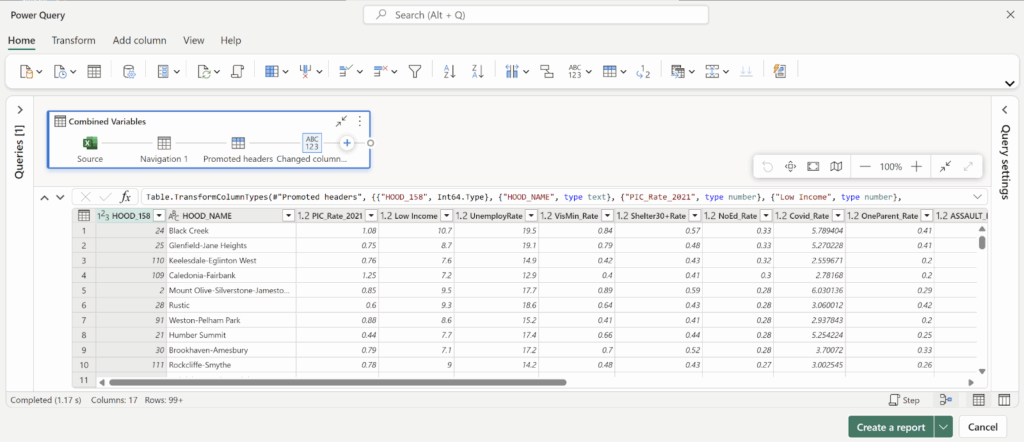
Once you load data you have two options. You can create a report or create a semantic model. Let’s create a report for now.
Create Report > Name Semantic Model
Report Layout
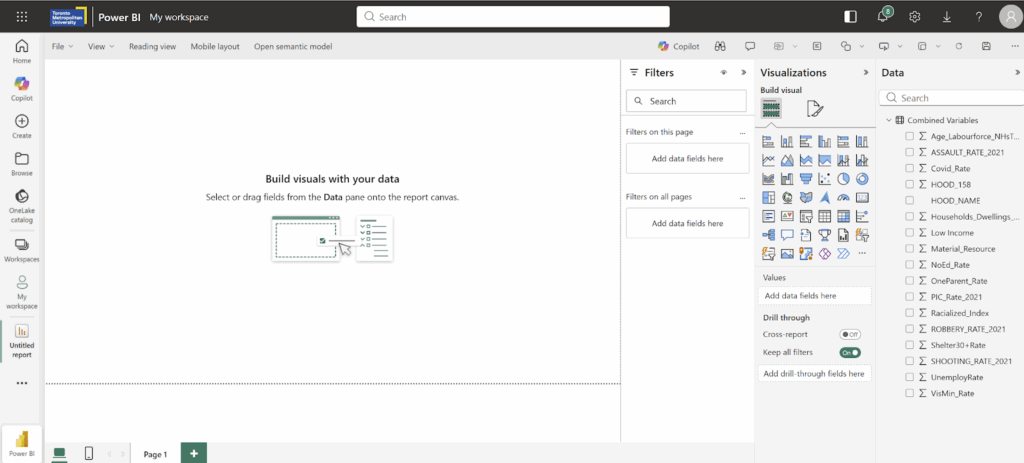
The report layout functions as a canvas. This is where you add all your visualizations. On the right panel you have Filters, Visualizations and Data.
Visuals are added by clicking on the icons. If you hover over the icon, you can see what they are called. There are default visuals, but you can add more visuals from the microsoft store.
The section below the visual icons helps guide how to populate the visual with your data.
Each visual is configured differently. For example, a chart/graph requires a y-axis and y-axis. To populate these visuals, drag and drop the column from your data table into these fields/values.
Add a Visual
Lets add an interactive visualization that displays the low income rate based on the neighbourhood selected from a list.
From the visualization panel > Add the Card Visual
From the data panel > Drag the variable column into the Fields

By default, Power BI summarizes the statistics in your entire data. Lets create an interactive filter to interact with this statistic based on a selected neighborhood.
From the Visualizations Panel > Add the Slicer Visual > Drag and drop the column that has the neighbourhood name > Filter from the slicer any given neighbourhood.
The slicer now interacts with the Card visual to filter out its respective statistic.
Congrats! We have created our very first interactive visualization! Well done :)
Pro Tip: To validate that calculations and visualizations are correct in Power BI, use excel to manipulate data in the same format and validate that visualizations are correct.

Load Data from ArcGIS Online
To demonstrate the full integration of Power BI and geospatial data, let’s bring data from ESRI’s ArcGIS Online. Authoritative open data is available in this portal and can be directly accessed through Power BI.
Linking Data
When you think about integrating non-spatial data with spatial/location data, you will need to keep in mind that at the very least, you will need common identifiers to be able to link data together. For example, the neighbourhood data has a neighbourhood name and identifier which are also available in the data published by the Toronto Police Service including neighbourhood crime rates and shootings and firearms discharges.
Add ArcGIS for Power BI Visual
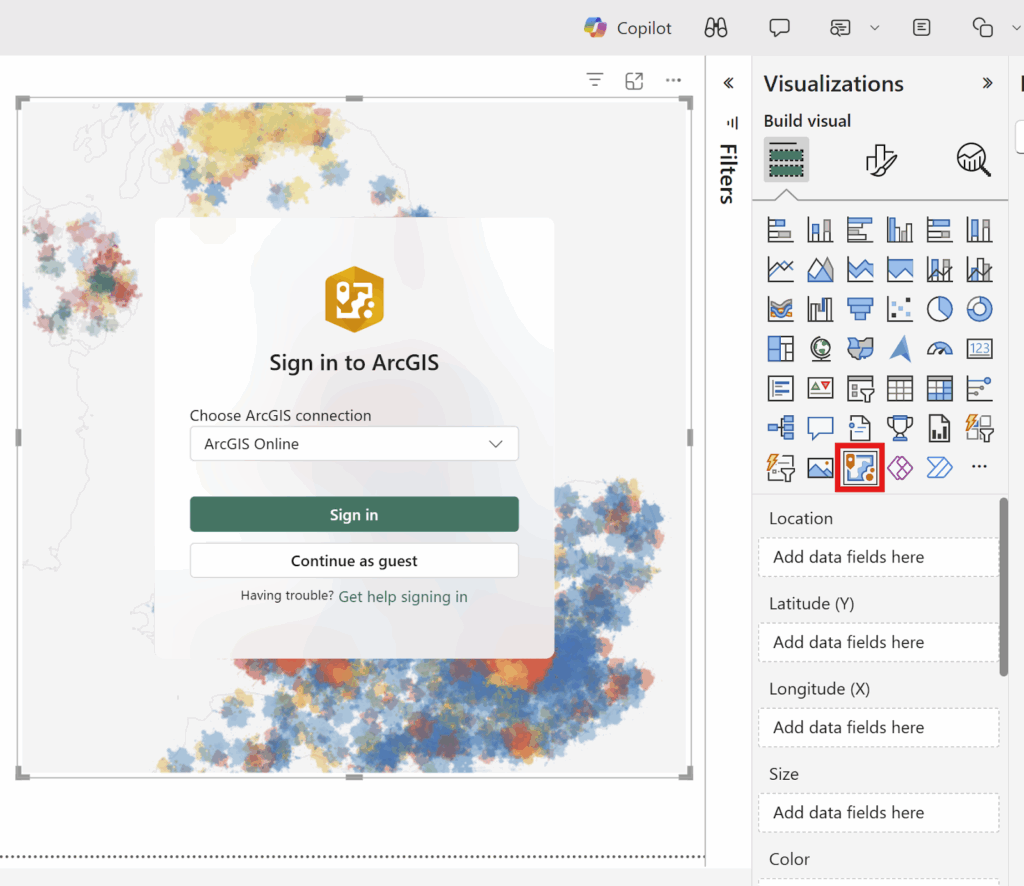
Add the ArcGIS for Power BI visual > Log in using your TMU Credentials.
Add Layers
Click on Layers Icon > Switch to ArcGIS Online > Search for Layers by Name > Select Layer > Done
This will add the layer to your map. You can go back and add more layers. You can also add layers from your own ArcGIS Online account.
ArcGIS Navigation Menu
The navigation menu on the left panel of this window allows you to perform the following geospatial functions
- Change and style symbology
- Change the Base Map
- Change Layer Properties
- Analysis tab allows you to
- Conduct Drive Time and Buffer
- Add demographic data
- Link/Join Data
- Find Similar Data
For the purposes of this analysis, we will:
- Establish a join between our neighbourhood socio-demographic data and the spatial data including crime rates and shootings and firearms discharges
- Develop a thematic map of one crime type
- Develop a shootings hot spot analysis
Data Cleansing
When linking data, the common neighbourhood IDs from all these different data sources are not in the same format. For example, in my data, the ID is an integer format. However, in the Shooting and Firearms Data, this field is in a text format padded with zeros.
In Power BI, we can create a clean table with neighbourhood information that acts as a neighbourhood dimension table to link data together and manipulate the columns to facilitate data linkages. Let’s create a neighbourhood dimension table.
Create a clean Neighbourhood Table
Open the Semantic Model > Change to Editing Mode > Transform Data > Right Click on Table > Duplicate Neighbourhood Table > Right Click on new table to Rename > Choose Column > Remove all Unwanted Columns > Click on Hood ID Column > Click Transform > Change to Whole Number > Right Click on Column to Rename > Add Custom Column (Formula Below) > Save
Formula = Text.PadStart(Text.From([HOOD_158]), 3, “0”)
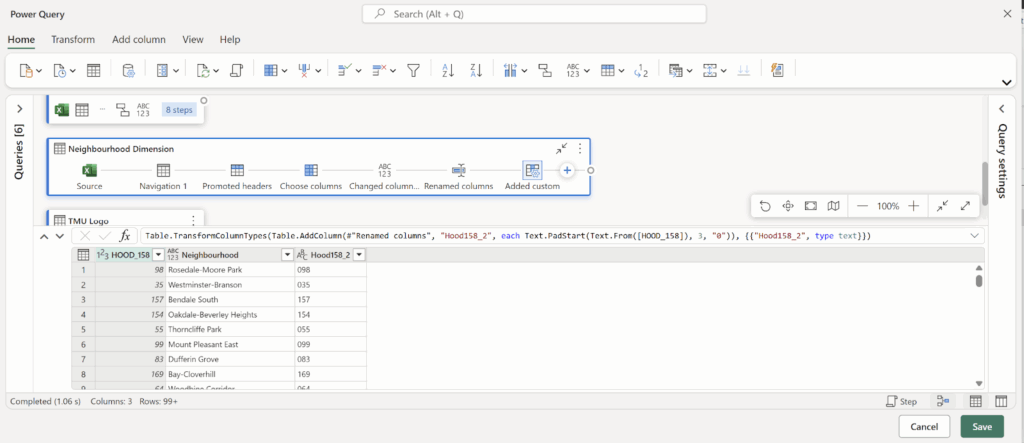
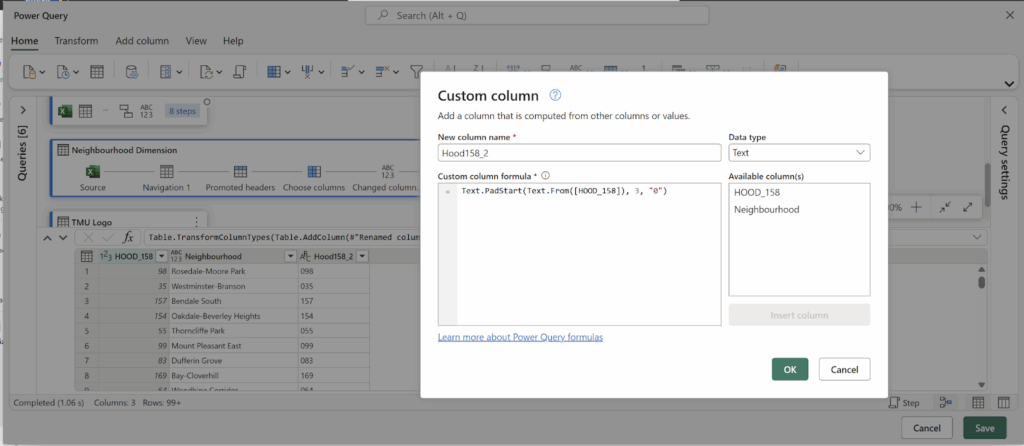
The custom column and formula takes the HOOD ID, changes it into a text field and adds padding of zeros. This will match the neighbourhood ID format in the shootings and firearm discharge data. Keep in mind, the only data you can manipulate is the data within your semantic model. You cannot change or manipulate the data sourced from ArcGIS Online.
Relationships
The newly created table in the semantic model needs to be related to the neighbourhood socio-demographic data to make sure that all tables are related to each other.
Establish a Relationship
In the semantic model view > Click Manage Relationships > Add New Relationship > Select From Table and Identifier > Select To Table and Identifier > Establish Cardinality and Cross-Filter Direction to Both > Save > Close
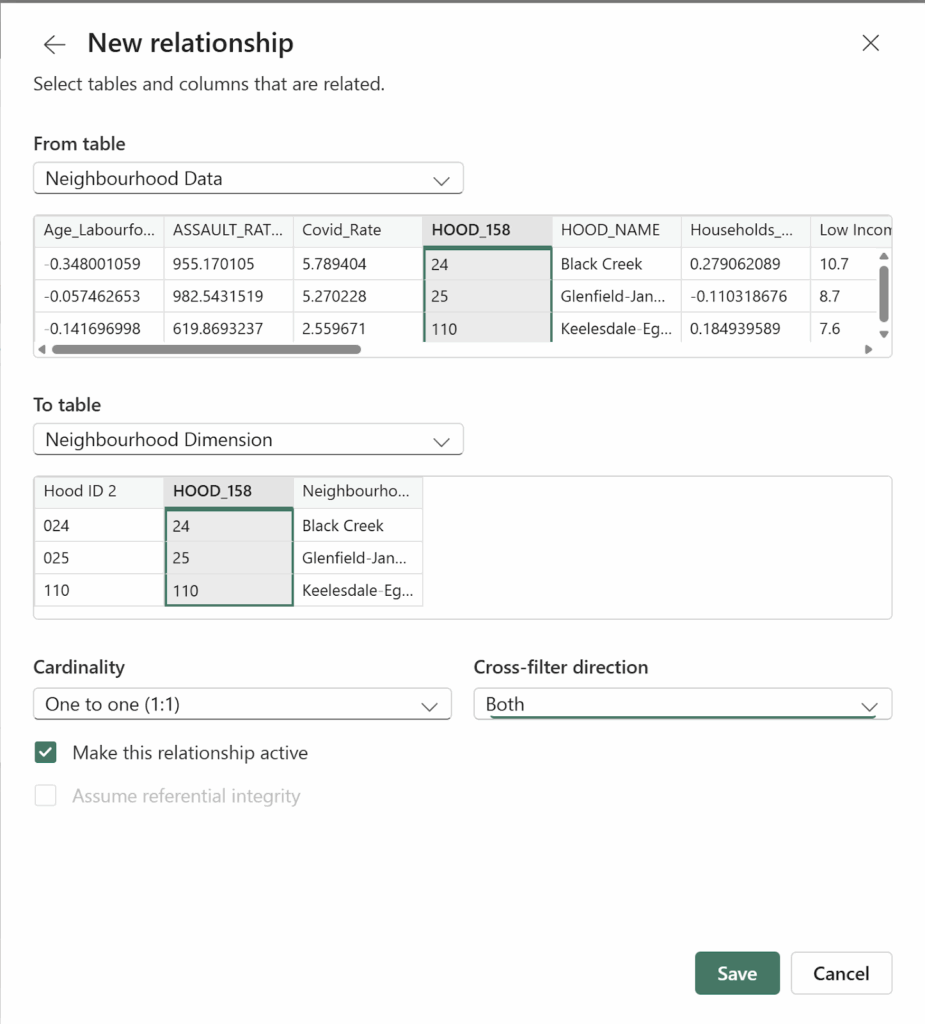

Congrats! We created a clean table that will function as a neighbourhood dimension table to facilitate data joins. We also learned how to establish a relationship with other tables in your semantic model. This comes handy as you can integrate multiple sources of data.
Let’s return to the report and continue building visualizations.
Joining Non-Spatial Data with Spatial Data
Neighbourhood Crime
Now we will join our non-spatial data from our semantic model with our spatial data in ArcGIS Online.
Join Non-Spatial Data with ArcGIS Online Data
Click on the ArcGIS Visual > Analysis Tab > Join Layer > Target Layer > Power BI Data (Drag & Drop Hood ID into the Join Layer Field in the Visualization Pane > Additional Options will now Appear on the Map> Select Join Field > Join Operation Aggregate > Interaction Filter > Create Join > Close
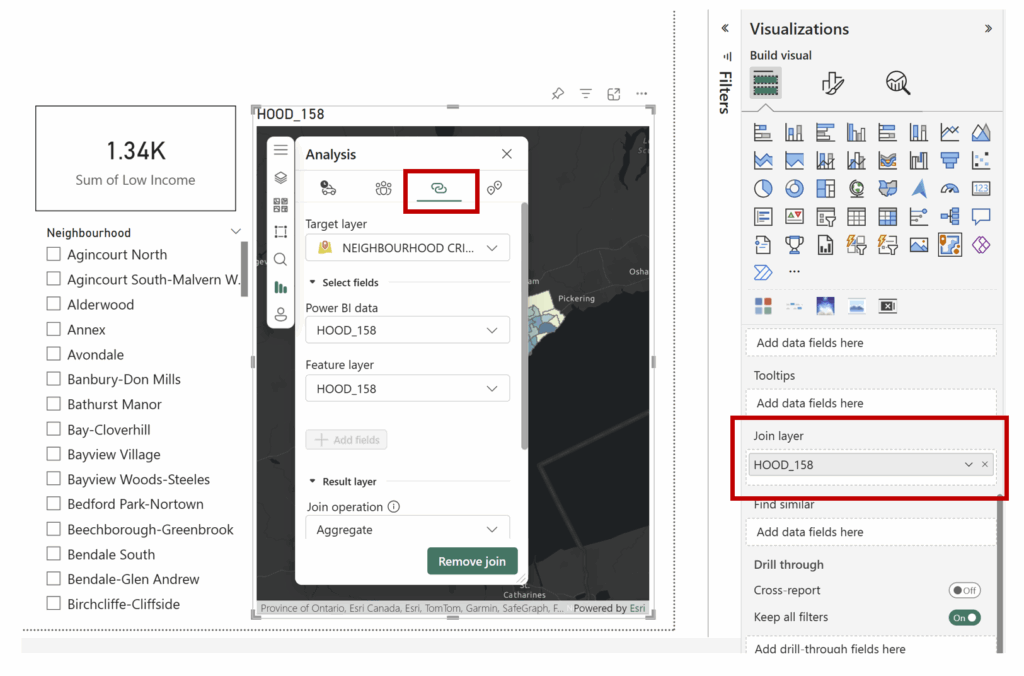
Congrats! We have created a join between the non-spatial data in Power BI and the spatial data in ArcGIS Online.
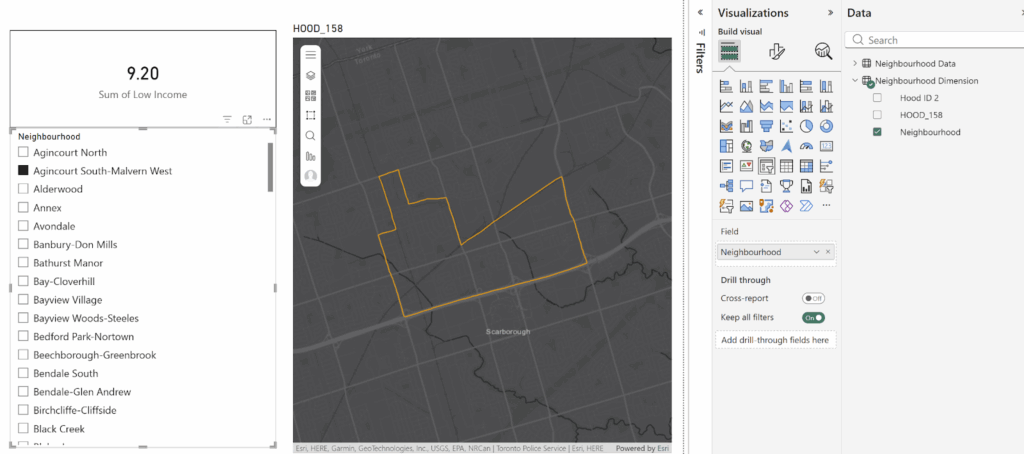
Change the neighbourhood filter to see this map filter and zoom into the selected neighbourhood.
Thematic Map
Now, let’s create a thematic map with one of the crime rates variables in this dataset.
On the left hand panel of the map:
Click on Layers > Click on Symbology > Active Layer > Select Field Assault Rate 2024 > Change to Colour > Click on Style Options Tab > Change Colour Ramp to another Colour > Change Classification > Close Window.

Congrats! We created a thematic map in Power BI using ArcGIS Online boundary file.
Change the neighbourhood filter to see how the map interacts with the data. Since this is a thematic map, we may not want to filter all the data, instead, we just want to highlight the area of interest.
Click on Analysis > Join Layer > Change the Interaction Behaviour to Highlight instead of Filter> Update Join
Check this again by changing the neighbourhood filter. Now, the map just highlights the neighbourhood instead of filtering it.
Customizing Map Controls
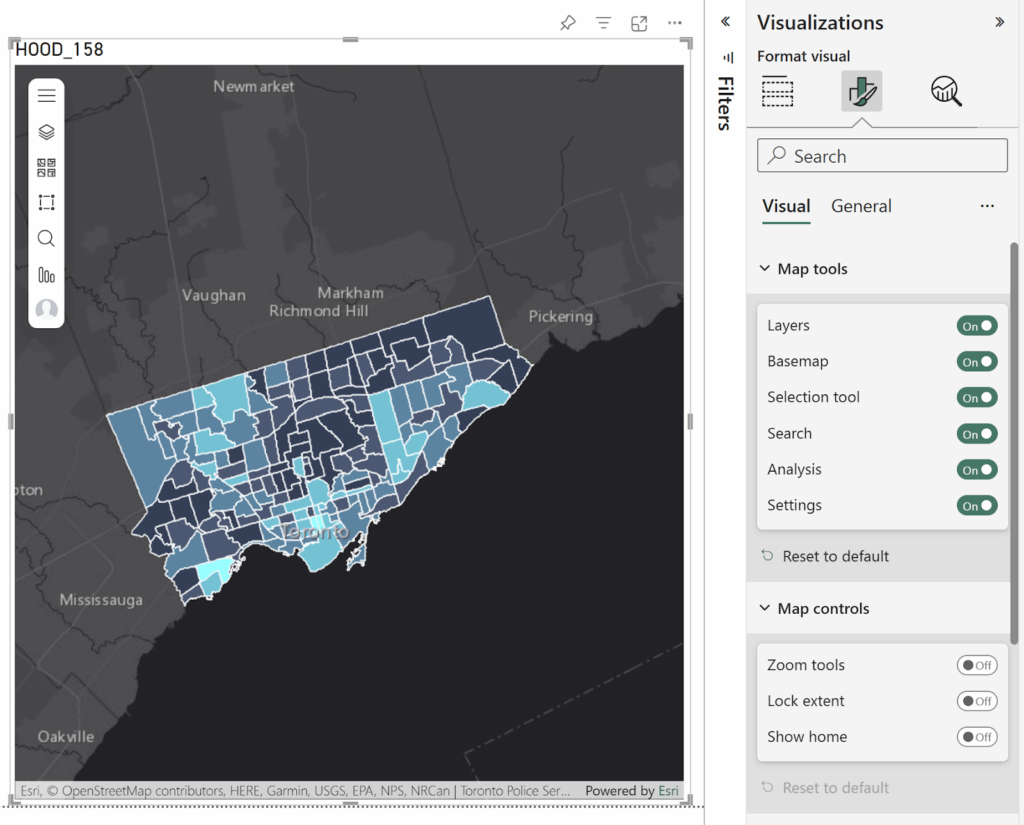
When you have the ArcGIS visual selected, you have the ability to customize your settings using the visualization panel. This controls the map tools available in the report. This can come in handy when setting up a default extent in your map for this report or allowing users to have control over the map.
Shootings and Firearm Discharges
Let’s visualize location data and create a hot spot analysis. To save time, copy and paste the map you created in the step before.
In the new map, add the Shootings and Firearms Data.
Challenge: Practice what you have learned thus far!
- Change the base layer to a dark theme.
- Add the Shootings and Firearm Discharge Data from ArcGIS Online.
- Create a join with this layer and the data in Power BI.
- Play around with changing the colour and shape of the symbology.
Hotspot Analysis
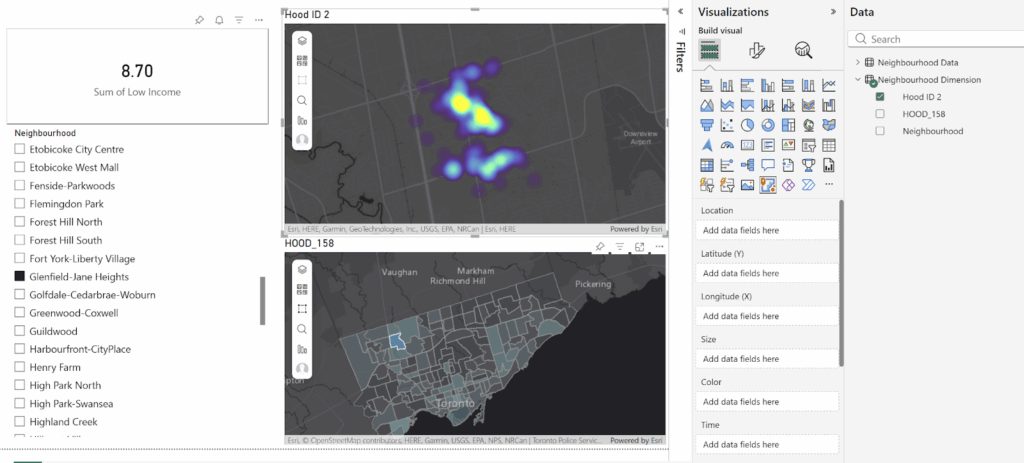
Now create a heat map from the Shooting and Firearm Discharges location data.
Click on Layers > Symbology > Change Symbol Type from Location to Heat Map > Style Options > Change Colour Ramp > Change Blur Radius > Close
Congrats! We have created a heat map in Power BI!
This map is dynamic, when you filter the neighbourhood from the list, the hot spot map filters as well.
Customizing your report
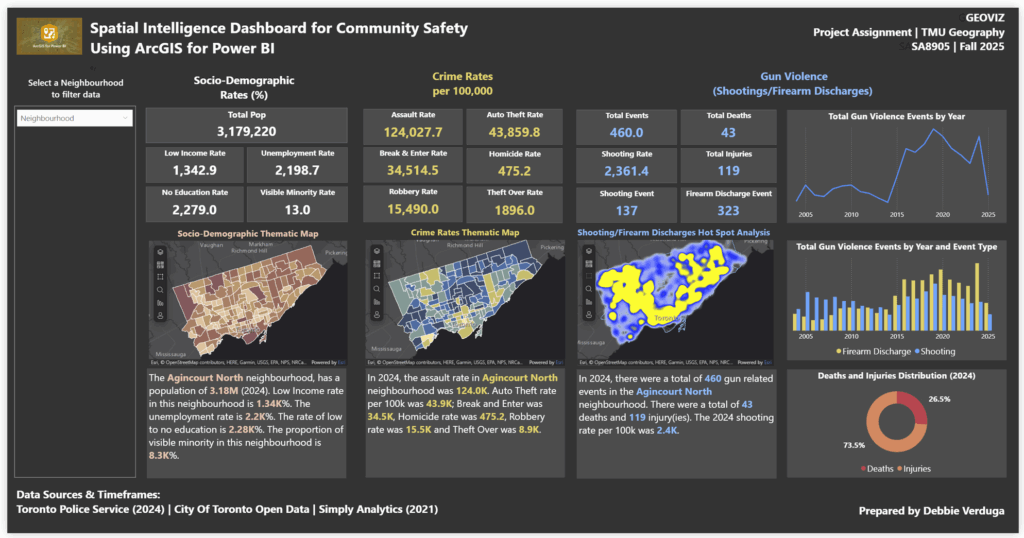
It’s time to customize the rest of the report by adding visualizations, incorporating additional maps, adjusting titles and text, changing the canvas background, and bringing in more data to enrich the overall analysis.
I hope you’re just as excited as I am to start using Power BI alongside ArcGIS. By blending these two powerful tools, you can easily bring different data sources together and unlock a blend of BI insights and spatial intelligence—all in one place.

References
Neighbourhood Crime Rates – Toronto Police Service Open Data
Shooting and Firearm Discharges – Toronto Police Service Open Data
Environics Analytics – Simply Analytics