3D Approach to Visualizing Crime on Campus: Laser-Cut Acrylic Hexbins

By: Lindi Jahiu

Geovis Project Assignment @RyersonGeo, SA8905, Fall 2021

INTRODUCTION

Crime on campus has long been at the forefront of discussion regarding safety of community members occupying the space. Despite efforts to mitigate the issue—vis-à-vis increased surveillance cameras, increased hiring of security personnel, etc.—, it continues to persist on X University’s campus. In an effort to quantify this phenomenon, the university’s website collates each security incident that takes place on campus and details its location, time (reported and occurrence), and crime type, and makes it readily available for the public to view through web browser or email notifications. This effort to collate security incidents can be seen as a way for the university to first and foremost, quickly notify students of potential harm, but also as a means to understanding where incidents may be clustering. The latter is to be explored in the subsequent geo-visualization project which attempts to visualize three years worth of security incidents data, through the creation of a 3D laser-cut acrylic hexbin model. Hexbinning refers to the process of aggregating point data into a predefined hexagon that represents a given area, in this case, the vertex-to-vertex measurement is 200 metres. By proxy of creating a 3D model, it is hoped that the tangibility, interchangeability, and gamified aspects of the project will effectively re-conceptualize the phenomena to the user, and in-turn, stress the importance of the issue at hand. 

DATA AND METHODS

The data collection and methodology can be divided into two main parts: 2D mapping and 3D modelling. For the 2D version, security incidents from July 2nd, 2018 to October 15th, 2021 were manually scraped from the university’s website (https://www.ryerson.ca/community-safety-security/security-incidents/list-of-security-incidents/) and parsed into columns necessary for geocoding purposes (see Figure 1). Once all the data was placed into the excel file, they would be converted into a .csv file and imported into the ArcGIS Pro environment. Once there, one simply right clicks on the .csv and clicks “Geocode Table”, and follows the prompts for inputting the data necessary for the process (see inputs in Figure 2). Once ran, the geocoding process showed a 100% match, meaning there was no need for any alterations, and now shows a layer displaying the spatial distribution of every security incident (n = 455) (see Figure 3). To contextualize these points, a base map of the streets in-and-around the campus was extracted from the “Road Network File 2016 Census” from Scholars GeoPortal using the “Split Line Features” tool (see output in Figure 3). 

Figure 1. Snippet of spreadsheet containing location, postal code, city, incident date, time of incident, and crime type, for each of the security incidents.

Figure 2. Inputs for the Geocoding table, which corresponds directly to the values seen in Figure 1.

Figure 3. Base map of streets in-and-around X University’s campus. Note that the geo-coded security incidents were not exported to .SVG – only visible here for demonstration purposes.

To aggregate these points into hexbins, a certain series of steps had to be followed. First, a hexagonal tessellation layer was produced using the “Generate Tessellation” tool, with the security incidents .shp serving as the extent (see snippet of inputs in Figure 4 and output in Figure 5). Second, the “Summarize Within” tool was used to count the number of security incidents that fell within a particular polygon (see snippet of inputs in Figure 6 and output in Figure 7). Lastly, the classification method applied to the symbology (i.e. hexbins) was “Natural Breaks”, with a total of 5 classes (see Figure 7). Now that the two necessary layers have been created, namely, the campus base map (see Figure 3 – base map along with scale bar and north arrow) and tessellation layer (see Figure 5 – hexagons only), they would both be exported as separate images to .SVG format – a format compatible with the laser cutter. The hexbin layer that was classified will simply serve as a reference point for the 3D model, and was not exported to .SVG (see Figure 7).

Figure 4. Snippet of input when using the “Generate Tessellation” geoprocessing tool. Note that these were not the exact inputs, spatial reference left blank merely to allow the viewer to see what options were available.
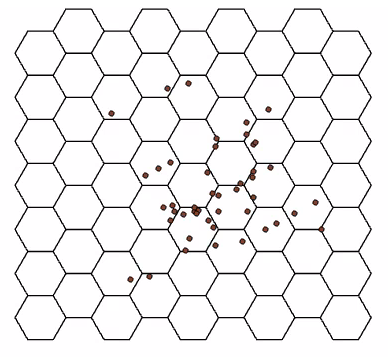
Figure 5. Snippet of output when using the “Generate Tessellation” geoprocessing tool. Note that the geo-coded security incidents were not exported to .SVG – only visible here for demonstration purposes.

Figure 6. Snippet of input when using the “Summarize Within” geoprocessing tool.

Figure 7. Snippet of output when using the “Summarize Within” geoprocessing tool. Note that this image was not exported to .SVG but merely serves as a guide for the physical model.

When the project idea was first conceived, it was paramount that I familiarized myself with the resources available and necessary for this project. To do so, I applied for membership to the Library’s Collaboratory research space for graduate students and faculty members (https://library.ryerson.ca/collab/ – many thanks to them for making this such a pleasurable experience). Once accepted, I was invited to an orientation, followed by two virtual consultations with the Research Technology Officer, Dr. Jimmy Tran. Once we fleshed out the idea through discussion, I was invited to the Collaboratory to partake in mediated appointments. Once in the space, the aforementioned .SVG files were opened in an image editing program where various aspects of the .SVG were segmented into either Red, Green, or Blue, in order for the laser cutter to distinguish different features. Furthermore, the tessellation layer was altered to now include a 5mm (diameter) circle in the centre of each hexagon to allow for the eventual insertion of magnets. The base map would be etched onto an 11×8.5 sheet of clear acrylic (3mm thick), whereas the hexagons would be cut-out into individual pieces at a size of 1.83in vertex-to-vertex. Atop of this, a black 11×8.5 sheet of black acrylic would be cut-out to serve as the background for the clear base map (allowing for increased contrast to accentuate finer details). Once in hand, the hexagons would be fixed with 5x3mm magnets (into the aforementioned circles) to allow for seamless stacking between pieces. Stacks of hexagons (1 to 5) would represent the five classes in the 2D map, but with height now replacing the graduated colour schema (see Figure 7 and Figure 9 – although the varying translucency of the clear hexagons is also quite evident and communicates the classes as well). The completed 3D model is captured in Figure 8, along with the legend in Figure 9 that was printed out and is to always be presented in tandem with the model. The legend was not etched into the base map so as to allow it to be used for other projects that do not use the same classification schema, and in-case I had changed my mind about a detail at some point.

Figure 8. 3D Laser-Cut Acrylic Hexbin Model depicting three-years worth of security incidents on campus. Multiple angles provided.

Figure 9. Legend which corresponds the physical model displayed in Figure 8. Physical version has been created as well and will be shown in presentation.

FUTURE RESEARCH DIRECTIONS AND LIMITATIONS

The geo-visualization project at-hand serves as a foundation for a multitude of future research avenues, such as: exploring other 3D modalities to represent human geography phenomenon; as a learning tool for those not privy to cartography; and as a tool to collect further data regarding perceived and experienced areas of crime. All of which expand on the aspects tangibility, interchangeability, and gamification harped on in the project at-hand. With the latter point, imagine a situation where a booth is set up on campus and one were to simply ask “using these hexagon pieces, tell us where you feel the most security incidents on campus would occur.” The answers provided would be invaluable, as they would yield great insight into what areas of campus community members feel are most unsafe, and what factors may be contributing to it (e.g. built environment features such as poor lighting, lack of cameras, narrowness, etc.), resulting in a synthesis between the qualitative and quantitative. Or on the point of interchangeability, if someone wanted to explore the distribution of trees on campus for instance, they could very well laser-cut their own hexbins out of green acrylic at their own desired size (e.g. 100m), and simply use the same base map.

Despite the fairly robust nature of the project, some limitations became apparent, more specifically: issues with the way a few security incident’s data were collected and displayed on the university’s website (e.g. non-existent street names, non-existent intersections, missing street suffixes, etc.); an issue where the exportation of a layer to .SVG resulted in the creation of repeated overlapping of the same images that had to be deleted before laser cutting; and lastly, future iterations may consider exaggerating finer features (e.g. street names) to make the physical model even more legible.

Time-Lapse of City of Toronto Precipitation and Beach E.Coli Count- July 2018

Kezia Weed- SA8905 Geovis Project, Fall 2021

Introduction

Toronto’s beaches are an incredible feature of the city, popular throughout warm months for water activities of, among other things, swimming, paddle boarding, and boating. While taking a plunge into Lake Ontario is a great way for residents to cool off, it is always important to be aware of the current water quality conditions. During the summer, the City of Toronto tests beaches for Escherichia coli (i.e., E.Coli) counts daily as a public health measure, posting results available on site and online. What many residents are unaware of, is that E.coli is a bacteria that lives naturally in the guts of warm blooded animals; only high concentrations of E.coli at beaches pose a danger of infections for swimmers. In Toronto, beaches are posted as unsafe to swim when E.Coli counts exceed 100 fecal coliforms per 100ml.

Water quality can be impacted by numerous factors including legacy contaminants (i.e., lead), industrial activity (i.e., direct effluent discharge), and by urban stormwater and sewage water. In this visualization, the purpose is to examine the impact of precipitation on fecal coliform counts. This visualization includes seven weather stations and 10 downstream beaches across the city, as to capture the effect of rainfall on water quality. As a general rule, cities believe residents should not swim within 24-48 hours of a rain storm as rain can mobilize urban contaminants into the surface flow, streams, and eventually beaches. This is especially important during extreme precipitation events in Toronto, when there is the risk of combined sewer overflows (CSOs); CSOs occur when the volume of water discharged exceeds wastewater treatment plant capacity, and must be directed into Lake Ontario untreated.

On this premise, this visualization displays both precipitation and beach water quality over the span of a month. This is to examine, if at all, there are clear impacts between precipitation and the observed fecal coliforms at beach sites.

Data

The base layers for this visualization are i) ‘Toronto Watercourses’ polyline shapefile and ‘Toronto Watershed’ polygon shapefile, downloaded from the TRCA; a ii) ‘Lake Ontario’ shapefile, downloaded from the United States Geological Survey (USGS) Open Data portal; and ii) a ‘City of Toronto boundary’ shapefile downloaded from City of Toronto Open Data.

Seven (7) weather stations with daily precipitation data were identified for the duration of July 2018. Five of the weather stations’ datasets were retrieved from Environment Canada’s (EC) ‘Historic Weather’ data catalogue, and two additional weather stations’ datasets were accessed from the City of Toronto Open Data portal, from the ‘2018 Precipitation Data’ file. The daily total fecal coliform tests (i.e., E.Coli concentration) were downloaded from the City of Toronto’s ‘Swimming Conditions History’ webpage.

All of the weather and total coliform datasets were placed into individual comma separated value (.csv) files, with a column for date, latitude, longitude and an entry for either precipitation or E.Coli concentrations.

Sample csv file in appropriate format

Technology

All spatial datasets were inputted and visualized within the open-source geographic information system (GIS), QGIS 3.10. To achieve a time-series visualization, this study used the QGIS plugin, ‘TimeManager’ (developed by Anita Graser). TimeManager allows for the creation of timelapse maps with temporally stamped data.

TimeManager Plug-in in QGIS

Process

To create the initial map, add the basemap shapefiles of i) ‘Toronto Watercourses’, ii) ‘Toronto Watersheds’, iii) ‘City of Toronto boundary’, and iv) ‘Lake Ontario’.

Import the .csv files for each individual Toronto weather station using the ‘Add Delimited Text Layer’ option in the ‘Add Layer’ menu in QGIS 3.10. Within the import manager, the ‘X’ and ‘Y’ geometry values have to be selected for defining point geometry; in the ‘Geometry Definition’ section of the import manager, assign the ‘X’ value to the weather stations’ longitude and the ‘Y’ value to latitude. As the latitude and longitude coordinates were in decimals, minutes second, the geometry type was specified as ‘DMS’ in the coordinates box. If the data file has coordinates in decimal format, leave the coordinates box unchecked. Finally, select ‘Add’ and a point for the weather station which will be placed on the map. Repeat this process for each of the Toronto weather stations and Toronto beaches .csv files.

The next step is to create a spatial buffer for the precipitation levels that surround each weather station. In the tools pane, select ‘Vector’, then the geoprocessing toolbox (i.e., ‘Geoprocessing’), then select the buffer operation (i.e., ‘Buffer’). Using the weather station point as the start for the buffer, then define the width of the buffer. For this map the value selected was 5km. To limit overlap of stations. Repeat this process for each of the Toronto weather station points.

Buffer options screen

Once Toronto weather stations are buffered, proceed to the ‘properties’ pane for the new point and select the variable ‘precipitation’, then specify layer symbology under ‘graduated symbols’. Within ‘graduated symbols’, set the symbol ranges and select the colour ramp. In this example, buffers were each made to be 50% opacity.

To create the beach points, proceed to the layer’s ‘properties’ pane, and select ‘symbology’. Selecting ‘E.Coli’ as the display variable, specify layer symbology using ‘graduated symbols’, and then select a corresponding symbol. For the purpose of this map, four categories of fecal coliform concentration were used: 0-50 (Green), 51-100 (Yellow), 101- 200 (Red), and 201-999 (Starburst). Graduating visualization breaks in four categories was chosen to be able to see the changes, they do not directly correspond to beach advisory levels.

Map with buffered weather station points and beach data points

Once weather station points and buffers, and beach points were set up, open up the ‘Time Manager’ plugin from the workbench in QGIS. Add in each vector layer, ensuring that the date format of the points and buffers is in ‘yyyy-mm-dd’, otherwise it will not work. For the purpose of this visualization, days were selected as the ‘time format’

TimeManager control panel

Finally, select export video. When exporting using TimeManager, it does not export as a compiled video; instead, TimeManager creates a different image for each day. While this isn’t ideal for a very large data set, it does automate map generation in a consistent layout form. Moreover, it is not possible to add map elements in the QGIS 3.10 ‘TimeManager’ plugin, therefore this must all be done as post-QGIS processing. In this case, Microsoft PowerPoint (v.2019) was selected, with the additional map elements (scale bar, legend, title, and north arrow) added at this point. A video was then compiled in Microsoft PowerPoint (v.2019) and uploaded to YouTube.

Results

Below is the final result, published as a video on YouTube.

Toronto Maple Leafs Game-Day Guide

Author: Olivia Kariunas

Geovisualization Project Assignment @RyersonGeo, SA8905, Fall 2021

Project Link: https://arcg.is/1Xr9i52

Background

The inspiration behind creating this geovisualization project stems from my own curiosity about Toronto’s tourism industry and love of the hometown hockey team. There have been numerous instances where I found myself stressed and anxious about planning a stay within Toronto due to the overwhelming number of options for every element of my stay. I wanted to create content in an interactive manner that would reduce the scope of options in terms of accommodations, restaurants, and other attractions in a user-friendly way. With a focus on attending a Toronto Maple Leafs game, I have created an interactive map that presents readers with hotels, restaurants and other attractions that are highly reviewed, along with additional descriptions that may provide useful to those going to these places for the first time. Each of these locations are located under 1 kilometer from the Scotiabank Arena to ensure that patrons will not require extensive transportation and can walk from venue to venue. Also, the intent behind the interactive map is to increase fan engagement by helping fans find a sense of community within the selected places and ease potential stressors of planning their stay. For a Toronto Maple Leafs fan, the fan experience starts before the game even begins.

Why Story Map?

Esri’s Story Map was chosen to conduct this project because it is a free user-friendly method that allows anyone with an Esri Online account to create beautiful stories to share with the world. By creating a free platform, any individual or business can harness the benefits of content creation for their own personal pleasure or for their small business. Furthermore, the Shortlist layout was chosen to include images and descriptions about multiple locations for the Story Map to give readers visual cues of the locations being suggested. The major goal behind using this technology is to ensure that individuals in any capacity can access and utilize this platform by making it accessible and easy to understand.

Data

To obtain the data for the specific locations of the hotels, restaurants, and other attractions, I inspected various travel websites for their top 10 recommendations. From these recommendations, I selected commonalities among the sites and included other highly recommended venues to incorporate diversity among the selection. For the selected hotels, I attempted to include various category levels to accommodate different budgets of those attending the Leafs game. Additionally, all attractions chosen do require an additional purchase of tickets or admission, but vary in price point as well.

Creating Your Story Map

Start the Story Map Shortlist Builder using a free ArcGIS public account on ArcGIS Online.

Create a title for your interactive map under the “What do you want to call your Shortlist?”. Try to be as creative, but concise, as possible!

The main screen will now appear. You can now see your title on the top left, as well as a subtitle and tabs below. To the right, there is a map that you can alter as you like. To add a place, click the “Add” button within the tab frame. This will allow you to create new places that you want to further describe.

Story Map Project Main Screen

A panel will appear where you can enter the name of the chosen destination, provide a picture, include text, and specify its location. You can include multiple images per tab using the “Import” feature. Once the location has been specified using the venue’s address, a marker will appear on the map. You are able to click and drag this marker to any destination that you choose. The colour of the marker correlates to the colour of the tab. Additionally, you can include links within the description area to redirect readers to the respective venue’s website.

Completed location post with title, image, and description.

Click the “+” button on the top right hand corner of the left side panel to add more destinations. The places that you add will show as thumbnails on the left side of the screen. Click the “Organize” button underneath the tab to reorder the places. You can order these in any way that seems logical for your project. Click “Done” when satisfied.

To create multiple tabs, click the “Add Tab” button. To edit a tab, click the “Edit Tab” button. This will allow you to change the colour of the tab and its title.

The Edit, Add, and Organize Tabs can be found to the right of the other tabs and above the map.

To save your work, press the “Save” button occasionally, so all of your hard work is preserved.

There are also optional elements that you can include as well. You can change the behaviour and appearance of your Shortlist by clicking the “Settings” button. You are able to change the various functions people can utilize on the map. This includes implementing a “Location Button” and “Feature Finder” where readers can see their own location on the map and find specific locations on the map, respectively. You are also able change the colour scheme and header information by clicking on their tab options. Hit “Apply” when satisfied.

Settings options tab

To share your Shortlist click the “Save” button and then click the “Share” button. You can share publicly or just within your organization. Additionally, you can share using a url link or even embed the Story Map within a website.

Final output of content

Limitations & Future Work

The main limitation of this project was selecting what venues to include. Toronto is a lively city with an overwhelming amount of options for visitors to choose from, resulting in many places being overlooked or unaccounted for. Overall, the businesses chosen represent a standard set of places for those who are unfamiliar with the city. To include a more diverse set of offerings, an addition to the current project, or an entirely new project, can be created to include places that provide more niche products/services. Furthermore, a large portion of the venues chosen were selected from travel/tourism advisory websites where the businesses on the sites may pay a fee to be included, thus limiting the amount of exposure other businesses may have.

Overall Thoughts

Story Map was simple to understand and the platform was aesthetically pleasing. My only reservations about this program is the limited amount of stylization control in terms of the text and other design elements. I would most likely use this platform again, but may attempt to find a technology that allows for more control over the overall appearance and settings of the geovisualization.

Thank you for reading my post. Have fun creating!

Building digitization using Artificial Intelligence – an Open Source approach

By Nikita Markevich

Geovisualization Project Assignment, SA8905, Fall 2021

INTRO

With the development of automation and machine learning, a new approach in raw data acquisition has been opened for people to try. QGIS is a popular open-source GIS software that allows the creation of custom plugins for all sorts of geoprocessing. One such plugin is called Mapflow, developed by Russian-based company GEOAlert. Mapflow is an easy-to-use plugin to retrieve ground data from satellite imagery such as buildings, roads, construction zones, and forest canopies. This blog will introduce how to use Mapflow through a browser environment. To learn how to use the plugin, please refer to the Esri Story Maps tutorial through this link: https://storymaps.arcgis.com/stories/dfd88d7170c74f33a4dd5f7583cdc414

The difference between the use of Mapflow in the browser and through the plugin is that browser only allows detection from web-based satellite services such as Mapbox, or custom imagery through URL, while in the plugin, custom satellite imagery can be processed straight from the user’s device. The major advantage of the browser approach is that the process is using remote servers which is faster than the plugin process.

Mapflow website project page

USER INTERFACE

Mapflow online service uses free to try system by giving 500 free credits when opening an account. Each process requires credits based on the size of the data area that the user wishes to process. If the user runs out of credits, it is possible to top up the balance in the top right corner for the price of 100 CAD per 1000 points.

Let’s explore the project page. The project is organized in steps where the user can choose the data source, the type of AI Model that the user wishes to run, and post-processing operation for additional data gathering. AI Models that are available in the browser copy the models which are available in the QGIS plugin. AI can provide digitization for buildings, high-density housing, forests, roads, construction, and agricultural fields.

User Interface of the Data source tab in Mapflow. Mapbox API is used to display geographic data.

In the data source tab, a user can either use the embedded draw tool to choose the area for processing or upload polygon data in GEOJSON format. The draw rectangle tool is very intuitive in its use and as soon as it’s drawn, the website provides the area’s size in squared kilometers. This number is used by the website to determine how many credits are required to process the area. The larger the area, the more credits it costs to process.

DATA

The area of interest for this example would be focused on the same area as was used in the plugin tutorial in Esri Story Maps: the city of Ciego De Avilo in Cuba. The drawn rectangle over the city and closest suburbs estimated the area to be 45.31 squared kilometers. Originally the area was raised to my attention when I was doing some research project for the company I work for to explore the possibility of constructing fiber service in the Caribbean region. While searching for building and road data through open sources such as OpenStreetMap, I realized that some Caribbean countries and especially Cuba is missing geographic data that is required to create a fiber map model. After exploring several options, the plugin Mapflow proved to be most useful to generate geodata from available free commercial satellite imageries.

Selected Area of the City of Ciego De Avila chosen through draw rectangle tool in the data source page of Mapflow

PROCESS

The Chosen area is now inputted in our project. The next steps would be to choose the model and post-processing data. We will choose a buildings model to test the speed of the browser process and compare it with the plugin process. The big perk of the browser tool is the post-processing options. One such option is automatic polygon simplification, which would simplify the results of the model. In the plugin version, the results of the model outputted some building polygons in broken shapes or fuzzy polygons. That would create additional work post-processing polygons manually. The browser tool offers that option for free.

Project window of Mapflow right before the beginning of the process.

The area of interest costs 227 credits to be processed, which means that every 100 squared kilometers processed costs 500 points.

As soon as the Run processing button is pressed, the final step is to wait for the process to finish and download the processed data. The process finished in 32 minutes. That is 15 minutes faster than in the plugin process, which was 47 minutes.

After the process is finished, the user can view the results in the browser and download the file in the GEOJSON format.

Data results in the browser window

The process assigns id numbers to each shape as well as shape types, such as rectangle, grid snap, or l-shape. This information can help with further post-processing and solve any automation mistakes.

LIMITATIONS AND FUTURE WORK

The most important limitation of this tool is its cost, however, if the user decides to process an area larger than 100 square kilometers, one can create multiple accounts and use free credits each time. Secondly, the processed results sometimes output shapes that are very questionable in their nature. Some polygons merged multiple buildings into ones, others detected buildings partially, in other cases the orientations of polygons are off. This can be fixed in the manual post-processing by GIS professionals.

In the future, this tool can be potentially be used to populate the OpenStreetMap dataset with the building polygons and roads data. Open Source data is very important for many gis users, and AI automation is the perfect companion that makes the work of GIS enthusiasts much easier by streamlining the most tedious processes in geographic analysis.

Introducing YouthMappers

Author: Daniel Council

Geovis Project Assignment @RyersonGeo, SA8905, Fall 2021

Project Link: https://arcg.is/15zmWP0

Background

During my time in undergrad, I became involved with an international network of student mappers called YouthMappers. Through virtual internships and engagement with the chapter at my university, I started to become an active member of the network. For starters, one of the main goals of YouthMappers is to create open data for areas of the world that are lacking readily available spatial data. 

The concept of open data is similar to Wikipedia, it can be provided by anyone. The primary method of open data collection used is OpenStreetMap, which is an open source platform that anyone can edit and upload spatial information onto, such as roads and buildings, for example. Many companies, organizations, and websites use data found on OpenStreetMap. The popular mobile-phone game, Pokémon Go, sources its map data from OpenStreetMap. However, arguably the most beneficial aspect of open data is that it is free, readily available, and accessible to anyone.

YouthMappers Chapters around the Globe

There are currently 291 YouthMappers chapters located throughout 62 countries around the globe. My chapter was located in Muncie, Indiana, at Ball State University. I interned with YouthMappers to research how open data is being used in Belize, and I also looked into how the Belizean government views open data as opposed to official sources of information. Additionally, I worked with the YouthMappers Validation Hub, which works to validate mapping projects conducted by YouthMappers chapters.

Project Description

For my geovisualization project, I was inspired by my involvement with YouthMappers. I wanted to introduce the organization to our class using technology provided by Esri. I often work with Dashboards, web maps, and Story Maps, but I was interested in trying out one of the other apps that Esri hosts in order to learn a new tool. I came across Experience Builder in ArcGIS Online, and was interested in how it can almost be used as a tool for creating a website, one that can be viewed across any type of device.

While there is a lot of overlap in functionality between Experience Builder, Dashboards, and Story Maps, Experience Builder allows for increased customization. There is no coding necessary, however. In fact, the user interface for creating an Experience is quite user friendly once you learn the main concepts. Within Experience Builder, you can even integrate and link other Esri applications like Survey123 or Dashboards, a functionality not available elsewhere. Experience Builder can be more comprehensive than Dashboards, which is mainly used to provide information on a singular, non-scrolling screen. With Experience Builder, you can create long, scrolling pages (which I did not personally do in my project). With this being said, Experience Builder is definitely the way to go if you’re looking to make something that is more in tune with a website. 

The remainder of this blog post will serve as a tutorial for the basics of how to use Experience Builder to create a web page for your organization. The approach I took was fairly simple, as I wanted to be able to disseminate the key information with as few pages and tabs as possible, and also have everything fit on a singular screen to prevent the need for endless scrolling. I only included three tabs to display information, which are described below. YouthMappers already has their own website, so my project is more of a condensed and interactive version that can be viewed in a short amount of time, and provides a general introduction to people who may be unfamiliar with the network. 

Three Tabs used to Separate Information

About: Used to introduce the organization and give a visualization of how widespread it is. The map I used is interactive and allows for user-friendly navigation and custom pop-ups for each point on the map.

Our Work: Gives a real-life example of a project conducted by the organization, and shows the benefits and impact this project makes. Giving an example helps the viewer understand how the organization operates. A visual of the completed or in-progress project can further provide something almost tangible.

Get Involved: Provides a way to viewers to become a member or learn more about the organization if they wish. Gives a link to the more detailed organization website.

Experience Builder: The Basics

Now, for using Experience Builder itself, there are a few important concepts to learn before beginning. While the app provides a number of pre-made templates, I would recommend starting with a blank project. I tried starting with a template but personally found it too overwhelming. I enjoyed the process of learning how Experience Builder works from scratch and found it easier than trying to integrate my ideas with something that was already formatted in a specific way.

Pages: In my project, there are three pages, each being linked to the tabs mentioned above. Pages are almost like layers on a map, each one contains different components and displays different visualizations.

Widgets: Each page can contain a multitude of widgets. Different types of widgets are designated by the icon to the left of its name. For my Experience, I used maps, images, text, tabs, and charts, just to name a few. I also gave my widgets descriptive names that related to what they displayed. It helped me keep track of my widgets in an organized manner. 

After adding your widgets, you can customize them to your liking. When a widget is activated, the “Style” tab appears on the right side of the screen. Here, one can alter the size, position, appearance, and other visual effects of each widget.

Overall, Experience Builder is a unique tool that combines the story-telling aspects of Story Maps, the geospatial technology of web maps, and the easy-to-navigate user interface of Dashboards. I would definitely use this tool again for future use, as I can now visualize more ways it can be utilized. 

Tracking the COVID-19 Pandemic in Toronto with R and Leaflet

By: Tavis Buckland

Geovisualization Project Assignment, SA8905, Fall 2020

Github Repository: https://github.com/Bucklandta/TorontoCovid19Cases.git

INTRO

Over the course of the pandemic, the City of Toronto has implemented a COVID-19 webpage focused on providing summary statistics on the current extent of COVID-19 cases in the city. Since the beginning of the pandemic, this webpage has greatly improved, yet it still lacks the functionality to analyze spatio-temporal trends in case counts. Despite not providing this functionality directly, the City has released the raw data for each reported case of COVID-19 since the beginning of the pandemic . Using RStudio with the leaflet and shiny libraries, a tool was designed to allow for the automated collection, cleaning and mapping of this raw case data.

Sample of COVID-19 case data obtained from the Toronto Data Portal

DATA

The raw case data was downloaded from the Toronto Open Data Portal in R, and added to a data frame using read.csv. As shown in the image below, this data contained the neighbourhood name and episode date for each individual reported case. As of Nov. 30th, 2020, this contained over 38,000 reported cases. Geometries and 2016 population counts for the City of Toronto neighbourhoods were also gathered from the Toronto Open Data Portal.

PREPARING THE DATA

After gathering the necessary inputs, an extensive amount of cleaning was required to allow the case data to be aggregated to Toronto’s 140 neighbourhoods and this process had to be repeatable for each new instance of the COVID-19 case data that was downloaded. Hyphens, spaces and other minor inconsistencies between the case and neighbourhood data were solved. Approximately 2.5% of all covid cases in this dataset were also missing a neighbourhood name to join on. Instead of discarding these cases, a ‘Missing cases’ neighbourhood was developed to hold them. The number of cases for each neighbourhood by day was then counted and transposed into a new data table. From there, using ‘rowSum’, the cumulative number of cases in each neighbourhood was obtained.

Example of some of the code used to clean the dataset and calculate cumulative cases

Unfortunately, in its current state, the R code will only gather the most recent case data and calculate cumulative cases by neighbourhood. Based on how the data was restructured, calculating cumulative cases for each day since the beginning of the pandemic was not achieved.

CREATING A SHINY APP USING LEAFLET

Using leaflet all this data was brought together into an interactive map. Raw case counts were rated per 100,000 and classified into quintiles. The two screenshots below show the output and popup functionality added to the leaflet map.

In its current state, the map is only produced on a local instance and requires RStudio to run. A number of challenges were faced when attempting to deploy this map application, and unfortunately, the map was not able to be hosted through the shiny apps cloud-server. As an alternative, the map code has been made available through a GitHub repository at the top of this blog post. This repository also includes a stand-alone HTML file with an interactive map.

Screenshot of HTML map produced by R Shiny App and Leaflet. Popups display neighbourhood names, population, raw count, and rate per 100,000 for the most recent case data.

LIMITATIONS

There are a couple notable limitations to mention considering the data and methods used in this project. For one, the case data only supports aggregation to Toronto neighbourhoods or forward sortation areas (FSA). At this spatial scale, trends in case counts are summarized over very large areas and are not likely to accurately represent This includes the modifiable areal unit problem (MAUP), which describes the statistical biases that can emerge from aggregating real-world phenomena into arbitrary boundaries. The reported cases derived from Toronto Public Health (TPH) are likely subject to sampling bias and do not provide a complete record of the pandemic’s spread through Toronto. Among these limitations, I must also mention my limited experience building maps in R and deploying them onto the Shinyapps.io format.

FUTURE GOALS

With the power of R and its many libraries, there are a great many improvements to be made to this tool but I will note a few of the significant updates I would like to implement over the coming months. Foremost, is to use the ‘leaftime’ R package to add a timeline function, allowing map-users to analyze changes over time in reported neighbourhood cases. Adding the function to quickly extract the map’s data into a CSV file, directly from the map’s interface, is another immediate goal for this tool. This CSV could contain a snapshot of the data based on a particular time frame identified by a user. The last functionality planned for this map is the ability to modify the classification method used. Currently, the neighbourhoods are classified into quintiles based on cumulative case counts per 100,000. Using an extended library of leaflet, called ‘leafletproxy’, would allow map users greater control over map elements. It should be possible to allow users to define the number of classes and which method (i.e. natural breaks, standard deviation, etc.) directly from the map application.

Interactive Map and Border Travels

Given the chance to look at making geovisualisation, a pursuit began to bring in data on a scope which would need adjustments and interaction for understanding geography further and further, while still being able to begin the journey with an overview and general understanding of the topic at hand.

Introduction to the geovisualisation

This blog post doesn’t unveil a hidden gem theme of border crossing, but demonstrates how an interactive map can share the insights which the user might seek, not being limited to the publisher’s extents or by printed information. Border crossing is selected as topic of interest to observe the navigation that may get chosen with borders, applying this user to a point of view that is similar to those crossing at these points themselves, by allowing them to look at the crossing options, and consider preferences.

To give the user this perspective, this meant beginning to locate and provide the crossing points. The border crossing selected was the US border between Canada and between Mexico, being a scope which could be engaged with the viewer and provide detail, instead of having to limit this data of surface transportation to a single specified scale and extent determined by the creator rather than the user.

Border crossings are a matter largely determined by geography, and are best understood in map rather than any other data representation, unlike attributes like sales data which may still be suitable in an aspatial sense, such as projected sales levels by line graph.

To get specific, the data came from the U.S. Bureau of Transportation Statistics, and was cleaned to be results from the beginning of January 2010 til the end of September 2020. The data was geocoded with multiple providers and selected upon consistency, however some locations were provided but their location could not be identified.

Seal of the U.S. Bureau of Transportation Statistics

To start allowing any insights for you, the viewer, the first data set to be appended to the map is of the border locations. These are points, and started to identify the distribution of crossing opportunities between the north American countries. If a point could not be appended to the location of the particular office that processed the border entries, then the record was assigned to the city which the office was located in. An appropriate base layer was imported from Mapbox to best display the background map information.

The changes in the range of border crossings were represented by shifts in colour gradient and symbol size. With all the points and their proportions plotted, patterns could begin to be provided as per the attached border attributes. These can illustrate the increases and decreases in entries, such as the crossings in California points being larger compared to entries in Montana.

Mapped Data

But is there a measure as to how visited the state itself is, rather than at each entry point? Yes! Indeed there is. In addition to the crossing points themselves, the states which they belong to have also been given measurement. Each state with a crossing is represented on the map displaying a gradient for the value of average crossing which the state had experienced. We knew that California had entry points with more crossings than the points shown in Montana, but now we compare these states themselves, and see that California altogether still experienced more crossings at the border than Montana had, despite having fewer border entry points.

Could there be a way to milk just a bit more of this basic information? Yes. This is where the map begins to benefit from being interactive.

Each point and each state can be hovered over to show the calculated values they had, clarifying how much more or less one case had when compared to another. A state may have a similar gradient, an entry point may appear the same size, but to hover over them you can see which place the locations belong to, as well as the specific crossing value it has. Montana is a state with one of the most numerous crossing points, and experiencing similar crossing frequencies across these entries. To hover over the points we can discover that Sweetgrass, Montana is the most popular point along the Montana border.

Similar values along the Montana border

In fact, this is how we discover another dimension which belongs to the data. Hovering over these cases we can see a list of transport modes that make up the total crossings, and that the sum was made up of transport by trucks, trains, automotives, busses, and pedestrians.

To discover more data available should simply mean more available to learn, and to only state the transport numbers without their visuals would not be the way to share an engaging spatial understanding. With these 5 extra aspects of the border crossings available, the map can be made to display the distributions of each particular mode.

Despite the points in Alaska typically being one of the least entered among the total border crossings, selecting the entries by train draws attention to Skagway, Alaska, being one of the most used border points for crossing into the US, even though it is not connected to the mainland. Of course, this mapped display paints a strong understanding from the visuals, as though this large entry experienced at Skagway, Alaska is related to the border crossings at Blaine, Washington, likely being the train connection between Alaska and Continental USA.

Mapping truck crossing levels (above), crossings are made going east and past the small city of Calexico. The Calexico East is seen having a road connection between the two boundaries facing a single direction, suggesting little interaction intended along the way

When mapping pedestrian crossings (above), these are much more popular in Calexico, the area which is likely big dense to support the operation of the airport shown in its region, and is displaying an interweaving connection of roads associated with an everyday usage

Overall, this is where the interactive mapping applies. The borders and their entry points have relations largely influenced by geography. The total pedestrian or personal vehicle crossings do well to describe how attractive the region may be on one side rather than another. Searching to discover where these locations become attractive, and even the underlying causes for the crossing to be selected, can be discovered in the map that is interactive for the user, looking at the grounds which the user chooses.

While this theme data layered on top highlights the topic, the base map can help explain the reasons behind it, and both are better understood when interactive. It isn’t necessary to answer one particular thought here as a static map may do, but instead to help address a number of speculative thoughts, enabling your exploration.

Past 5 Years of Toronto Robberies

By: Niraginy Theivendram

Geovisualization Project, SA 8905, Fall 2020

Introduction

Over the past years, Toronto has experienced an increase in robbery and assault. Robbery is the act of stealing from a person using violence or threats of violence. According to the Toronto Police Services, in the past 5 years there has been over 20, 000 police reported robberies in the city. Toronto Police provides various datasets online to the public with various types of crime information across the City of Toronto. This dataset can be used to visualize and analyze the distribution of Toronto crime. There have been many types of crime that Toronto has experienced over the years, however, this interactive dashboard will look at the different types of robberies in Toronto. With Tableau’s interactive time series map, you will be able to visualize the distribution of Toronto robberies over a span of 5 years.

The following dashboard was produced using Tableau Public, an interactive data visualization and analytics tool. I created a time series map visualizing the different types of robberies that Toronto has experienced over a 5-year span. In addition to the map, there are 3 visuals produced. The pie chart visualizes the percent of total offence type. The other 2 charts allow you to visualize the distribution of each type of offence over a 1-year period based on the count as well as the number of offences per neighbourhood.

Data

The data used for this dashboard was acquired from Toronto Police Services and was downloaded as a shapefile. Toronto Police provides a variety of data types for all types of crime. However, this specific dashboard uses the Robbery 2014 to 2019 dataset. This data was a point file consisting of information about the type of offence, the date it occurred, the date it was reported, and the neighbourhood it happened in.

The following information will go through the steps in producing this dashboard in Tableau. The overall dashboard can be viewed on Tableau Public here.

Method

Importing Data

Before getting starting on the visuals, we will first need to import the data we are working with. Tableau works with a wide range of data types. Since I will be using a shapefile, we can import this data as a ‘Spatial file’ in the Connect section. This file will then open up in the Data Source tab where you will be able to sort and edit your data. The Sheet tab can then be used to individually create maps and charts which will then be rearranged into a dashboard using the Dashboard tab.

Creating the Time Series Map

First, we will be creating a time series map from 2014 to 2019, showing the number of robberies in Toronto as a dot density map. Go into the Sheet tab to create the first map. This dataset provides longitude and latitude coordinates for each robbery represented by a point. To create a dot density map, we will drag the ‘Longitude’ field into the Columns tab and the ‘Latitude’ field into the Rows tab. Right-click on the Longitude and Latitude fields and make sure they are set as a Dimension in order to produce this dot density map.

To make this a time series map, we will drag the field ‘Reported Year’ into the Pages card. This will produce a time slider which enables you to view the dot density map at any chosen reported year.

The time slider will allow you to view the map in a loop by adjusting the speed of the animation. This could be controlled by any user just by using the features on the legend.

Finally, in the upper-right Show Me tab, select the symbol map icon to produce your base map.

The Marks card provides you with control over how the data is displayed in the view. The options on the card allows you to change the level of detail as well as the appearance. For this map, we would like to display the Offence type, Neighbourhood, Reported Date, and Division of each Robbery point on the map. Make sure these fields are dragged into the Marks card as a Detail, so that it doesn’t affect the headers built by the fields on the Columns and Rows. The attributes that appear when you hover over one or more marks in the view can be controlled in the Tooltips tab. You can modify which fields to include in the tooltip and how to display it.

Creating Graphics and Visuals

Next, we will create a graph displaying the number of robberies by offence type for each month over the entire time series.

To produce this graph, drag and drop the ‘Reported Month’ field into the Columns tab and the ‘Offence’ field into the Rows tab. Make sure both fields are set as a Dimension.

Since this will also be a part of the time series, drag and drop the ‘Reported Year’ field into the Pages card.

Next, we add the ‘Offence’ field into the Marks card to quantify how many robberies are attributed to each type of offence. Since we want the number of offences, right-click on the field and under Measure, click Count. This will display the number of offences and will also enable you to make the symbol proportional to the number of offences by adding the field as a Size. As mentioned before, the attributes shown when a user hovers over a feature can be edited under the tooltip.

Next, we will create the pie chart. This will display the percent of each offence type based on the total count.

Since this is also part of the time series, we will add the ‘Reported Year’ field in the Pages card. Next to represent the count of offences as a pie chart we will add the ‘Offence’ field as a count into the Marks card. Change the type to Angle or click ‘Pie Chart’ in the Show Me tab to create a pie chart.

We also want the percentage of the number of offences, right-click on the field and go to ‘Quick Table Calculation’ where you will be able to make the Percent of Total calculation. This will then display the percent of each offence when you hover over the pie chart. Add another ‘Offence’ field to the Marks card to control the colour scheme of the pie chart.

Next, we will create the chart displaying the number of offences per neighbourhood. This will allow the users to get an understanding of which neighbourhoods experience a high number of robberies.

Similar to the previous visuals, drag and drop the ‘Reported Year’ field into the Pages card to be included into the time series. In the Show Me tab, select horizontal bars and then drag the ‘Neighbourhood’ field into the Marks card as a Detail. Since we want to look at the count of offences per neighbourhood, add the ‘Offence’ field into the Marks card as a Size. This will allow the squares representing the neighbourhoods in the chart to be proportional to the number of robberies that were reported in that location. To control the colours of the square, add another ‘Offence’ field (count) as Colour.

 Creating the Dashboard

Now in the Dashboard tab, all the sheets that were created of the map and charts can now be added onto the dashboard using the toolbar on the left by simply dragging each individual sheet into the dashboard pane. This toolbar can also be used to change the size of the dashboard. You can then save the created dashboard which will be published to an online public portal.

Limitations and Future Works

This dashboard is produced using police reported data which provides only one particular view of the nature and extent of the robbery. One of the major factors that can influence the police reported crime rate is the willingness of the public to report a crime to the police. It is not certain that every robbery that has happened in Toronto has been reported. Over the years, it has been proven by criminologists that many crimes never come to attention to the police because the incident was not considered important enough.

Being a time series dashboard, examining the distribution of robberies over a larger time period dating back to the late 1900s or early 2000s would further our understanding of the distribution of robberies. The 5-year time series doesn’t show much of a difference in the patterns that were determined. However, Toronto Police only provides data for the last 5 years, dating from 2014-2019, making it impossible to look at a larger time period.

To expand further on this project in the future, it would be interesting to look at potential factors relevant to robbery and assault. Given that this is a quantitative analysis, it cannot take into account of all potential factors of relevance to crime due to the limitation of data availability and challenges in their quantification. This model is limited in that it cannot consider the importance of many socio-demographic changes in Canadian society that is not available in a statistical time series. For the future of this project, exploring the statistical relationship between crime patterns and the demographic and economic changes would allow us to conclude with better assumptions about Toronto crime patterns today.

Renewable Energy Installations in The Greater Toronto Area

By: Athithja Arunagiri

Geo-Visualization Project @RyersonGeo, SA8905, Fall 2020

Project Link: Click here

Background

Renewable energy is the energy that is derived from natural processes that are replenished at a rate that is equal to or faster than the rate at which they are consumed. There are various forms of renewable energy, getting directly or indirectly from the sun, or from the heat that is generated deep within the earth. They include energy generated from wind, solar, hydropower and ocean resources, geothermal, solid biomass, biogas and liquid biofuels. Over time, there has been a wide range of energy-producing technologies and equipment that took advantage of these natural resources. Consequently, the utilizable energy can be produced in many forms. These forms include industrial heat, electricity, thermal energy for space and water conditioning, and transportation fuels.

Canada has an abundance of renewable resources that can be used to produce energy due to its large landmass and diversified geography. Canada is a world leader in the production and use of energy from renewable resources. For this project, we would be focusing on renewable energy installations in the Greater Toronto Area (GTA), Canada. There are 58 renewable energy installations in GTA. Renewable energy resources currently provide 0.6% of GTA’s total renewable energy supply. Deep Lake Water Cooling, Geothermal, Solar Air Heating, Solar Hot Water, Solar Photovoltaic (PV) and Wind Turbine are the forms of renewable energy used in GTA. Solar photovoltaic is the most important used form of renewable energy produced in the GTA. Solar hot water also contributes to the GTA’s renewable energy mix. Recently, more wind and solar photovoltaic is being used within the GTA.  

Project Description

My geo-visualization project includes one interactive map and two graphs:

Fig. 1: Screenshot of my geo-visualization project.

My map illustrates renewable energy locations in the GTA. This map is a proportional symbol map where the size of the circles depends on the size of the installation. Depending on the year and type chosen, the size varies.  Users can view the results for different years between 1986 and 2014. Users can select years to see how many installed within that year and select the type of installation to see how many of that specific installation is within the GTA. The bar graph compares the type of installation and its size. The bars are stacked by the years each renewable energy was installed. The pie chart looks at the % of total counts of system owners. 79.31% of the system owners are generated.    

Technology

Tableau is a data visualization software used to see and understand data. For my data visualization project, I used Tableau Public to create my dashboard. I chose to use Tableau because it has built-in visualizing and interacting tools and provides limitless data exploration. It allows you to import many different types of files such as shapefiles, text files and excel files to the maps.

Data & Methods

The data used for this project was downloaded from the Toronto Open Data Portal. I used the Renewable Energy Installations shapefile (Click here) for my map. This data consists of point data of the renewable energy locations in the GTA. It displays data from 1863 to 2014. The attribute for this data includes Building Name, Location, Type, Year Installed, Size (ekW), etc. This data was imported into Tableau’s data source as a ‘Spatial file”.

Fig. 2: Adding a connection in Tableau

For my map, I added the “Geometry” field into the “Marks” card in Sheet. This added the generated Longitude field to the “Columns” tab and the generated Latitude field to the “Rows” tab. The background map was set to a dark theme and in the upper-right “Show Me” tab, the map icon can be selected to generate the base map.

Fig. 3 & 4: Geometry added into “Marks” to produce the points for the map.

From the Tables column, I added multiple features to the sheet. Systems Owner, Geometry, Building Name, Type, Year Installed, and Size field were added to the “Marks” card. The Type field was set to Colour and Sum Size field was set to Size. Then under the “Marks” card, I set it to Circle to allow the Size field to symbolized using a proportional symbol. A year filter was added to the map. Users can use the slider to look at the installations by year.

Fig. 5, 6 & 7: The settings behind the interactive map.

Next, I opened a second sheet. This was used for the bar graph. For the bar graph, under the “Marks” card, I set it to Bar. I used Type for the “Rows” tab and Size for the “Columns” tab. Under the “Marks” card, the Year Installed field was set to Colour, this produced a stacked bar graph.  

Fig. 8: The x-y axis for the bar graph.

Next, I opened the third sheet. This was used for the pie chart. For the pie chart, under the “Marks” card, I set it to Pie. I added the System Owners into the “Marks” card. For the System Owners, I right clicked on that field, and the “Measure” was set to “Count”. Next, I right clicked on that field again, and set the “Quick Table Calculation” to “Percent of Total”.  This computed the percentage for each System Owners count. 

Fig. 9 & 10: The settings behind getting % total count for the System Owners.

Finally, a new “dashboard sheet” was added and the 3 sheets were dragged into it. The legend for the map had “floating” items. This was done by right-clicking on the legend item in the dashboard and from the layout column on the left side, floating was clicked. The bar graph and pie chart were also floating items. They were placed at the bottom of the interactive map with their respective legends.

Limitations and Future Works 

One of my main limitation for this project was getting data. Initially, I planned to create a Canada-wide level dataset map. There are over 600 renewable energy locations across Canada. However, for the Renewable Energy installations data, I was not able to find Canada wide level dataset. This restriction made me change my focus to the GTA. As a result, my map only focuses on 58 installations. The downloaded file was a shapefile data. Moreover, the downloaded data was incomplete. It included City divisions but not all Agencies or Corporations. When I imported the data into Tableau, it had a lot of null columns; it was missing ward names, etc. On the Open Data Portal, the same data was in a .xlsx format. However, this format had more fields within it (such as ward names, etc.). When I tried using that in Tableau, it was missing the geometry field, as a result, it did not display any data on the map. Additionally, this data was in months, so I was not able to connect both this table and the shapefile table on Tableau. 

Another limitation is with the proportional symbols for the size of the installations. The EditSize feature for the proportional symbols was very limited with its edit options. It does not allow you to select the number of divisions you want for your data. If Tableau enables this feature, it will help users customize what they want to their symbols.  

To expand on this project, it would be more beneficial to add additional information/context on Renewable Energy Installations. For the future of this project, if I had information on the units and energy used for each installation, I would have been able to look at how efficient each installation is. This would state the measuring cost and the benefits of energy transitions. Moreover, using location data such as urban vs. rural would add more information to the base map. It would allow users to understand and see where these installations are located visually. As a result, with additional information and a complete dataset, this geo-visualization project can be expanded and improved. 

COVID-19 in Toronto: A Tale of Two Age Groups

By Meira Greenbaum

Geovis Project Assignment @RyersonGeo, SA8905, Fall 2020

Story Map Link

Introduction

The COVID-19 pandemic has affected every age group in Toronto, but not equally (breakdown here). As of November 2020, the 20-29 age group accounts for nearly 20% of cases, which is the highest proportion compared to the other groups. The 70+ age group accounts for 15.4% of all cases. During the first wave, seniors were affected the most, as there were outbreaks in long-term care homes across the city. By the end of summer and early fall, the probability of a second wave was certain, and it was clear that an increasing number of cases were attributed to younger people, specifically those 20-29 years old. Data from after October 6th was not available at the time this project began, but since then Toronto has seen another outbreak in long-term care homes and an increasing number of cases each week. This story map will investigate the spatial distribution and patterns of COVID-19 cases in the city’s neighbourhoods using ArcGIS Pro and Tableau. Based on the findings, specific neighbourhoods with high rates can be analyzed further.

Why these age groups?

Although other age groups have seen spikes during the pandemic, the trends of those cases have been more even. Both the 20-29 and 70+ groups have seen significant increases and decreases between February and November. Seniors are more likely to develop extreme symptoms from COVID-19, which is why it is important to focus on identifying neighbourhoods with higher rates of seniors. 20-29 is an important age group to track because increases within that group are more unique to the second wave and there is a clear cluster of neighbourhoods with high rates.

Data and Methods

The COVID-19 data for Toronto was provided by the Geo-Health Research Group. Each sheet within the Excel file contained a different age group and the number of cases each neighbourhood had per week from January to early October. The format of the data had to be arranged differently for Tableau and ArcGIS Pro. I was able to table join the original excel sheet with the columns I needed (rates during the week of April 14th and October 6th for the specific age groups) to a Toronto neighbourhood shapefile in Pro and map the rates. The maps were then exported as individual web layers to ArcGIS Online, where the pop-ups were formatted. After this was done, the maps were added to the Story Map. This was a simple process because I was still working within the ArcGIS suite so the maps could be transported from Pro to Online seamlessly.

For animations with a time and date component, Tableau requires the data to be vertical (i.e. had to be transposed). This is an example of what the transformation looks like (not the actual values):

A time placeholder was added beside the date (T00:00:00Z) and the excel file was imported into Tableau. The TotalRated variable was numeric, and put in the “Columns” section. Neighbourhoods was a string column and dragged to the “Colour” and “Label” boxes so the names of each neighbourhood would show while playing the animation. The row column was more complicated because it required the calculated field as follows:

TotalRatedRanking is the new calculation name. This produced a new numeric variable which was placed in the “Rows” box. 

If TotalRatedRanking is right clicked, various options will pop-up. To ensure the animation was formatted correctly, the “Discrete” option had to be chosen as well as “Compute Using —> Neighbourhoods.” The data looked like the screenshot below, with an option to play the animation in the bottom right corner. This process was repeated for the other two animations.

Unfortunately, this workbook could not be imported directly into Tableau Public (where there would be a link to embed in the Story Map) because I was using the full version of Tableau. To work around this issue, I had to re-create the visualization in Tableau Public (does not support animation), and then I could add the animation separately when the workbook was uploaded to my Tableau Public account. These animations had to be embedded into the Story Map, which does have an “Embed” option for external links. To do this, the “Share” button on Tableau Public had to be clicked and a link appeared. But when embedded in the Story Map, the animation is not shown because the link is not formatted correctly. To fix this, the link had to be altered manually (a quick Google search helped me solve it):

Limitations and Future Work

Creating an animation showing the rate of cases over time in each neighbourhood (for whichever age group or other category in the excel spreadsheet) may have been beneficial. An animation in ArcGIS Pro would have been cool (just not enough time to learn about how ArcGIS animation works), and this is an avenue that could be explored further. The compromise was to focus on certain age groups, although patterns between the start (April) and end (October) points are less obvious. It would also be interesting to explore other variables in the spreadsheet, such as community spread and hospitalizations per neighbourhood. I tried using kepler.gl, which is a powerful data visualization tool developed by Uber, to create an animation from January to October for all cases, and this worked for the most part (video at the end of the Story Map). The neighbourhoods were represented as dots (not polygons), which is not very intuitive for the viewer because the shape of the neighbourhood cannot be seen. Polygons can be imported into kepler.gl but only as a geojson and I am unfamiliar with that file format.